> ## Documentation Index
> Fetch the complete documentation index at: https://docs.usehatchapp.com/llms.txt
> Use this file to discover all available pages before exploring further.
# Review your new AI Agent
> Where to find and review the calls and conversations your new AI agent is handling.
Your AI agent is live. Now you need to see what it's actually doing.
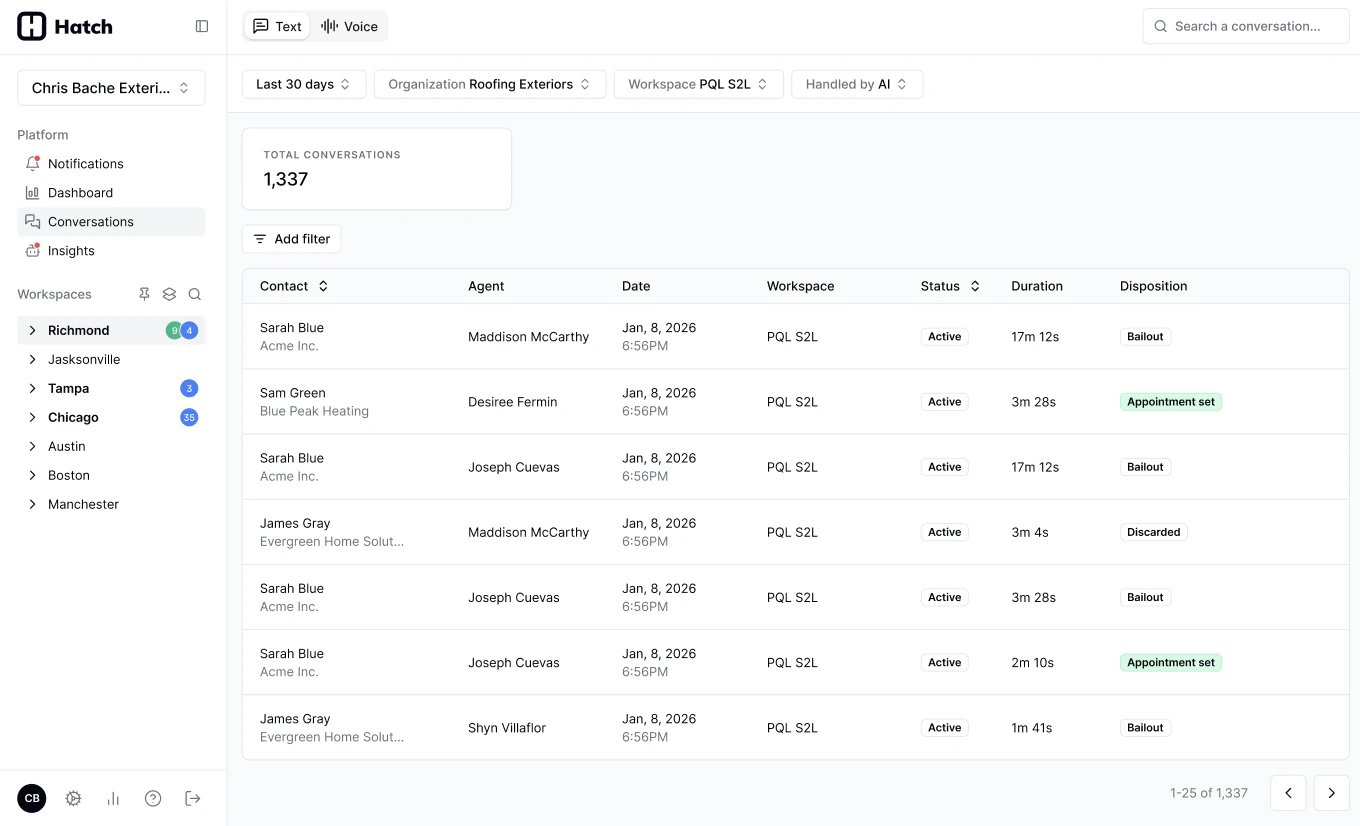
Every call your Voice AI agent takes, and every conversation your AI text agents handle, lands on the [Conversations page](/how-to-use-hatch/conversations/conversations) — a real-time log of all customer interactions across your organization. That page is where you review your agent's work, spot what it's getting wrong, and tell us about it.
 ## A first review pass
For a newly launched Voice AI agent, this is a good half hour:
Set the **Agent Type** filter to **Chatbot**, pick your agent, and set a date range covering since it went live. See [Using the filters](/how-to-use-hatch/conversations/conversations#using-the-filters).
Filter **Booking Status** to **Not booked** — bookable calls where no booking was made. These are your missed opportunities, and the fastest route to improving the agent.
Filter **Handling** to **Transferred** to see which calls the agent passed to a person, and decide whether it should have handled them itself. See [Live Transfers](/getting-started/hatch-assistant/voice-at-live-transfers).
Click into a conversation to play the recording, read the transcript, and check the **Context** tab. See [How to Review Conversations](/how-to-use-hatch/conversations/reviewing-conversations).
If a call didn't go the way it should, flag it from the side drawer with a note. Your Hatch team picks it up and works it through to resolution. See [Flagging a Call](/how-to-use-hatch/conversations/flagging-a-call).
Reviewing calls regularly in the first few weeks is the single biggest thing you can do to improve a new agent. The metrics tell you which calls to listen to; flagging tells us what to fix.
## Related Articles
* [Conversations Page](/how-to-use-hatch/conversations/conversations): the log itself, its columns, and its filters.
* [Glossary](/how-to-use-hatch/conversations/glossary): what each metric means and how it's calculated.
* [How to Review Conversations](/how-to-use-hatch/conversations/reviewing-conversations): opening a call, listening to it, and flagging an issue.
* [Hatch Assistant Setup Guide](/getting-started/hatch-assistant/hatch-assistant-setup-guide): building and tuning the agent itself.
## A first review pass
For a newly launched Voice AI agent, this is a good half hour:
Set the **Agent Type** filter to **Chatbot**, pick your agent, and set a date range covering since it went live. See [Using the filters](/how-to-use-hatch/conversations/conversations#using-the-filters).
Filter **Booking Status** to **Not booked** — bookable calls where no booking was made. These are your missed opportunities, and the fastest route to improving the agent.
Filter **Handling** to **Transferred** to see which calls the agent passed to a person, and decide whether it should have handled them itself. See [Live Transfers](/getting-started/hatch-assistant/voice-at-live-transfers).
Click into a conversation to play the recording, read the transcript, and check the **Context** tab. See [How to Review Conversations](/how-to-use-hatch/conversations/reviewing-conversations).
If a call didn't go the way it should, flag it from the side drawer with a note. Your Hatch team picks it up and works it through to resolution. See [Flagging a Call](/how-to-use-hatch/conversations/flagging-a-call).
Reviewing calls regularly in the first few weeks is the single biggest thing you can do to improve a new agent. The metrics tell you which calls to listen to; flagging tells us what to fix.
## Related Articles
* [Conversations Page](/how-to-use-hatch/conversations/conversations): the log itself, its columns, and its filters.
* [Glossary](/how-to-use-hatch/conversations/glossary): what each metric means and how it's calculated.
* [How to Review Conversations](/how-to-use-hatch/conversations/reviewing-conversations): opening a call, listening to it, and flagging an issue.
* [Hatch Assistant Setup Guide](/getting-started/hatch-assistant/hatch-assistant-setup-guide): building and tuning the agent itself.