> ## Documentation Index
> Fetch the complete documentation index at: https://docs.usehatchapp.com/llms.txt
> Use this file to discover all available pages before exploring further.
# Reviewing Agent Performance
> Where to see how your AI and human agents are performing — the Dashboard, the Voice AI Scorecard, and the Conversations page.
Hatch gives you three views onto how your agents are doing. Each answers a different question, so start at the top when you want a number and work down when you want to know why.
Who is handling what, and how much of it is landing.
How one Voice AI agent is performing, and why.
The individual calls and threads behind the numbers.
## The Dashboard
The [Dashboard](/how-to-use-hatch/dashboard/dashboard-overview) is your control center. It lists every agent in your organization across two tables — **AI Agents** and **Human Agents** — with conversation volume, success rate, and outcomes for each, updating in real time. It's also where you see which of your AI agents are currently turned on or off.
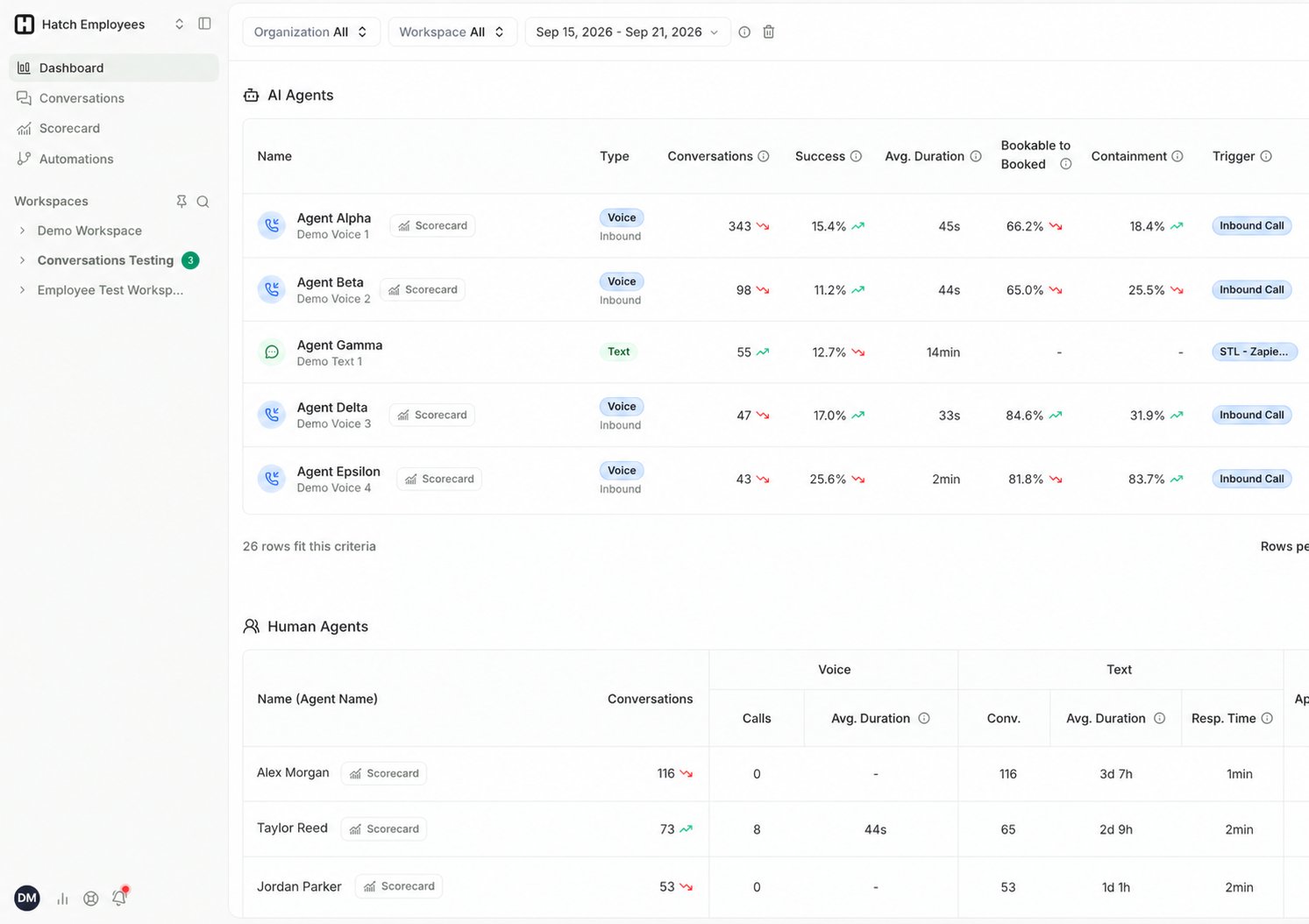 Filter by organization, workspace, date range, or a specific agent to narrow it down.
See [CSR and Agents Table](/how-to-use-hatch/dashboard/csr-and-agents-table) for what every column means.
## The Voice AI Scorecard
Click **Scorecard** on the Dashboard to open the [Voice AI Scorecard](/how-to-use-hatch/dashboard/voice-ai-scorecard) for a single Voice AI agent. It breaks down booking performance, why bookable calls weren't booked, where calls are being transferred, and what callers are ringing about — with drill-downs to the specific calls behind each figure.
## The Conversations page
The [Conversations page](/how-to-use-hatch/conversations/conversations) is Hatch's log of every conversation on the platform. Click any conversation to get a summary and more details.
Filter by organization, workspace, date range, or a specific agent to narrow it down.
See [CSR and Agents Table](/how-to-use-hatch/dashboard/csr-and-agents-table) for what every column means.
## The Voice AI Scorecard
Click **Scorecard** on the Dashboard to open the [Voice AI Scorecard](/how-to-use-hatch/dashboard/voice-ai-scorecard) for a single Voice AI agent. It breaks down booking performance, why bookable calls weren't booked, where calls are being transferred, and what callers are ringing about — with drill-downs to the specific calls behind each figure.
## The Conversations page
The [Conversations page](/how-to-use-hatch/conversations/conversations) is Hatch's log of every conversation on the platform. Click any conversation to get a summary and more details.
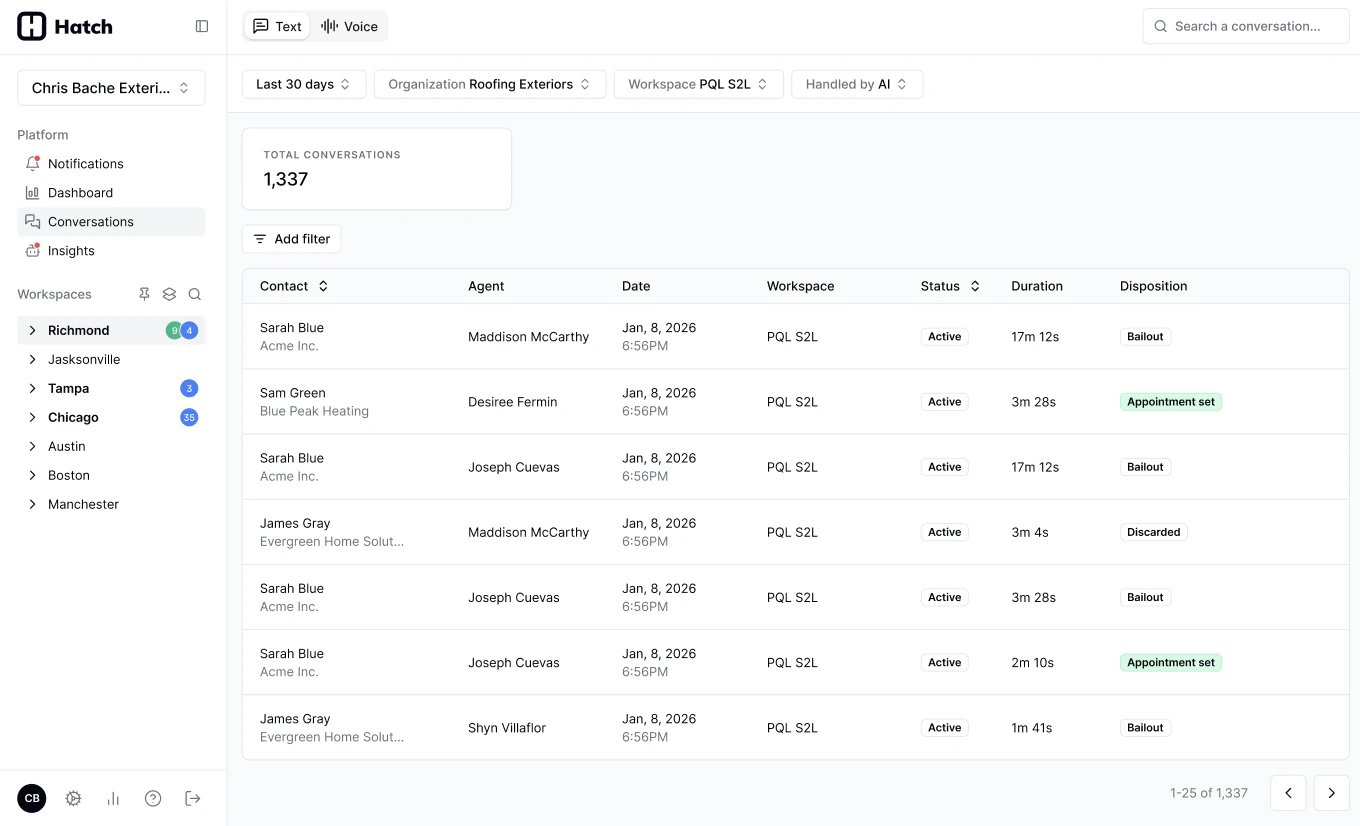 Voice calls come with additional insights — [Conversation Metrics](/how-to-use-hatch/conversations/glossary) such as **Booking Status** and **Handling** — so you can find the calls worth listening to without opening any of them. From there you can play the recording, read the transcript, and [flag anything that went wrong](/how-to-use-hatch/conversations/flagging-a-call).
## Related Articles
* [Dashboard Overview](/how-to-use-hatch/dashboard/dashboard-overview): the Dashboard in detail.
* [CSR and Agents Table](/how-to-use-hatch/dashboard/csr-and-agents-table): every column in the AI Agents and Human Agents tables.
* [Voice AI Scorecard](/how-to-use-hatch/dashboard/voice-ai-scorecard): per-agent Voice AI performance.
* [Review your new AI Agent](/getting-started/hatch-assistant/review-your-new-ai-agent): where to start with a newly launched agent.
* [Review Campaigns and SMS Performance](/getting-started/reporting/legacy-reporting): campaign, messaging, and attribution reporting.
* [Access data in bulk from the Export API](/getting-started/reporting/bulk-export-api): export reporting datasets into your own analytics stack.
Voice calls come with additional insights — [Conversation Metrics](/how-to-use-hatch/conversations/glossary) such as **Booking Status** and **Handling** — so you can find the calls worth listening to without opening any of them. From there you can play the recording, read the transcript, and [flag anything that went wrong](/how-to-use-hatch/conversations/flagging-a-call).
## Related Articles
* [Dashboard Overview](/how-to-use-hatch/dashboard/dashboard-overview): the Dashboard in detail.
* [CSR and Agents Table](/how-to-use-hatch/dashboard/csr-and-agents-table): every column in the AI Agents and Human Agents tables.
* [Voice AI Scorecard](/how-to-use-hatch/dashboard/voice-ai-scorecard): per-agent Voice AI performance.
* [Review your new AI Agent](/getting-started/hatch-assistant/review-your-new-ai-agent): where to start with a newly launched agent.
* [Review Campaigns and SMS Performance](/getting-started/reporting/legacy-reporting): campaign, messaging, and attribution reporting.
* [Access data in bulk from the Export API](/getting-started/reporting/bulk-export-api): export reporting datasets into your own analytics stack.