> ## Documentation Index
> Fetch the complete documentation index at: https://docs.usehatchapp.com/llms.txt
> Use this file to discover all available pages before exploring further.
# Add a Workspace
This article covers how to add a Workspace to your Hatch Account. If you would like to see an overview of Workspaces, see [What is a Workspace.](/how-to-use-hatch/account-settings/add-a-workspace)
**Note** : You must have owner or manager permission to access Account Settings.
### Add a Workspace to your Account
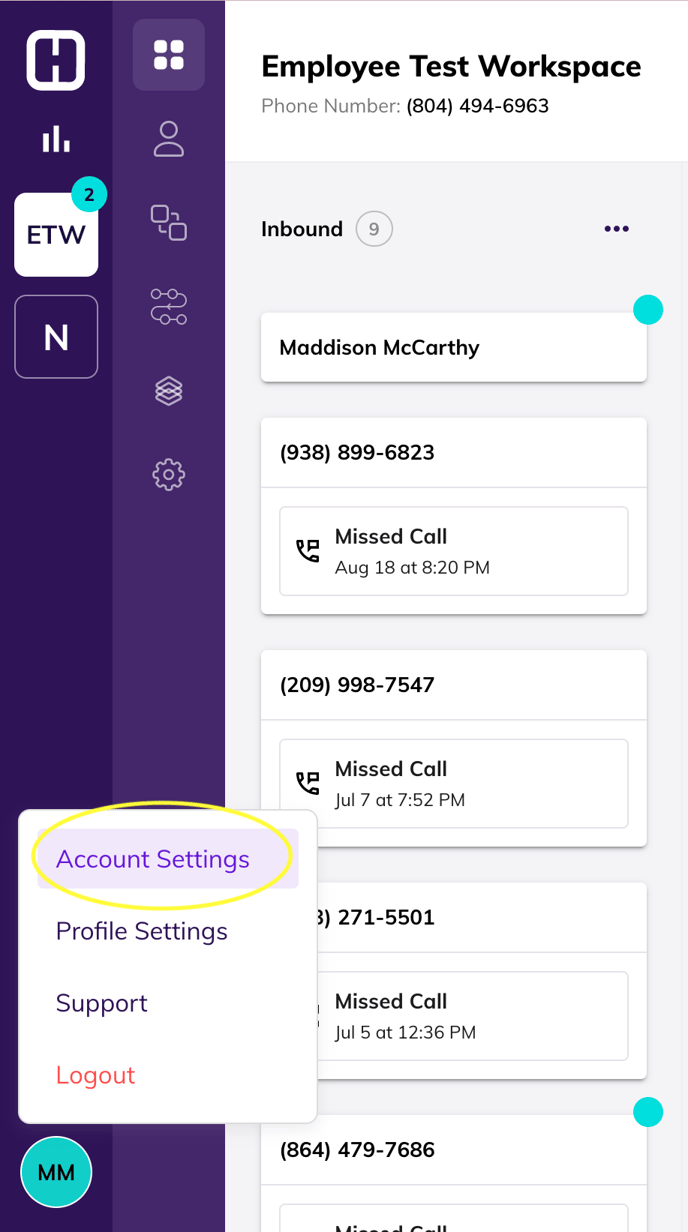
1. Navigate to your **Account Settings** by clicking on your profile in Hatch. Click **Account Settings**.

 When you first reach Account Settings, you can see a quick overview of your account.
*On the General Page, see your account name, owner email, and owner phone number, and other details.*
2. Click **Workspaces** in Account Settings to see all your current workspaces, or add a new workspace.
*On the Workspaces Page, you can see all your active Workspaces, and see which users are assigned to each.*
3. Click **Add Workspace.** Name your workspace, and **pick** **your area code** for your workspace’s number. We’ll assign a phone number based on what area code you choose.
*Clicking Add Workspace will present you with what information is required to set up the workspace.*
4. Pick your timezone, assign your team members, and then hit **Save**.
**Note** : Members can be added to workspaces at any time.
When you first reach Account Settings, you can see a quick overview of your account.
*On the General Page, see your account name, owner email, and owner phone number, and other details.*
2. Click **Workspaces** in Account Settings to see all your current workspaces, or add a new workspace.
*On the Workspaces Page, you can see all your active Workspaces, and see which users are assigned to each.*
3. Click **Add Workspace.** Name your workspace, and **pick** **your area code** for your workspace’s number. We’ll assign a phone number based on what area code you choose.
*Clicking Add Workspace will present you with what information is required to set up the workspace.*
4. Pick your timezone, assign your team members, and then hit **Save**.
**Note** : Members can be added to workspaces at any time.