> ## Documentation Index
> Fetch the complete documentation index at: https://docs.usehatchapp.com/llms.txt
> Use this file to discover all available pages before exploring further.
# Managing Users
> This article covers how to edit a User in Hatch.
**Note** : You must have **Manager Permission to access Account Settings**.
#### Editing User Information
The user is the only one who can change their name, email, phone number, and password. Managers can add or remove users from Workspaces and change User Permissions.
### Change User Permissions
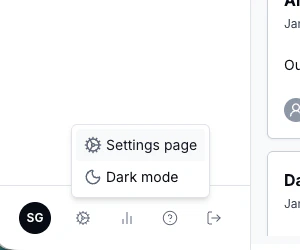 1. Navigate to your **Settings Page** by clicking on the gear icon next to your profile icon in Hatch.
2. Click **Settings Page**. When you first reach Settings Page, you can see a quick overview of your account.
1. Navigate to your **Settings Page** by clicking on the gear icon next to your profile icon in Hatch.
2. Click **Settings Page**. When you first reach Settings Page, you can see a quick overview of your account.
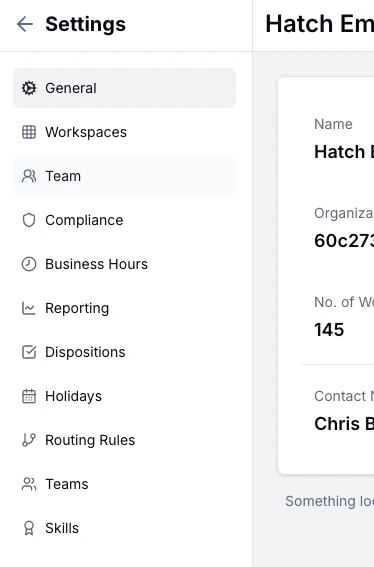 *On the General Page, see your account name, owner email, and owner phone number, and other details.*
3. Click **Team** on the left navigation of the **Settings Page** to see all your current team members.
4. Next to the Member Name, click the three dots. Click **Edit.**
5. Here you will see the details of the team member. Scroll down to **Role**. Here you can adjust the permissions of a user.
**Note** : The main difference is that **Managers** can access Account Settings. **Users** can only access Workspaces they were given access to.
### Add or Remove a User from Workspaces
1. Navigate to your **Settings Page** by clicking on the gear icon next to your profile icon in Hatch.
2. Click **Account Settings**.When you first reach Account Settings, you can see a quick overview of your account.
*On the General Page, see your account name, owner email, and owner phone number, and other details.*
3. Click **Team** in Account Settings to see all your current team members.
4. Next to the Member Name, click the three dots. Click **Edit.**
5. Here you will see the details of the team member. Scroll down to **Add/Remove Workspaces**. Here you can add or remove that member from a Workspace.
**Note** : If you are trying to remove a member's access to your Hatch Account, [deactivate the user](/how-to-use-hatch/account-settings/remove-user-from-hatch) instead.
*On the General Page, see your account name, owner email, and owner phone number, and other details.*
3. Click **Team** on the left navigation of the **Settings Page** to see all your current team members.
4. Next to the Member Name, click the three dots. Click **Edit.**
5. Here you will see the details of the team member. Scroll down to **Role**. Here you can adjust the permissions of a user.
**Note** : The main difference is that **Managers** can access Account Settings. **Users** can only access Workspaces they were given access to.
### Add or Remove a User from Workspaces
1. Navigate to your **Settings Page** by clicking on the gear icon next to your profile icon in Hatch.
2. Click **Account Settings**.When you first reach Account Settings, you can see a quick overview of your account.
*On the General Page, see your account name, owner email, and owner phone number, and other details.*
3. Click **Team** in Account Settings to see all your current team members.
4. Next to the Member Name, click the three dots. Click **Edit.**
5. Here you will see the details of the team member. Scroll down to **Add/Remove Workspaces**. Here you can add or remove that member from a Workspace.
**Note** : If you are trying to remove a member's access to your Hatch Account, [deactivate the user](/how-to-use-hatch/account-settings/remove-user-from-hatch) instead.