> ## Documentation Index
> Fetch the complete documentation index at: https://docs.usehatchapp.com/llms.txt
> Use this file to discover all available pages before exploring further.
# Audience Builder: Field Picker
Once you've selected the data source for the contacts in your Audience, the next way to narrow down your criteria is to look for information in a **field**. A **field** is an attribute that contains data about a specific contact.
The fields available here are determined by your Manage Data settings. If you're not seeing a field you expect, it may need to be enabled — see [Audience Builder: Manage Data](/how-to-use-hatch/audience-builder-v2/audience-builder-v2-manage-data) for details.
For example, if I want to know the outcome of a contact's appointment, my CRM likely has a **field** called something like *Appointment Result* , *Disposition* , or *Status*.
#### Parent Objects
When we receive data from a CRM, sometimes that data includes an **object** that contains fields or even **sub-objects** which contain fields. The Audience Builder allows you to navigate through these to find the data you are looking for.
A good way to think about it is how on your computer you have folders, and sometimes those folders contain other folders that you need to click into to get to a specific file.
For the example below, I've used the improveit360 CRM. When you select improveit360 as a source and open the Field Picker, you can see that all fields are contained within 1 of 3 parent objects: Appointment, Project, and Prospect.
If you know that the field you are looking for is something pertaining to the appointment/demo that took place, you could find that information contained in the Appointment object, for example.
#### 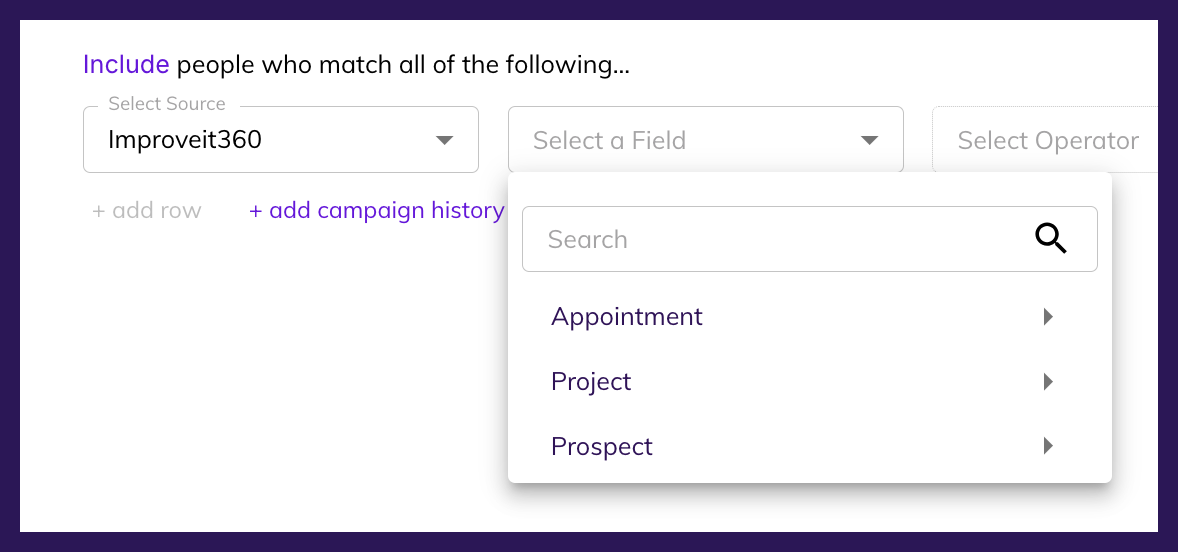 If you see an arrow on the right of an item in the menu, that means that selection contains more within it.
See below how in the Appointment object, there is a sub-object called Attributes and there is also a list of fields.
If you see an arrow on the right of an item in the menu, that means that selection contains more within it.
See below how in the Appointment object, there is a sub-object called Attributes and there is also a list of fields.
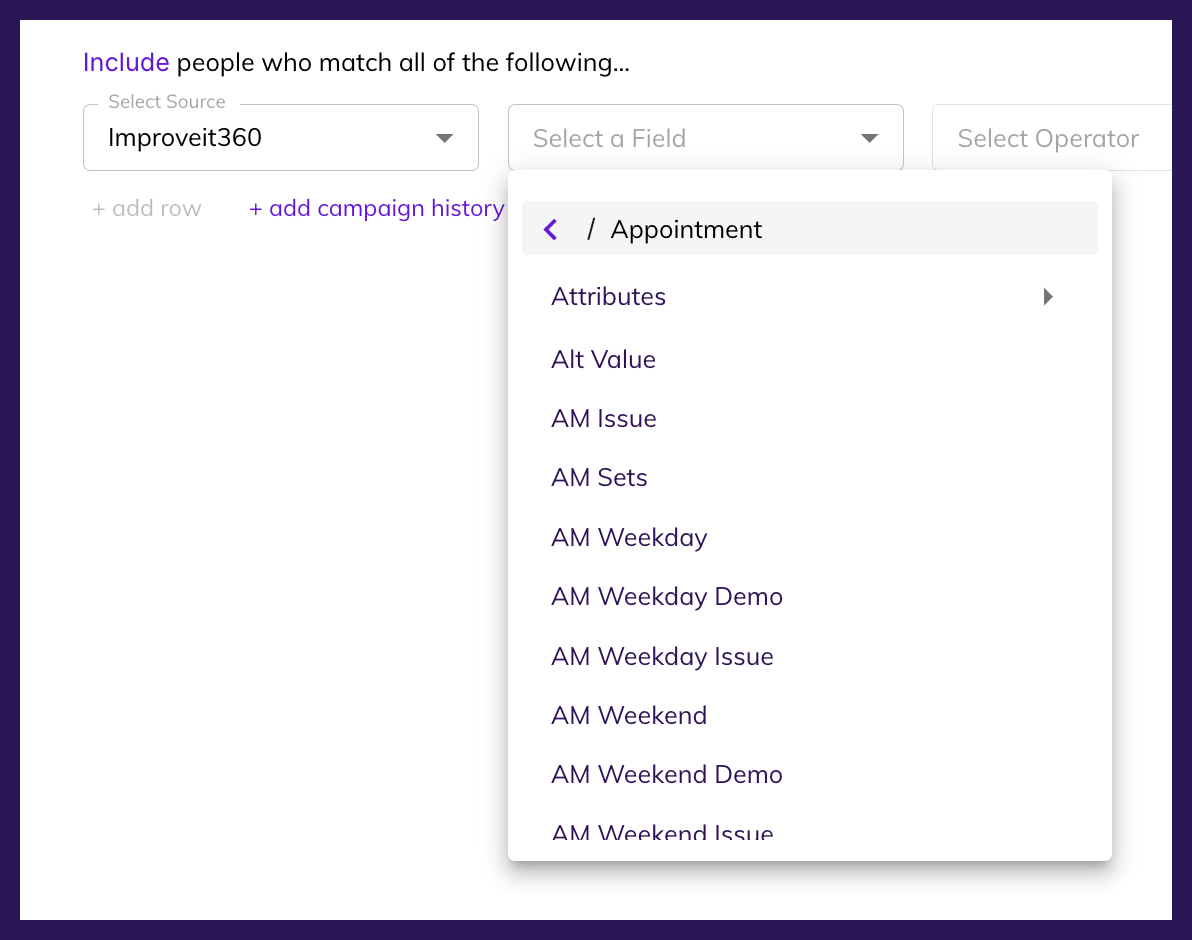 If I click into the Attributes sub-object, you can see a list of fields contained in the Attributes sub-object, which is contained in the Appointment parent object.
 The Audience Builder will show you the path you've take at the top of the Field Picker (shown above).