> ## Documentation Index
> Fetch the complete documentation index at: https://docs.usehatchapp.com/llms.txt
> Use this file to discover all available pages before exploring further.
# Audience Builder: Operators
Operators are a way to relate the chosen field to the value you’re going to use.
There are 4 types of fields, and each type has its own set of operators. The 4 types and their operators are:
### **Text** (most fields will be this type)
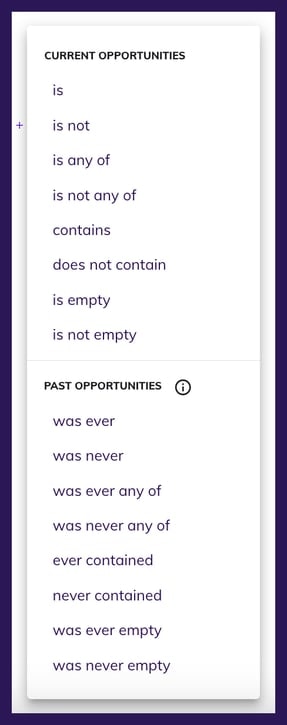 **Current Operators**
**For the difference between Current Operators and Past Operators, please see the section below.**
* **is** and **is not** look for a single value that matches the exact input.
* **is any of** and **is not any of** allow you to input a list of values to find an exact match for the input.
* **contains** and **does not contain** look for partial value matches.
* **is empty** and **is not empty** simply look for contacts that either have nothing or anything in that field, respectively.
* **Examples (using Field | Operator | Value):**
* Appointment Result | is | Demo No Sale
This would only return contacts that have exactly "Demo No Sale" in the field "Appointment Result"
* Project Type | contains | do
If you had "doors" and "windows" as project types, contacts with either of those would return because both values contain "do" within them
* Sales Rep Assigned | is empty
This would return any contacts that have the field "Sales Rep Assigned" blank
### **Date**
**Current Operators**
**For the difference between Current Operators and Past Operators, please see the section below.**
* **is** and **is not** look for a single value that matches the exact input.
* **is any of** and **is not any of** allow you to input a list of values to find an exact match for the input.
* **contains** and **does not contain** look for partial value matches.
* **is empty** and **is not empty** simply look for contacts that either have nothing or anything in that field, respectively.
* **Examples (using Field | Operator | Value):**
* Appointment Result | is | Demo No Sale
This would only return contacts that have exactly "Demo No Sale" in the field "Appointment Result"
* Project Type | contains | do
If you had "doors" and "windows" as project types, contacts with either of those would return because both values contain "do" within them
* Sales Rep Assigned | is empty
This would return any contacts that have the field "Sales Rep Assigned" blank
### **Date**
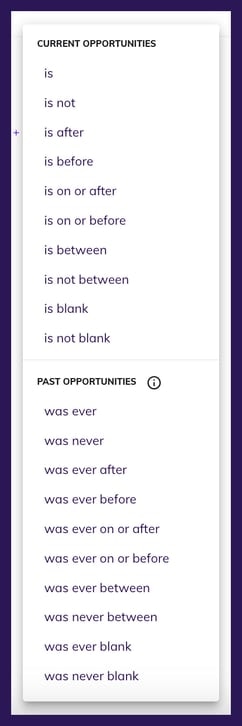 All of the options here are timeline related, and you will receive an additional **Date Operator** to further define your reference range (shown below):
* **is** and **is not** allow you to query based on one specific time. The options are *today* , *custom date* , *range* (such as *2 days ago*)
* **is after** allows you to find contacts with a date in the selected field that comes after *today* , *custom date* , or *range* (such as *after 2 days from now*)
* **is before** allows you to find contacts with a date in the selected field that comes before *today* , *custom date* , or *range* (such as *before 2 days ago*)
* **is between** allows you to find contacts with a date in the selected field that is between *2 specific dates* , *2 points in a time range* (such as *between 2-5 days ago*), or between *now* *and some point in the past of future* (such as *between now and 5 days ago*)
* **is not between** allows you to find contacts with a date in the selected field that is ***not*** between *2 specific dates* , *2 points in a time range* (such as *is not* *between 2-5 days ago*), or *is not* between *now* *and some point in the past of future* (such as *is not* *between now and 5 days ago*)
* **is blank \_\_** allows you to find contacts that do not have *any* date in the selected field
* **is not blank** allows you to find contacts that have *any* date in the selected field, regardless if it is in the past, present, or future
### **Number**
All of the options here are timeline related, and you will receive an additional **Date Operator** to further define your reference range (shown below):
* **is** and **is not** allow you to query based on one specific time. The options are *today* , *custom date* , *range* (such as *2 days ago*)
* **is after** allows you to find contacts with a date in the selected field that comes after *today* , *custom date* , or *range* (such as *after 2 days from now*)
* **is before** allows you to find contacts with a date in the selected field that comes before *today* , *custom date* , or *range* (such as *before 2 days ago*)
* **is between** allows you to find contacts with a date in the selected field that is between *2 specific dates* , *2 points in a time range* (such as *between 2-5 days ago*), or between *now* *and some point in the past of future* (such as *between now and 5 days ago*)
* **is not between** allows you to find contacts with a date in the selected field that is ***not*** between *2 specific dates* , *2 points in a time range* (such as *is not* *between 2-5 days ago*), or *is not* between *now* *and some point in the past of future* (such as *is not* *between now and 5 days ago*)
* **is blank \_\_** allows you to find contacts that do not have *any* date in the selected field
* **is not blank** allows you to find contacts that have *any* date in the selected field, regardless if it is in the past, present, or future
### **Number**
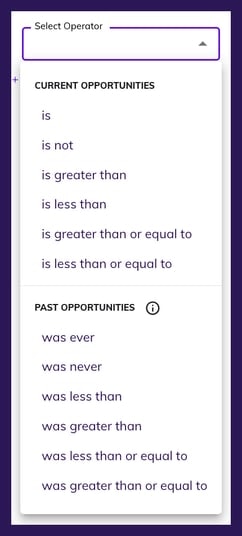 These operators are typical amount/count comparisons
* Examples (using Field | Operator | Value):
* Quote Amount | is greater than | 10000
* Number of Windows | is less than or equal to | 6
* Contract Total | is | 5000
### **True/False**
These operators are typical amount/count comparisons
* Examples (using Field | Operator | Value):
* Quote Amount | is greater than | 10000
* Number of Windows | is less than or equal to | 6
* Contract Total | is | 5000
### **True/False**
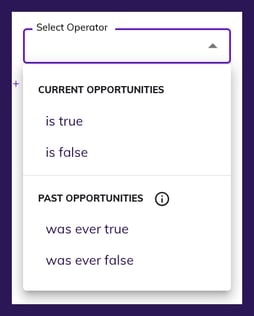 * Examples (using Field | Operator):
* Appointment Set | is true
* Contract Signed | is false
### Current Opportunities vs. Past Opportunities
An **Opportunity** in Hatch is an individual set of data that belongs to a contact. For example, if a contact comes into Hatch from a Lead Source, and later that same contact comes into hatch from your CRM; those sets of data both belong to the same contact, but they are separate sets of data at a given time.
Another example is if a contact had a project in 2021 and has a different project in 2024. In your CRM, it's likely that each record has its own set of data (and usually something like a unique Project ID or Job ID) because those are distinct sets of data that belong to the same contact.
Hatch considers the **Current Opportunity** the set of data that was either created or updated *most recently*.
For this reason, most of the Audiences you create will rely on operators in the **Current Opportunity** section.
There are times, however, when you may want to reference older records. This is where the **Past Opportunities** operators come in.
Let's say you want to target a list of contacts that currently have an appointment result of *Demo No Sale* , but you want to filter out contacts that *ever* had a Sold job in the past.
Below is an example of the kind of Audience you might need:
* Examples (using Field | Operator):
* Appointment Set | is true
* Contract Signed | is false
### Current Opportunities vs. Past Opportunities
An **Opportunity** in Hatch is an individual set of data that belongs to a contact. For example, if a contact comes into Hatch from a Lead Source, and later that same contact comes into hatch from your CRM; those sets of data both belong to the same contact, but they are separate sets of data at a given time.
Another example is if a contact had a project in 2021 and has a different project in 2024. In your CRM, it's likely that each record has its own set of data (and usually something like a unique Project ID or Job ID) because those are distinct sets of data that belong to the same contact.
Hatch considers the **Current Opportunity** the set of data that was either created or updated *most recently*.
For this reason, most of the Audiences you create will rely on operators in the **Current Opportunity** section.
There are times, however, when you may want to reference older records. This is where the **Past Opportunities** operators come in.
Let's say you want to target a list of contacts that currently have an appointment result of *Demo No Sale* , but you want to filter out contacts that *ever* had a Sold job in the past.
Below is an example of the kind of Audience you might need:
 In this instance, the contacts that will show will be any contact where **both** of the following are true:
* The most recent set of data has *Demoed, Not Sold* as the Appointment Result
* No other opportunities in the past have *Sold* as the Appointment Result
The only difference between the **Current Opportunity** and **Past Opportunity** operators is whether the logic should apply just to the most recent set of data, or if it should apply to all sets of data regardless of how old they are.
**Note on Past Opportunity logic**
* When using past operators, a contact will only show if all of the criteria is true on any *single* opportunity for that contact
In the example below, my Audience looks for a contact where both of the following are true *on the same Hatch opportunity* :
* Appointment | Result 1 **was ever** *Demoed, Not Sold*
* Appointment | Components **was ever** *Windows*
In this instance, the contacts that will show will be any contact where **both** of the following are true:
* The most recent set of data has *Demoed, Not Sold* as the Appointment Result
* No other opportunities in the past have *Sold* as the Appointment Result
The only difference between the **Current Opportunity** and **Past Opportunity** operators is whether the logic should apply just to the most recent set of data, or if it should apply to all sets of data regardless of how old they are.
**Note on Past Opportunity logic**
* When using past operators, a contact will only show if all of the criteria is true on any *single* opportunity for that contact
In the example below, my Audience looks for a contact where both of the following are true *on the same Hatch opportunity* :
* Appointment | Result 1 **was ever** *Demoed, Not Sold*
* Appointment | Components **was ever** *Windows*
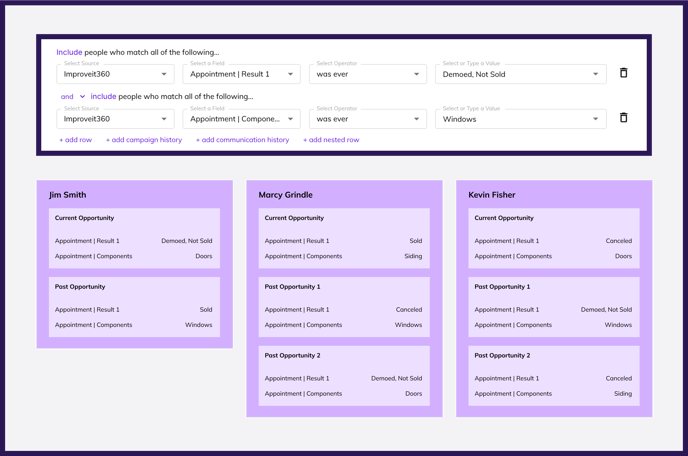 The only contact that would show from this search is Kevin Fisher, based on Kevin's *Past Opportunity 1*.
Even though at some point all contacts fit the different criteria for different opportunities, only Kevin has an opportunity on which both are true in the same set of data.
For a comprehensive list of all operator definitions and examples, please see the [Audience Builder: Glossary and FAQ](/how-to-use-hatch/audience-builder-v2/audience-builder-v2-glossary-and-faq)
The only contact that would show from this search is Kevin Fisher, based on Kevin's *Past Opportunity 1*.
Even though at some point all contacts fit the different criteria for different opportunities, only Kevin has an opportunity on which both are true in the same set of data.
For a comprehensive list of all operator definitions and examples, please see the [Audience Builder: Glossary and FAQ](/how-to-use-hatch/audience-builder-v2/audience-builder-v2-glossary-and-faq)