> ## Documentation Index
> Fetch the complete documentation index at: https://docs.usehatchapp.com/llms.txt
> Use this file to discover all available pages before exploring further.
# Workspace-Level Business Hours
> Set the hours your workspace is open and configure an automatic after-hours SMS reply for contacts who reach out outside those hours.
It is recommended that a manager-level user set up [Organization-Level Business Hours](/how-to-use-hatch/business-hours-features/organization-level-business-hours) before configuring workspace-level business hours. Workspaces can inherit from the organization, which keeps things consistent and reduces repeated setup.
 ### Accessing business hours settings
Go to **Workspace Configs** and click the **General** tab. The **Business Hours** section is below the General section on the same page.
### Setting your hours
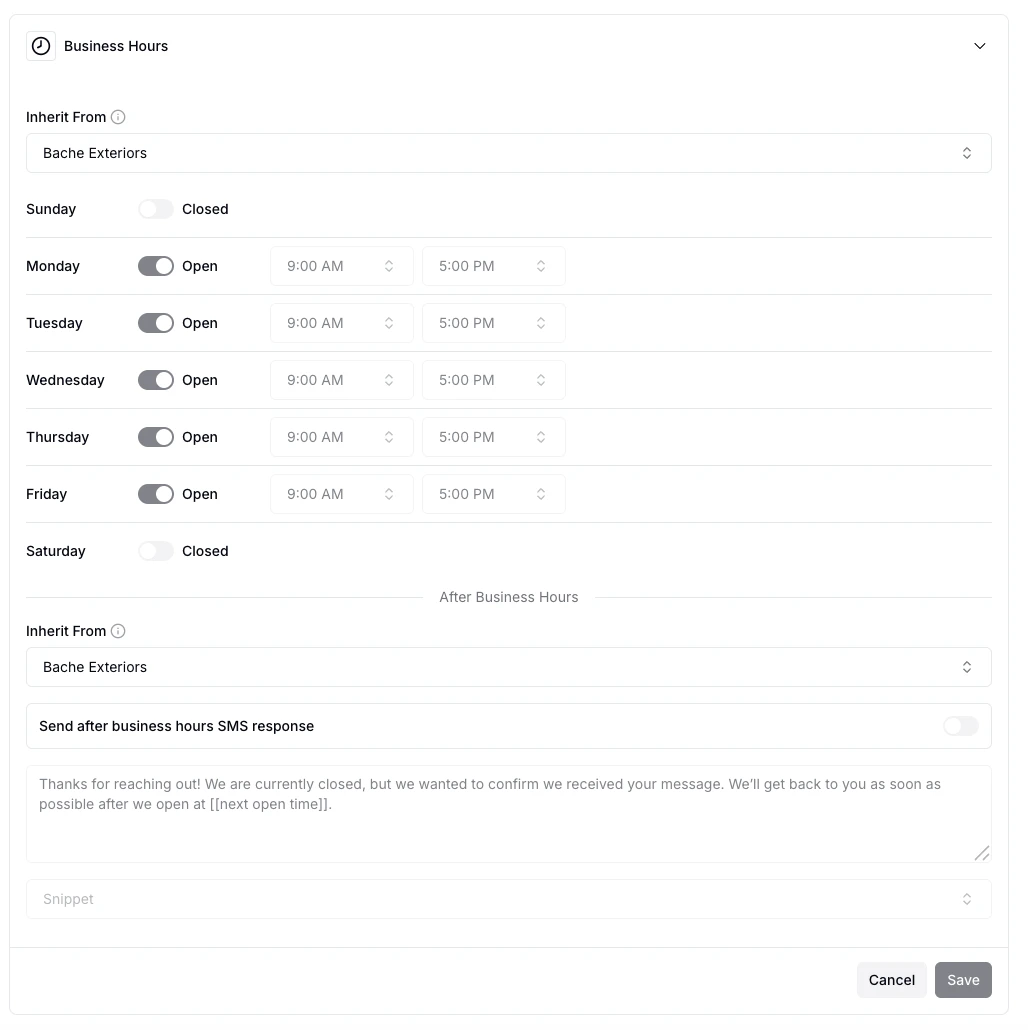
At the top of the Business Hours section, a dropdown lets you choose where this workspace's hours come from:
* **Your organization's name** — the workspace inherits hours from your organization's settings. Any changes to org-level hours will automatically apply here.
* **Another workspace** — inherit hours from a specific workspace that uses custom hours. Only workspaces with custom hours set appear in this list.
* **Custom Hours** — set hours specific to this workspace, day by day.
When **Custom Hours** is selected, you'll see a row for each day of the week. Toggle a day on to mark it as open and set the open and close times. Toggle it off to mark it as closed.
### After-hours auto-reply
Below the day rows, the **After Hours** section controls what happens when a contact messages outside your business hours.
A second **Inherit From** dropdown lets you choose the source for after-hours behavior — your organization, another workspace, or a **Custom Response** specific to this workspace.
When **Custom Response** is selected:
* Toggle **Send SMS** on to automatically reply to contacts who text outside business hours.
* Write the message you'd like to send in the text field. You can use snippets (like `[[Contact First Name]]`) to personalize the reply.
### Saving changes
Click **Save** to apply your changes. Click **Cancel** to discard them. You must have Manager permissions to edit business hours.
### Accessing business hours settings
Go to **Workspace Configs** and click the **General** tab. The **Business Hours** section is below the General section on the same page.
### Setting your hours
At the top of the Business Hours section, a dropdown lets you choose where this workspace's hours come from:
* **Your organization's name** — the workspace inherits hours from your organization's settings. Any changes to org-level hours will automatically apply here.
* **Another workspace** — inherit hours from a specific workspace that uses custom hours. Only workspaces with custom hours set appear in this list.
* **Custom Hours** — set hours specific to this workspace, day by day.
When **Custom Hours** is selected, you'll see a row for each day of the week. Toggle a day on to mark it as open and set the open and close times. Toggle it off to mark it as closed.
### After-hours auto-reply
Below the day rows, the **After Hours** section controls what happens when a contact messages outside your business hours.
A second **Inherit From** dropdown lets you choose the source for after-hours behavior — your organization, another workspace, or a **Custom Response** specific to this workspace.
When **Custom Response** is selected:
* Toggle **Send SMS** on to automatically reply to contacts who text outside business hours.
* Write the message you'd like to send in the text field. You can use snippets (like `[[Contact First Name]]`) to personalize the reply.
### Saving changes
Click **Save** to apply your changes. Click **Cancel** to discard them. You must have Manager permissions to edit business hours.