> ## Documentation Index
> Fetch the complete documentation index at: https://docs.usehatchapp.com/llms.txt
> Use this file to discover all available pages before exploring further.
# Campaign Basics
### What is a campaign?
Campaigns tell Hatch when to send messages, what those messages should say, and in which channels.
#### **Top Tips for Campaigns**
* Campaigns allow you to automate outbound messages via text, email, phone calls, and voicemail drops.
* Campaigns are created for specific workspaces and are not shared across different workspaces.
* Campaigns can be created from scratch or from a results-driven template.
* A campaign tells Hatch **what** to send, an audience tells Hatch **who** to send to, putting them together in a [workflow](/how-to-use-hatch/workflows/workflows-overview) gets outreach going!
### Finding Campaigns
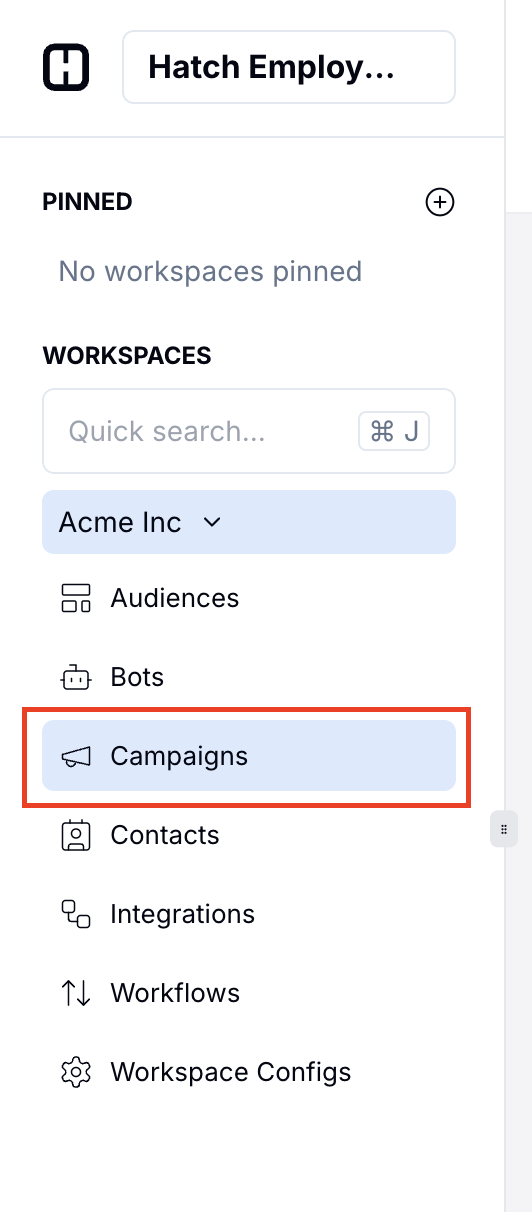
On the left side navigation, click your workspace and hit **Campaigns** in the drop-down. On the Campaigns page, you can edit, duplicate or delete any existing campaigns, or create a new one by clicking the 'Create Campaign' button on the top right corner.
 ### How it Works
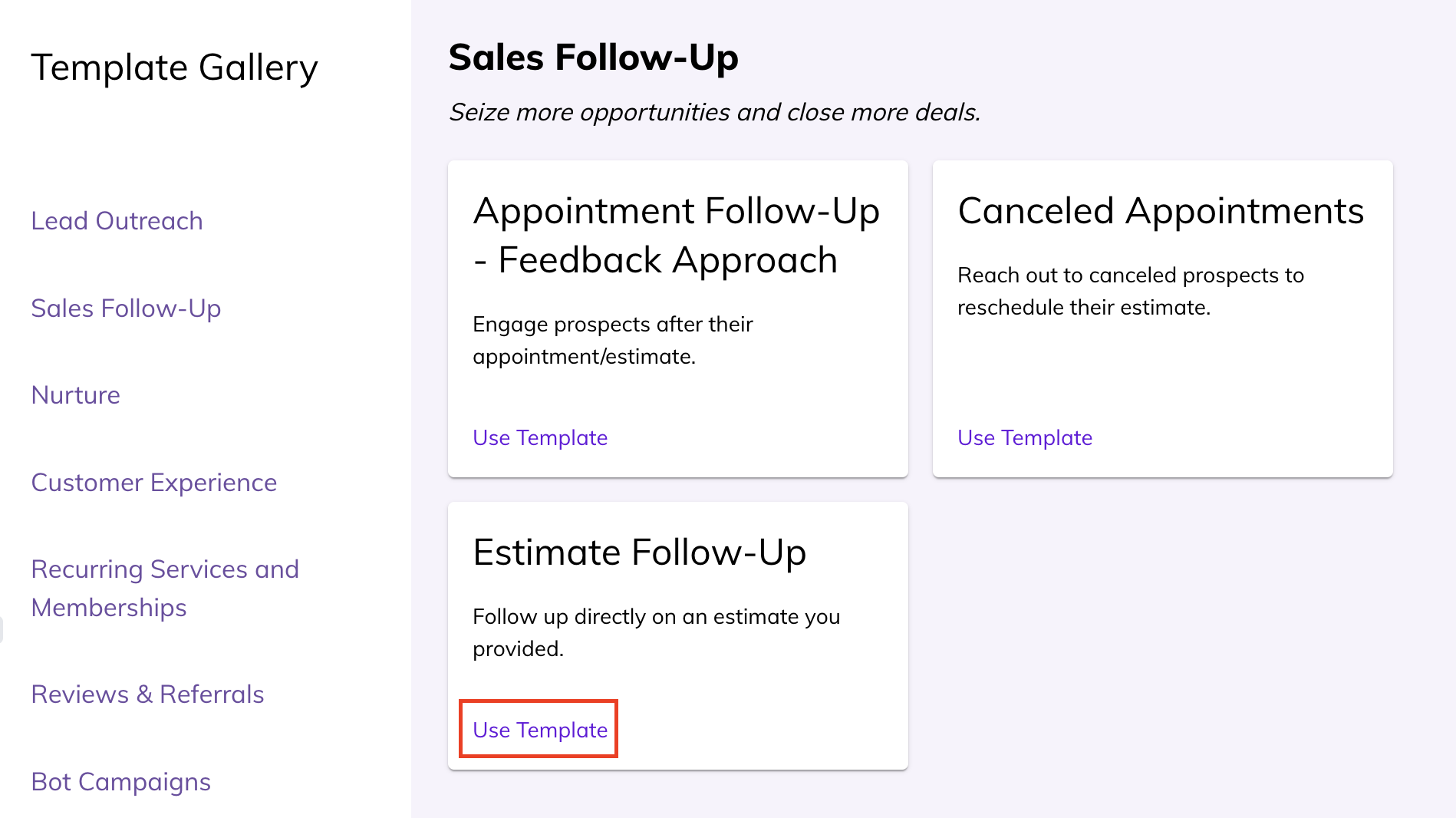
1. A campaign can be created from scratch, or by using an existing template aligned with Hatch best practices. In the campaign template gallery, you can click "Estimate Follow-up" to create a campaign to follow up on open estimates.
### How it Works
1. A campaign can be created from scratch, or by using an existing template aligned with Hatch best practices. In the campaign template gallery, you can click "Estimate Follow-up" to create a campaign to follow up on open estimates.
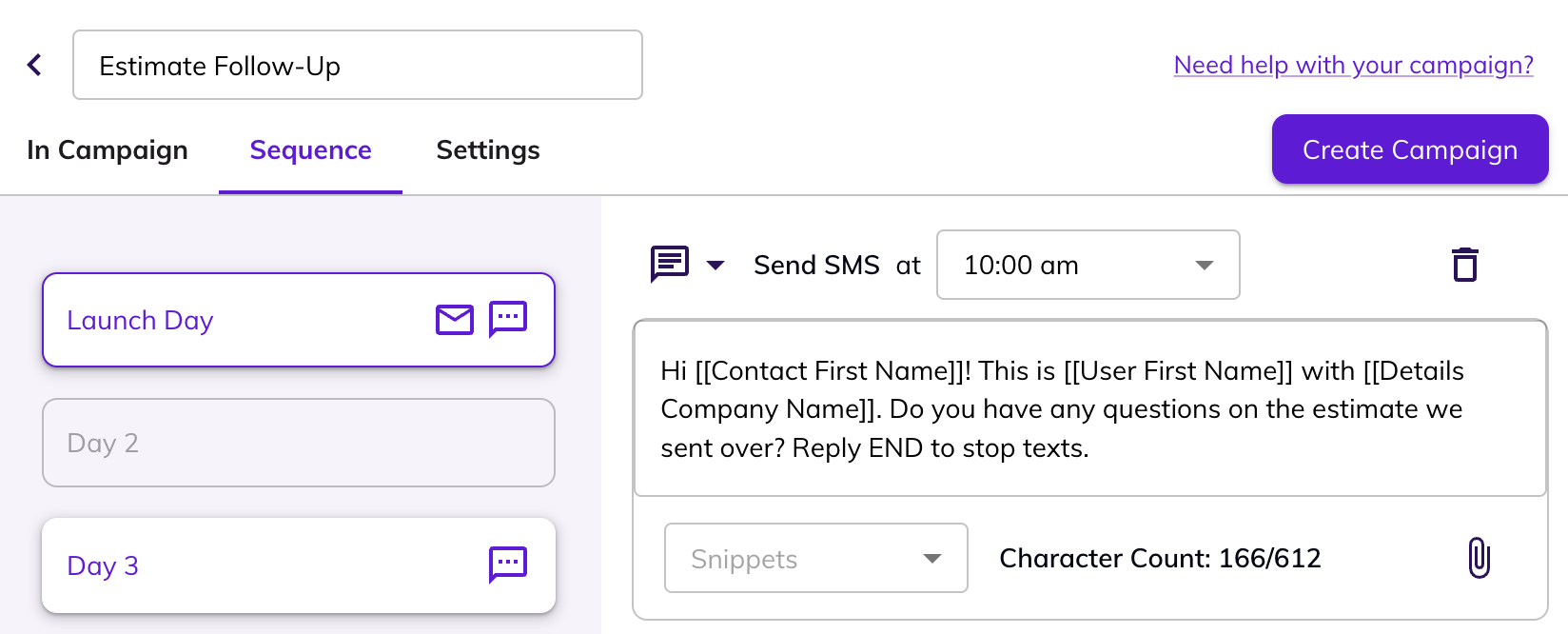
 2. After selecting a template, you can update the messaging to suit your needs. [Learn more about creating a campaign here](/how-to-use-hatch/campaigns/create-a-campaign).
 3. Contacts get launched into your campaign through a [workflow](/how-to-use-hatch/workflows/workflows-overview), or can be launched manually. For our Estimate Follow-Up campaign, we can set up an audience looking for all contacts with open estimates in ServiceTitan (or another CRM), so that each contact with an open estimate receives the messaging.
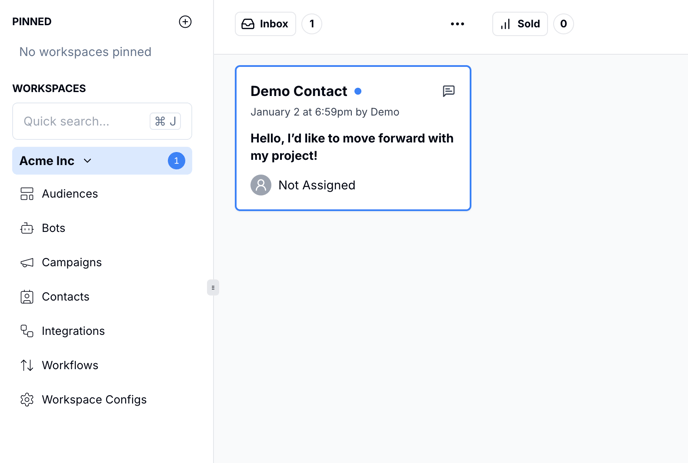
4. When contacts respond to your campaign, they will pop up in the Inbox column on your salesboard. Once a contact responds, they won't receive the subsequent messages in the campaign—you (or a bot!) take it from there.
3. Contacts get launched into your campaign through a [workflow](/how-to-use-hatch/workflows/workflows-overview), or can be launched manually. For our Estimate Follow-Up campaign, we can set up an audience looking for all contacts with open estimates in ServiceTitan (or another CRM), so that each contact with an open estimate receives the messaging.
4. When contacts respond to your campaign, they will pop up in the Inbox column on your salesboard. Once a contact responds, they won't receive the subsequent messages in the campaign—you (or a bot!) take it from there.
 ### Resources
Hatch Customer support is always available if you want help creating campaigns, or want to hear what we've learned from successful campaigns in the past.
Here are some things to know:
**[Create a Campaign](/how-to-use-hatch/campaigns/create-a-campaign):** Check out how to create a campaign from a template
[**Edit or Update a Campaign**](/how-to-use-hatch/campaigns/update-a-campaign): Edit a previously created campaign
[**Launch Contacts into Campaigns**](/how-to-use-hatch/campaigns/launching-contacts-into-campaigns): Launch contacts into campaigns from the contacts page
[**Remove Contacts from Campaigns**](/how-to-use-hatch/campaigns/removing-contacts-from-campaigns): Remove some or all contacts from campaigns
### Resources
Hatch Customer support is always available if you want help creating campaigns, or want to hear what we've learned from successful campaigns in the past.
Here are some things to know:
**[Create a Campaign](/how-to-use-hatch/campaigns/create-a-campaign):** Check out how to create a campaign from a template
[**Edit or Update a Campaign**](/how-to-use-hatch/campaigns/update-a-campaign): Edit a previously created campaign
[**Launch Contacts into Campaigns**](/how-to-use-hatch/campaigns/launching-contacts-into-campaigns): Launch contacts into campaigns from the contacts page
[**Remove Contacts from Campaigns**](/how-to-use-hatch/campaigns/removing-contacts-from-campaigns): Remove some or all contacts from campaigns