> ## Documentation Index
> Fetch the complete documentation index at: https://docs.usehatchapp.com/llms.txt
> Use this file to discover all available pages before exploring further.
# Contacts Page
> Documentation for Contacts Page
### Navigating to the Contacts Page
When you log into Hatch, by default you will be on a Salesboard to which you are assigned. On the left-hand side of the screen (to the right of the workspace tiles), you will see a navigation bar that allows you to go to other pages.
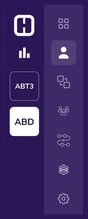 In order to get to the Contacts page, click the person icon
  . It is the second-highest icon in the navigation bar.
### The Full Contacts Page
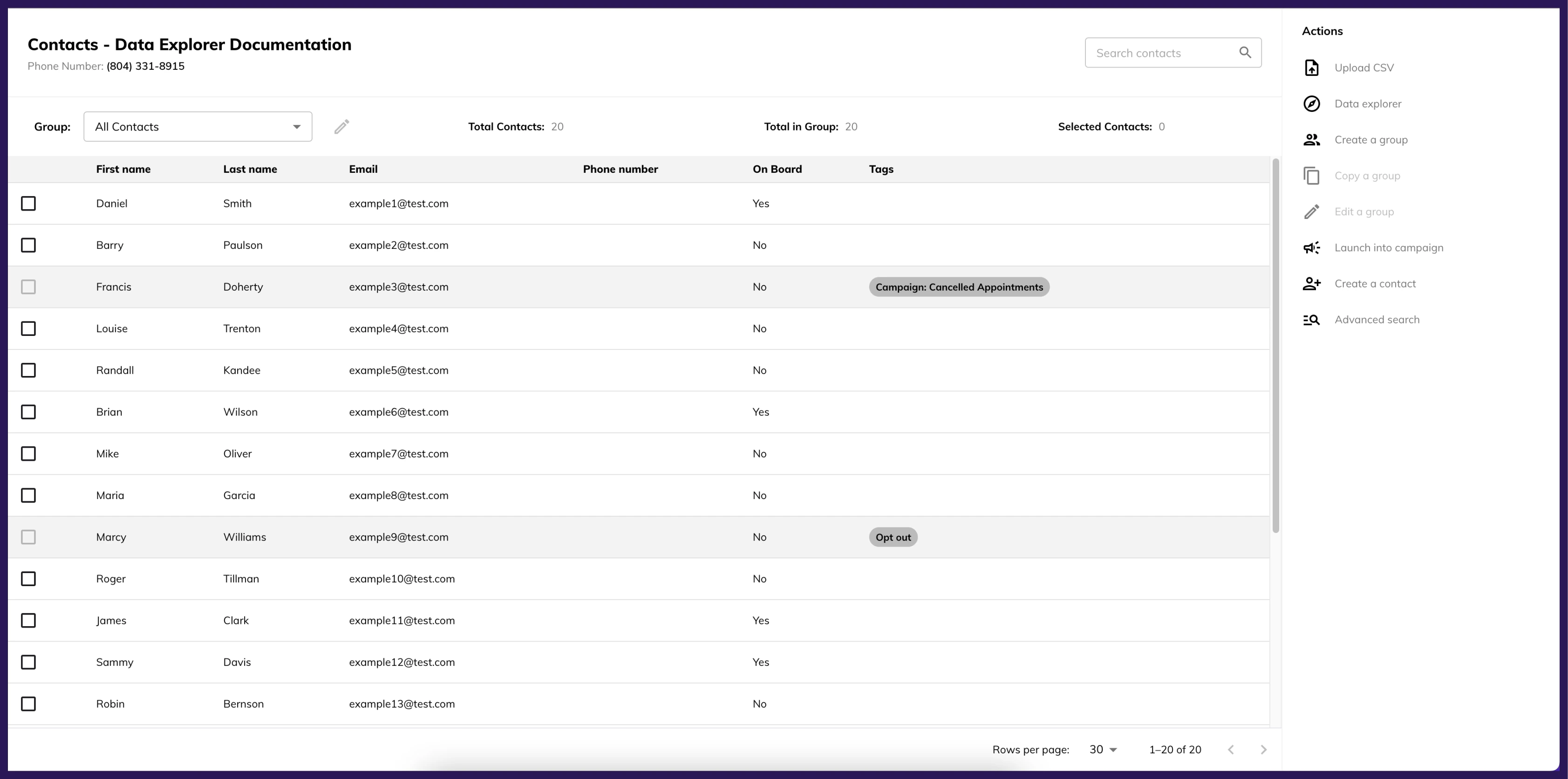
Below is the entire contacts page and in the sections below we will cover a series of sections in depth.
. It is the second-highest icon in the navigation bar.
### The Full Contacts Page
Below is the entire contacts page and in the sections below we will cover a series of sections in depth.
 ### Header Section
 * **A: Search**
* Use the Search Type drop-down to select what field to search by (Full Name, First Name, Last Name, Phone, or Email), then enter a search term and either hit Enter or click the magnifying glass to return matching contacts.
* **B: Audiences Drop-down**
* This is a list of all audiences that exist on the workspace.
* The default is "All Contacts".
* If an audience is selected, the contacts list will filter to contacts that currently fit that audience.
* An audience must be selected to enable the *Edit an Audience* or *Duplicate an Audience* features.
* **C:** **Edit an Audience shortcut**
* Clicking this will open a query editor that is populated with the selected audience's criteria.
* **D: Total Contacts**
* This is a count of all the contacts that exist in the current workspace.
* **E: Total in Audience**
* This is a count of all the contacts that fit the criteria of the selected audience.
* If no audience is selected, this will be 0.
* **F: Selected Contacts**
* This is a count of all the contacts that are currently selected (the checkbox by their name is ticked).
### Actions Section
This menu is on the right-side of the Contacts page. This area of the screen is also where the query editor lives when opened.
* **A: Upload CSV**
*
* **A: Search**
* Use the Search Type drop-down to select what field to search by (Full Name, First Name, Last Name, Phone, or Email), then enter a search term and either hit Enter or click the magnifying glass to return matching contacts.
* **B: Audiences Drop-down**
* This is a list of all audiences that exist on the workspace.
* The default is "All Contacts".
* If an audience is selected, the contacts list will filter to contacts that currently fit that audience.
* An audience must be selected to enable the *Edit an Audience* or *Duplicate an Audience* features.
* **C:** **Edit an Audience shortcut**
* Clicking this will open a query editor that is populated with the selected audience's criteria.
* **D: Total Contacts**
* This is a count of all the contacts that exist in the current workspace.
* **E: Total in Audience**
* This is a count of all the contacts that fit the criteria of the selected audience.
* If no audience is selected, this will be 0.
* **F: Selected Contacts**
* This is a count of all the contacts that are currently selected (the checkbox by their name is ticked).
### Actions Section
This menu is on the right-side of the Contacts page. This area of the screen is also where the query editor lives when opened.
* **A: Upload CSV**
*  Clicking this button will lead to an option to download a CSV template or upload an existing CSV to add contacts to Hatch manually
* **B: Create Audience**
* Clicking this will open the Audience Builder where you can create and save a new audience.
* **C: Duplicate Audience**
* Once an audience is selected, this option will be available and you will be able to duplicate the selected audience.
* **D: Edit Audience**
* Once an audience is selected, this option will be available and you will be able to edit the query of the selected audience.
* **E: Launch into Campaign**
* When this is clicked, you will be able to select a campaign from that workspace and a preview of the messaging will show up.
* When contacts are selected, you will then be able to manually kick off the selected campaign for the selected contacts.
* **F: Create a Contact**
* Clicking this opens a form to input
* First Name
* Last Name
* Phone Number
* Email Address
* Clicking save will create a new contact or will add an opportunity to an existing contact if that phone number or email is already associated with a contact.
### Contacts Table Section
Clicking this button will lead to an option to download a CSV template or upload an existing CSV to add contacts to Hatch manually
* **B: Create Audience**
* Clicking this will open the Audience Builder where you can create and save a new audience.
* **C: Duplicate Audience**
* Once an audience is selected, this option will be available and you will be able to duplicate the selected audience.
* **D: Edit Audience**
* Once an audience is selected, this option will be available and you will be able to edit the query of the selected audience.
* **E: Launch into Campaign**
* When this is clicked, you will be able to select a campaign from that workspace and a preview of the messaging will show up.
* When contacts are selected, you will then be able to manually kick off the selected campaign for the selected contacts.
* **F: Create a Contact**
* Clicking this opens a form to input
* First Name
* Last Name
* Phone Number
* Email Address
* Clicking save will create a new contact or will add an opportunity to an existing contact if that phone number or email is already associated with a contact.
### Contacts Table Section
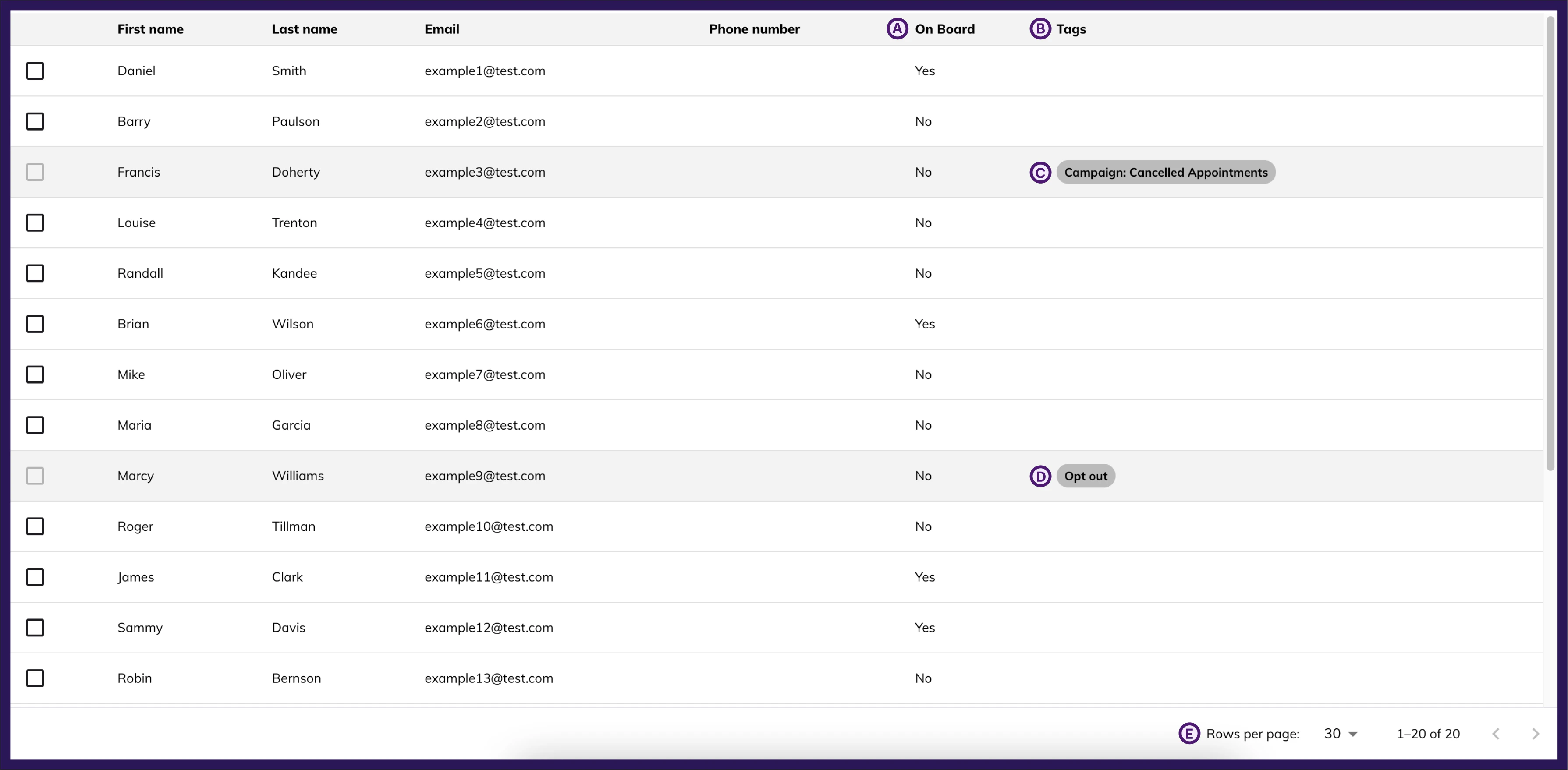 The contacts table displays the following columns: First Name, Last Name, Email, Phone Number, and Tags.
* **Tags**
* Tags indicate the following about a contact:
* If the contact is currently in a campaign, the campaign name is shown
* If the contact has been opted out, the tag will specify the type:
* **Opted Out** — The contact is fully opted out of all communication
* **Text Opt-Out** — The contact has opted out of SMS only (they can still receive emails)
* **Email Unsubscribed** — The contact has unsubscribed from emails only (they can still receive texts)
* If a contact is in a campaign or opted out of the relevant channel, that contact cannot be selected to launch into a campaign
* **Rows Per Page**
* This allows you to choose the amount of contacts that appear per page to scroll through
* The count next to this is which range within the contacts the current page is on
The contacts table displays the following columns: First Name, Last Name, Email, Phone Number, and Tags.
* **Tags**
* Tags indicate the following about a contact:
* If the contact is currently in a campaign, the campaign name is shown
* If the contact has been opted out, the tag will specify the type:
* **Opted Out** — The contact is fully opted out of all communication
* **Text Opt-Out** — The contact has opted out of SMS only (they can still receive emails)
* **Email Unsubscribed** — The contact has unsubscribed from emails only (they can still receive texts)
* If a contact is in a campaign or opted out of the relevant channel, that contact cannot be selected to launch into a campaign
* **Rows Per Page**
* This allows you to choose the amount of contacts that appear per page to scroll through
* The count next to this is which range within the contacts the current page is on