> ## Documentation Index
> Fetch the complete documentation index at: https://docs.usehatchapp.com/llms.txt
> Use this file to discover all available pages before exploring further.
# How to Review Conversations
> Open a conversation, listen to the call, jump to the contact, and flag anything that went wrong.
The [Conversations page](/how-to-use-hatch/conversations/conversations) tells you which conversations are worth a closer look. This page covers what to do once you've found one.
The side drawer — recording, transcript, summary, and Context tab.
See the contact's full history across every channel and agent.
Report a conversation that went wrong and track it to resolution.
## Opening a conversation
Click any row on the Conversations page to open it in the side drawer, without losing your place in the list.
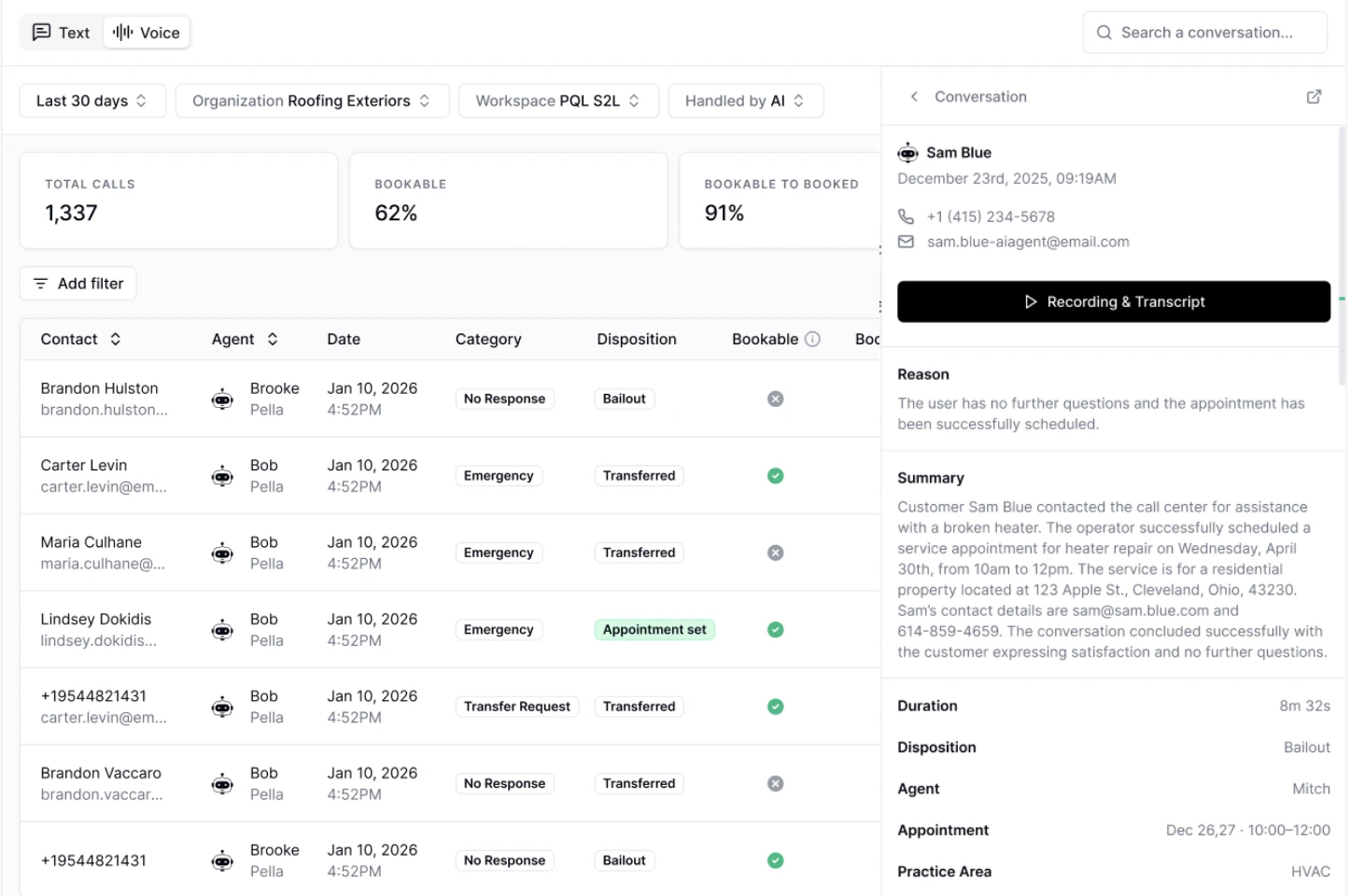 For a **Voice** conversation, the drawer gives you:
* **The recording** — play back the call from the drawer.
* **The transcript** — read the full back-and-forth instead of listening.
* **An AI-generated summary** — a short account of what the caller wanted and what happened, so you can triage without playing anything.
* **The Context tab** — the [Conversation Metrics](/how-to-use-hatch/conversations/glossary) for that call, including Category, Booking Status, and Handling, alongside the call's key details.
For a **Text** conversation, the drawer shows the message thread and the disposition that closed it out.
## Jumping to the Contact Record
Use the arrow at the top of the drawer to open the full [Contact Record](/how-to-use-hatch/board-contact-card/contact-card-basics) for that contact.
This is where you go when the single conversation doesn't tell you enough — the Contact Record carries the contact's full history across every channel and every agent, including earlier calls and text threads.
## Flagging an issue
If a conversation didn't go the way it should, flag it with a note and your Hatch team will work it through to resolution. You can flag from the side drawer, the Contact Record, or while listening to a recording.
See [Flagging a Call](/how-to-use-hatch/conversations/flagging-a-call) for the full walkthrough, including how to find your flagged conversations and set up notifications.
## Related Articles
* [Flagging a Call (Beta)](/how-to-use-hatch/conversations/flagging-a-call): report a conversation that went wrong.
* [Conversations Page](/how-to-use-hatch/conversations/conversations): finding the conversations worth reviewing.
* [Glossary](/how-to-use-hatch/conversations/glossary): what Category, Booking Status, and Handling mean.
* [Review your new AI Agent](/getting-started/hatch-assistant/review-your-new-ai-agent): where to start with a newly launched agent.
For a **Voice** conversation, the drawer gives you:
* **The recording** — play back the call from the drawer.
* **The transcript** — read the full back-and-forth instead of listening.
* **An AI-generated summary** — a short account of what the caller wanted and what happened, so you can triage without playing anything.
* **The Context tab** — the [Conversation Metrics](/how-to-use-hatch/conversations/glossary) for that call, including Category, Booking Status, and Handling, alongside the call's key details.
For a **Text** conversation, the drawer shows the message thread and the disposition that closed it out.
## Jumping to the Contact Record
Use the arrow at the top of the drawer to open the full [Contact Record](/how-to-use-hatch/board-contact-card/contact-card-basics) for that contact.
This is where you go when the single conversation doesn't tell you enough — the Contact Record carries the contact's full history across every channel and every agent, including earlier calls and text threads.
## Flagging an issue
If a conversation didn't go the way it should, flag it with a note and your Hatch team will work it through to resolution. You can flag from the side drawer, the Contact Record, or while listening to a recording.
See [Flagging a Call](/how-to-use-hatch/conversations/flagging-a-call) for the full walkthrough, including how to find your flagged conversations and set up notifications.
## Related Articles
* [Flagging a Call (Beta)](/how-to-use-hatch/conversations/flagging-a-call): report a conversation that went wrong.
* [Conversations Page](/how-to-use-hatch/conversations/conversations): finding the conversations worth reviewing.
* [Glossary](/how-to-use-hatch/conversations/glossary): what Category, Booking Status, and Handling mean.
* [Review your new AI Agent](/getting-started/hatch-assistant/review-your-new-ai-agent): where to start with a newly launched agent.