> ## Documentation Index
> Fetch the complete documentation index at: https://docs.usehatchapp.com/llms.txt
> Use this file to discover all available pages before exploring further.
# Team
> View your workspace's team members and their notification settings at a glance.
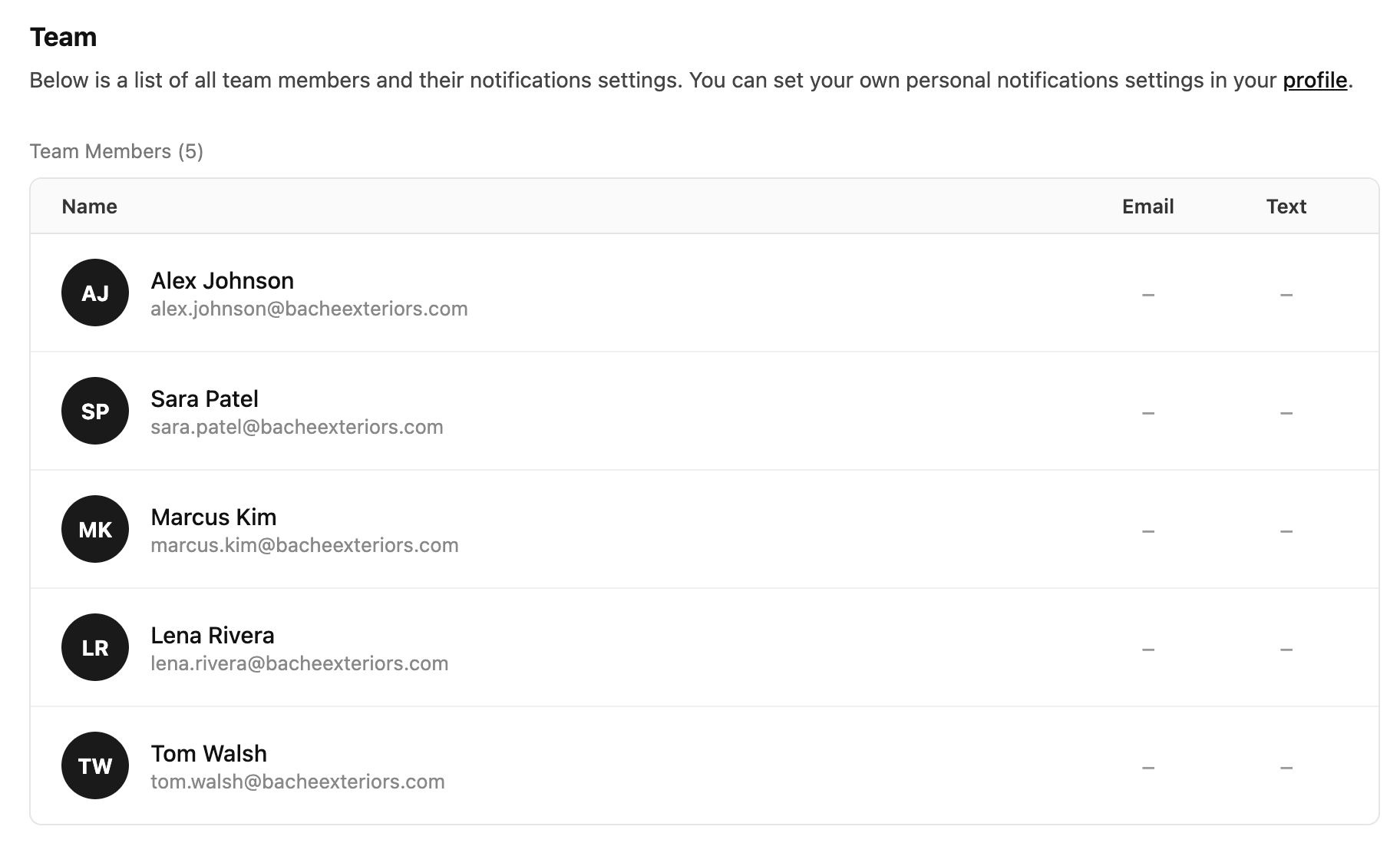
The **Team** tab in Workspace Configs shows everyone who has access to this workspace, along with a summary of their notification preferences.
### What you'll see
The team table lists each member with three columns:
* **Name** — the member's full name and email address.
* **Email** — whether they have email notifications enabled for this workspace.
* **Text** — whether they have SMS notifications enabled for this workspace.
The indicators show each person's current state — this is a read-only view in Workspace Configs.
 ### Changing notification settings
Notification settings are personal — each team member controls their own. To update your own settings, click the **profile** link in the Team tab description, or go to your profile and open the **Notifications** section. From there you can turn email and text notifications on or off per workspace.
### Adding or removing members
Team membership is managed from **Account Settings**, not Workspace Configs. To add or remove a user from this workspace, see [Add or Remove a Member from a Workspace](/how-to-use-hatch/account-settings/add-or-remove-member-from-workspace).
### Changing notification settings
Notification settings are personal — each team member controls their own. To update your own settings, click the **profile** link in the Team tab description, or go to your profile and open the **Notifications** section. From there you can turn email and text notifications on or off per workspace.
### Adding or removing members
Team membership is managed from **Account Settings**, not Workspace Configs. To add or remove a user from this workspace, see [Add or Remove a Member from a Workspace](/how-to-use-hatch/account-settings/add-or-remove-member-from-workspace).