> ## Documentation Index
> Fetch the complete documentation index at: https://docs.usehatchapp.com/llms.txt
> Use this file to discover all available pages before exploring further.
# Hover Integration
### Overview
The Hover integration allows you to add a Hover capture link to any Hatch campaign message. The Hover link will be unique for each customer that receives the Hatch campaign message.
* If the customer has an existing link in your Hover account, that is the one they will be sent
* If the customer does not have an existing Hover link, one will be generated for them and sent to them
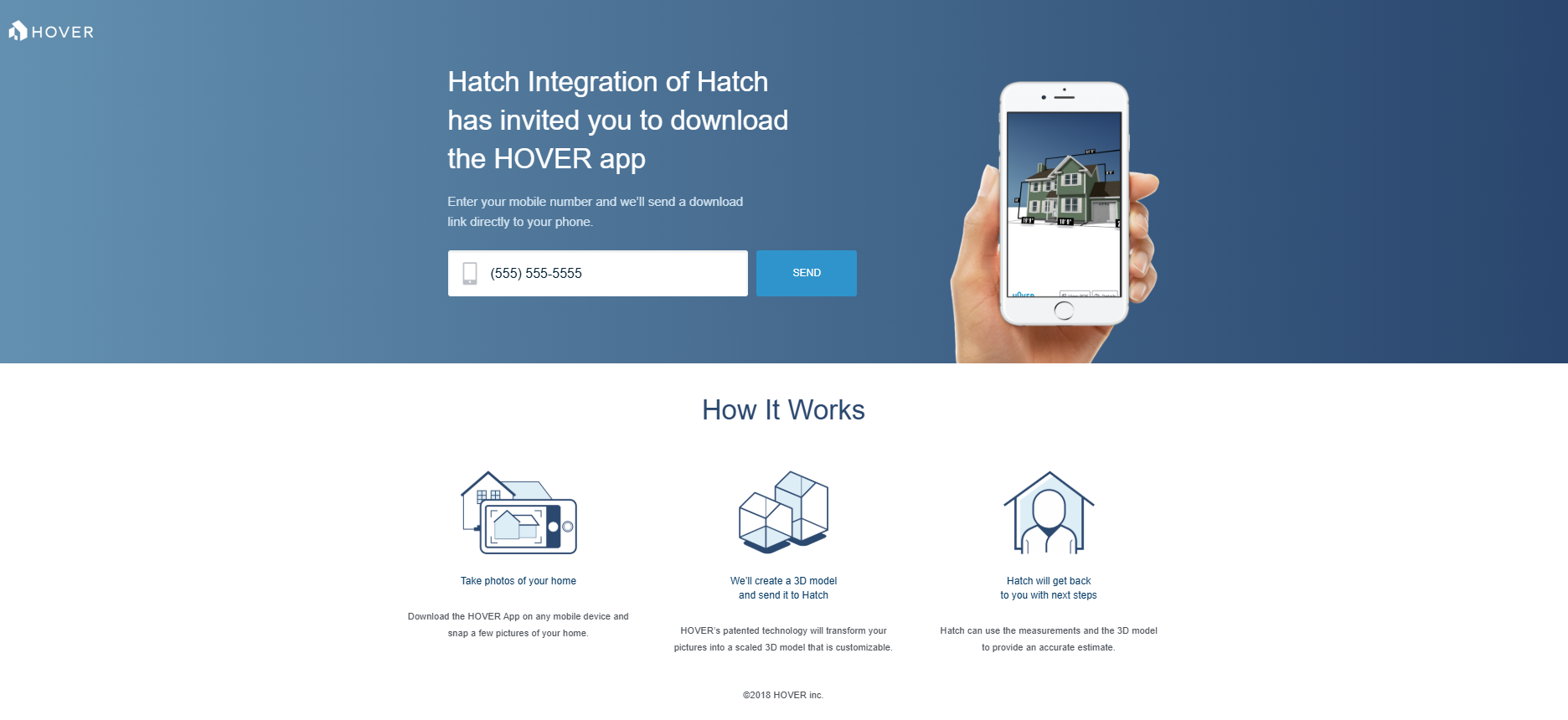
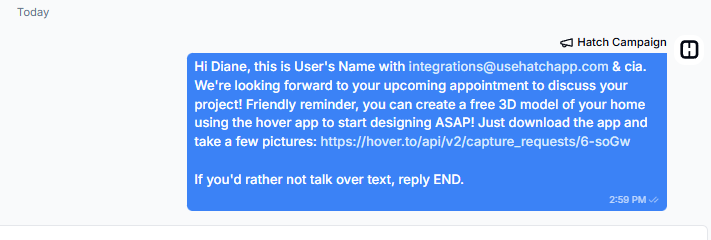 When the customer receives the link, they will be prompted to download the Hover app and provide pictures of their home so a 3D model can be created.
 Since the contacts are in Hatch, you can contact those folks at any time to follow up (or automate the follow-up with your campaign sequence!)
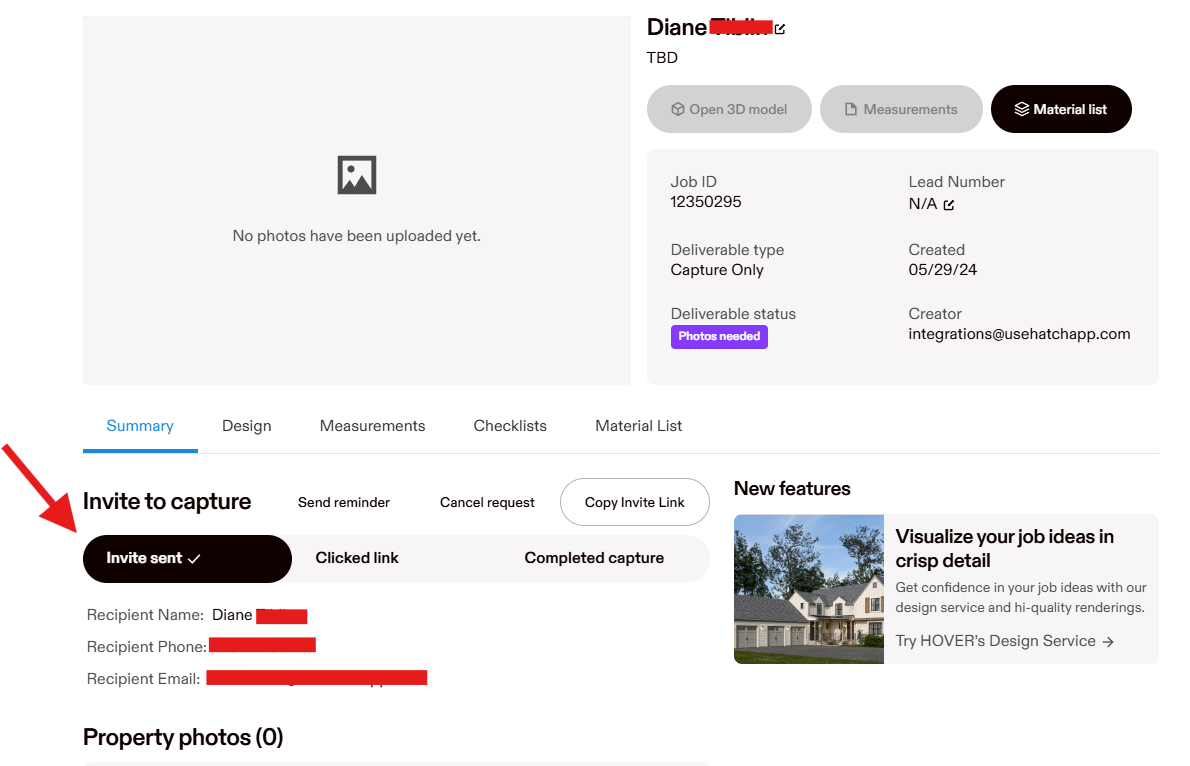
In your Hover account, you will see a new job created for this contact:
Since the contacts are in Hatch, you can contact those folks at any time to follow up (or automate the follow-up with your campaign sequence!)
In your Hover account, you will see a new job created for this contact:
 ### Activating the Hover-Hatch Integration
1. Navigate to the Hatch app marketplace
2. Click connect on the Hover integration (can be found under *Other Tools*)
3. Click the connect button, and sign in to your Hover account
### Activating the Hover-Hatch Integration
1. Navigate to the Hatch app marketplace
2. Click connect on the Hover integration (can be found under *Other Tools*)
3. Click the connect button, and sign in to your Hover account
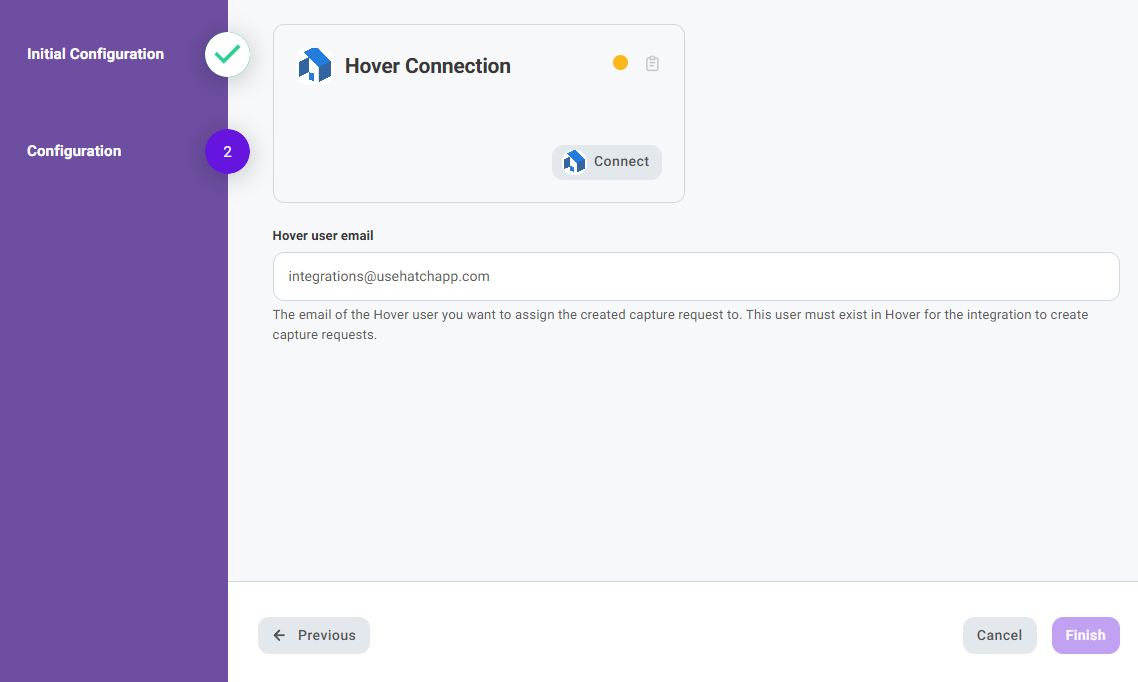 4\. Once that's completed, return to the Hatch integration screen. The connection bubble will turn blue once connected successfully. Click Finish to save.
### How to add the Hover link to Hatch campaign messaging
1. Navigate to the Campaigns page.
2. Find the campaign you’d like to add the link to, select the three dots icon, and select Edit from the menu that appears.
4\. Once that's completed, return to the Hatch integration screen. The connection bubble will turn blue once connected successfully. Click Finish to save.
### How to add the Hover link to Hatch campaign messaging
1. Navigate to the Campaigns page.
2. Find the campaign you’d like to add the link to, select the three dots icon, and select Edit from the menu that appears. 3. In the campaign verbiage, wherever you’d like the Hover URL to appear, place *exactly* this:
> \[\[hover\_capture\_url]]
3. In the campaign verbiage, wherever you’d like the Hover URL to appear, place *exactly* this:
> \[\[hover\_capture\_url]]
 *This is how the snippets appear in campaign verbiage. For the contact that receives the message, this snippet will be transformed into their unique Hover link*
4. Once you’re done editing, click *Update Campaign*.
*This is how the snippets appear in campaign verbiage. For the contact that receives the message, this snippet will be transformed into their unique Hover link*
4. Once you’re done editing, click *Update Campaign*.