> ## Documentation Index
> Fetch the complete documentation index at: https://docs.usehatchapp.com/llms.txt
> Use this file to discover all available pages before exploring further.

# How to switch to the Hatch application of ServiceTitan

> Get the steps and all your questions answered here

### What exactly do I need to do and why?

You need to switch “hosts” for your ServiceTitan account, so that you are using the Hatch-hosted version. As an official ServiceTitan partner, Hatch customers can (and must) now access ServiceTitan through a Hatch-specific connection, which allows us to better serve you.

### If I switch, will all of the data in my current instance be lost?

No, all of your ServiceTitan and Hatch data will remain intact. The only thing that is changing is the connection that is used to access your ServiceTitan data in Hatch.

### How is this new Hatch version of the ServiceTitan application version different from the one I'm currently using?

The main difference is that the application and API scopes are all contained in Hatch. This ensures that all integrations are activated with the necessary scopes to power it, requires less setup by users, and makes future upgrades a simple, one-click process.

### Do I have to switch?

Yes, this is a required action.

### **When is the deadline for switching over?**

The deadline is August 1.

### What happens if I don’t switch?

Your Hatch account may lose connection to ServiceTitan, and without the latest data, your messaging may have inaccurate information or may reach the wrong contacts.

### Do I need special permissions to update the integration?

In Hatch: You will need the "Manager" role in order to access the integrations marketplace.

In ServiceTitan: You will need access to the Integrations>API Application Settings.

### **How do I switch?**

The process takes 90 seconds. Here's a video walking through the steps, and below it are written instructions with screenshots.

1. In ServiceTitan, click on Integrations in the left-hand panel and then click \*\*API Application Settings
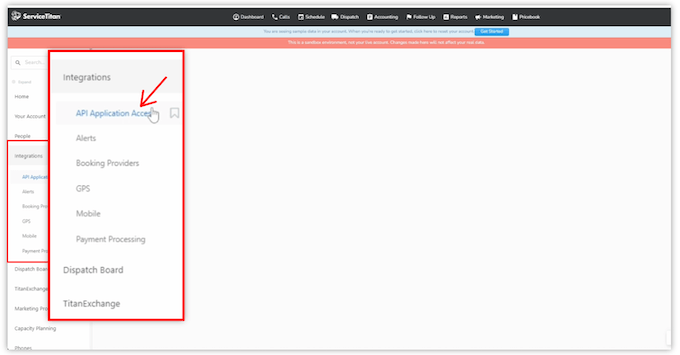
   <img src="https://mintcdn.com/usehatchapp/v_VMk57hRIk0rCvf/images/integrations/crm-field-management-systems/servicetitan-migration-01-integrations.png?fit=max&auto=format&n=v_VMk57hRIk0rCvf&q=85&s=d66d92d14050a6362b8451cb024b39f1" alt="hatch-servicetitan integration migration step 1" width="680" height="355" data-path="images/integrations/crm-field-management-systems/servicetitan-migration-01-integrations.png" />

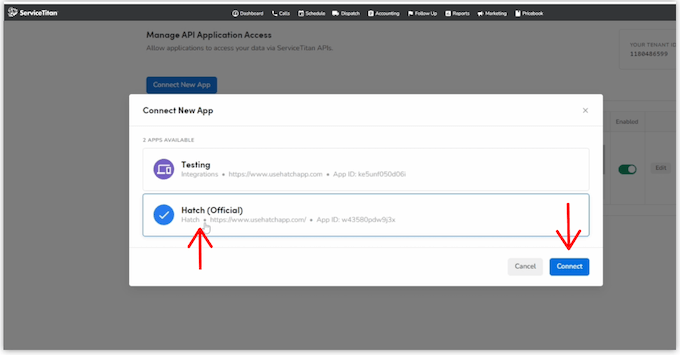
2. Click **Connect new app** , click **Hatch Official,** then click **connect**
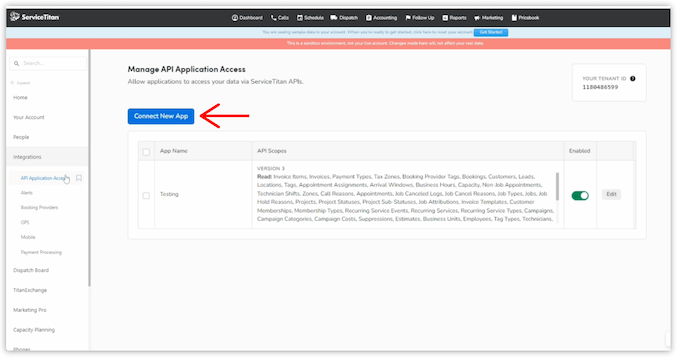
   <img src="https://mintcdn.com/usehatchapp/v_VMk57hRIk0rCvf/images/integrations/crm-field-management-systems/servicetitan-migration-02-connect.png?fit=max&auto=format&n=v_VMk57hRIk0rCvf&q=85&s=0f72342537d8d605b8100601c6efffee" alt="hatch-servicetitan integration migration step 2" width="680" height="360" data-path="images/integrations/crm-field-management-systems/servicetitan-migration-02-connect.png" />

   <img src="https://mintcdn.com/usehatchapp/v_VMk57hRIk0rCvf/images/integrations/crm-field-management-systems/servicetitan-migration-03-hatch-connect.png?fit=max&auto=format&n=v_VMk57hRIk0rCvf&q=85&s=84a722f225fccf8421a15b93ab5c10f4" alt="hatch-servicetitan integration migration step 3" width="680" height="355" data-path="images/integrations/crm-field-management-systems/servicetitan-migration-03-hatch-connect.png" />

3. Click **Allow Access.** This just enables Hatch and ServiceTitan to talk to each other.
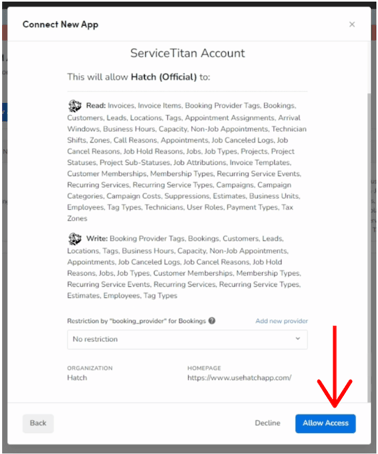
   <img src="https://mintcdn.com/usehatchapp/v_VMk57hRIk0rCvf/images/integrations/crm-field-management-systems/servicetitan-migration-04-allow-access.png?fit=max&auto=format&n=v_VMk57hRIk0rCvf&q=85&s=516adc37efbc1aa8a44966ea9ddc758c" alt="servicetitan-migration-04-allow-access" width="378" height="454" data-path="images/integrations/crm-field-management-systems/servicetitan-migration-04-allow-access.png" />

4. Click **Accept** on the Terms and Conditions
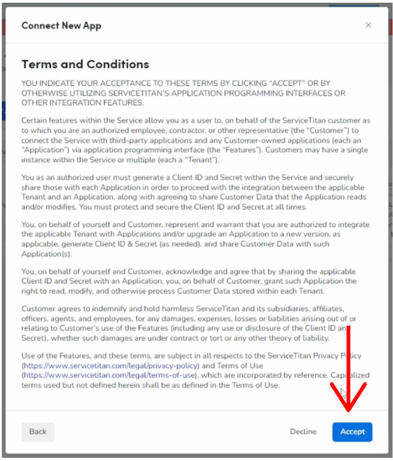
   <img src="https://mintcdn.com/usehatchapp/v_VMk57hRIk0rCvf/images/integrations/crm-field-management-systems/servicetitan-migration-05-terms-conditions.png?fit=max&auto=format&n=v_VMk57hRIk0rCvf&q=85&s=37e04ca6be1bf0d35a7f1b060afd4fdf" alt="servicetitan-migration-05-terms-conditions" width="393" height="461" data-path="images/integrations/crm-field-management-systems/servicetitan-migration-05-terms-conditions.png" />

5. This will then bring you to the Application Details screen. At the top where it says “Client ID,” click **Copy**.
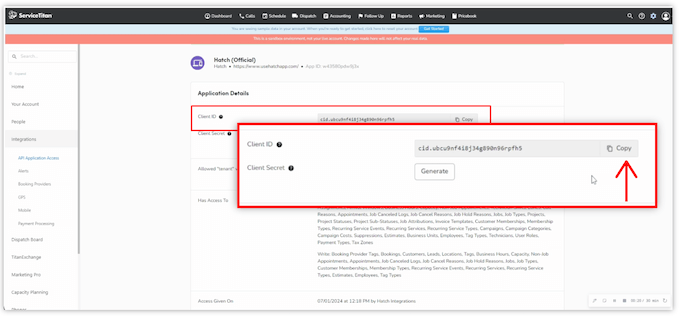
   <img src="https://mintcdn.com/usehatchapp/v_VMk57hRIk0rCvf/images/integrations/crm-field-management-systems/servicetitan-migration-06-copy.png?fit=max&auto=format&n=v_VMk57hRIk0rCvf&q=85&s=c4c3c6f15feb0aef2e422c7bd31fcd08" alt="hatch-servicetitan integration migration step 6" width="680" height="319" data-path="images/integrations/crm-field-management-systems/servicetitan-migration-06-copy.png" />

6. Open Hatch, and click on the second icon up from the bottom in the light purple column to go to the **App Marketplace**
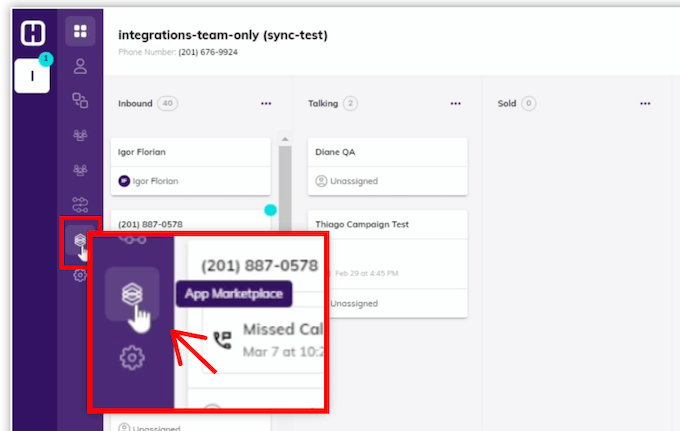
   <img src="https://mintcdn.com/usehatchapp/v_VMk57hRIk0rCvf/images/integrations/crm-field-management-systems/servicetitan-migration-07-hatch-marketplace.png?fit=max&auto=format&n=v_VMk57hRIk0rCvf&q=85&s=f80ddbf33205605cf638912e5cf7207d" alt="hatch-servicetitan integration migration step 7" width="680" height="431" data-path="images/integrations/crm-field-management-systems/servicetitan-migration-07-hatch-marketplace.png" />

7. Once you’re in the Marketplace, you can easily find ServiceTitan by clicking on **Installed** and **CRM** to easily filter. When you locate ServiceTitan, click on it.
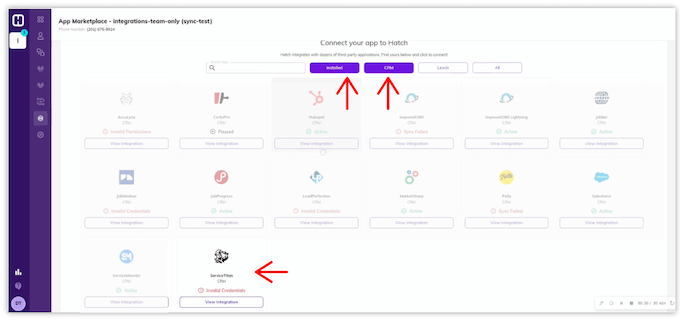
   <img src="https://mintcdn.com/usehatchapp/v_VMk57hRIk0rCvf/images/integrations/crm-field-management-systems/servicetitan-migration-08-marketplace.png?fit=max&auto=format&n=v_VMk57hRIk0rCvf&q=85&s=a9253a642ac18a309e4bba2a08c8c596" alt="hatch-servicetitan integration migration step 8" width="680" height="320" data-path="images/integrations/crm-field-management-systems/servicetitan-migration-08-marketplace.png" />

8. Click **Configure.<img src="https://mintcdn.com/usehatchapp/v_VMk57hRIk0rCvf/images/integrations/crm-field-management-systems/servicetitan-migration-09-configure.png?fit=max&auto=format&n=v_VMk57hRIk0rCvf&q=85&s=846c27637376bd6f94730056fe97293b" alt="hatch-servicetitan integration migration step 9" width="680" height="434" data-path="images/integrations/crm-field-management-systems/servicetitan-migration-09-configure.png" />**

9. In the upper right, click **Reconfigure
   <img src="https://mintcdn.com/usehatchapp/v_VMk57hRIk0rCvf/images/integrations/crm-field-management-systems/servicetitan-migration-10-reconfigure.png?fit=max&auto=format&n=v_VMk57hRIk0rCvf&q=85&s=da72b0f34fbc8cf9bc9cb1e486f41d27" alt="hatch-servicetitan integration migration step 10" width="680" height="314" data-path="images/integrations/crm-field-management-systems/servicetitan-migration-10-reconfigure.png" />**

10. Click **Next**

11. Flip the "**use Hatch application** " toggle from disabled to **enabled.**(Purple means it is enabled)
    **<img src="https://mintcdn.com/usehatchapp/v_VMk57hRIk0rCvf/images/integrations/crm-field-management-systems/servicetitan-migration-12-enabled.png?fit=max&auto=format&n=v_VMk57hRIk0rCvf&q=85&s=e27fc763d54e18588623f91adff39543" alt="hatch-servicetitan integration migration step 12" width="680" height="313" data-path="images/integrations/crm-field-management-systems/servicetitan-migration-12-enabled.png" />**

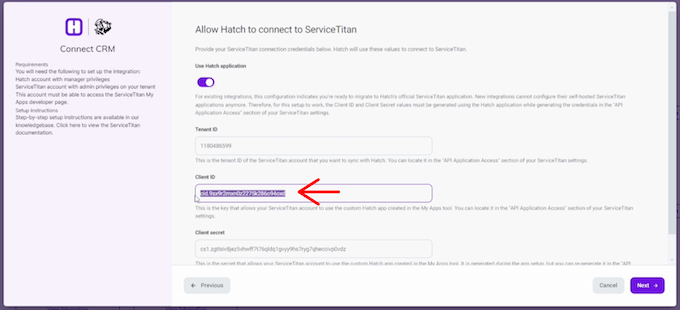
12. Paste your **Client Id** from ServiceTitan (which you copied from Step #5) and paste into the Hatch integration field
    <img src="https://mintcdn.com/usehatchapp/v_VMk57hRIk0rCvf/images/integrations/crm-field-management-systems/servicetitan-migration-13-client-id.png?fit=max&auto=format&n=v_VMk57hRIk0rCvf&q=85&s=1df4ed36f4487b39743e6fc2d71d3042" alt="hatch-servicetitan integration migration - step 13" width="680" height="310" data-path="images/integrations/crm-field-management-systems/servicetitan-migration-13-client-id.png" />

13. Return back to ServiceTitan. Where it says “Client Secret,” click **Generate** and **Yes continue.
    <img src="https://mintcdn.com/usehatchapp/v_VMk57hRIk0rCvf/images/integrations/crm-field-management-systems/servicetitan-migration-14-secret.png?fit=max&auto=format&n=v_VMk57hRIk0rCvf&q=85&s=8dff200ce09a1d134cfe7881d7d2f065" alt="hatch-servicetitan integration migration - step 14" width="680" height="316" data-path="images/integrations/crm-field-management-systems/servicetitan-migration-14-secret.png" />**

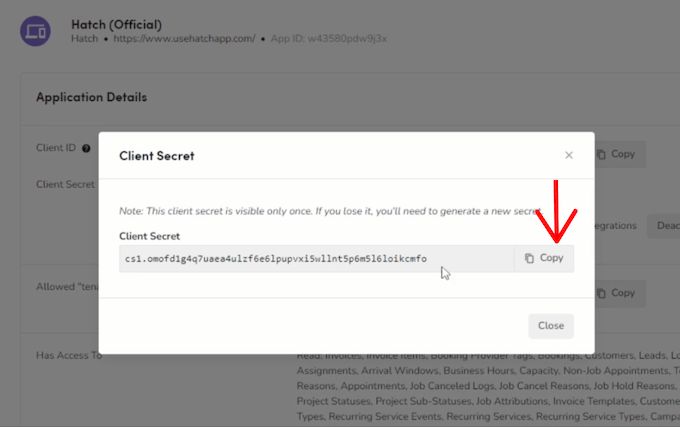
14. Click **Copy** to copy the Client Secret.
    <img src="https://mintcdn.com/usehatchapp/v_VMk57hRIk0rCvf/images/integrations/crm-field-management-systems/servicetitan-migration-15-client-secret.png?fit=max&auto=format&n=v_VMk57hRIk0rCvf&q=85&s=ab9d00b961776ae83d6feed06514792a" alt="hatch-servicetitan integration migration - step 15" width="680" height="427" data-path="images/integrations/crm-field-management-systems/servicetitan-migration-15-client-secret.png" />

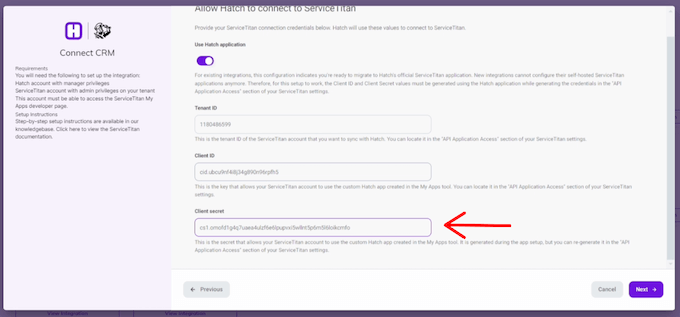
15. Return back to Hatch and paste in the Client Secret.
    <img src="https://mintcdn.com/usehatchapp/v_VMk57hRIk0rCvf/images/integrations/crm-field-management-systems/servicetitan-migration-16-client-secret.png?fit=max&auto=format&n=v_VMk57hRIk0rCvf&q=85&s=582abcbf7e25a6abb750e1a1a0993576" alt="hatch-servicetitan integration migration - step 16" width="680" height="317" data-path="images/integrations/crm-field-management-systems/servicetitan-migration-16-client-secret.png" />

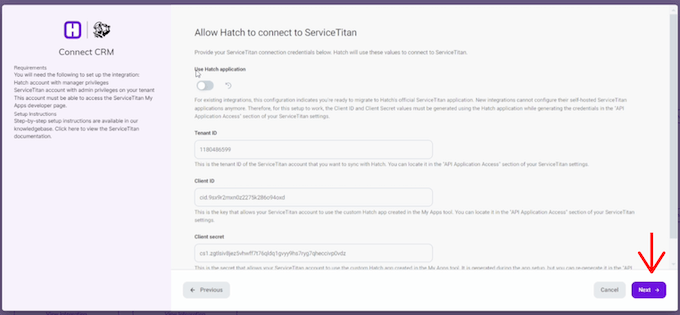
16. Click **Next** through the remaining configuration pages (these are unrelated to the specific task at hand) until you reach the end of configuration
    <img src="https://mintcdn.com/usehatchapp/v_VMk57hRIk0rCvf/images/integrations/crm-field-management-systems/servicetitan-migration-11-next.png?fit=max&auto=format&n=v_VMk57hRIk0rCvf&q=85&s=495e576ac59e07bd37d7687556c24b84" alt="hatch-servicetitan integration migration step 11" width="680" height="315" data-path="images/integrations/crm-field-management-systems/servicetitan-migration-11-next.png" />

17. Hit **Finish** in order to save your new configuration.