> ## Documentation Index
> Fetch the complete documentation index at: https://docs.usehatchapp.com/llms.txt
> Use this file to discover all available pages before exploring further.
# Hubspot
> In this article, we'll cover the basics of our integration with Hubspot. From what it does, to how to get started, and even frequently asked questions.
### **Integration Basics**
#### **What does the integration do?**
**Pull Contacts** : Every 15 minutes, Hatch will sync with Hubspot to retrieve recently modified records. Hatch will create a contact & opportunity based on the Hubspot contact and/or deal records.
**Push Communications** : Anytime a communication such as a call, text, or email takes place within Hatch, the integration will automatically send that information back to Hubspot's **Contact Activities**.
#### **What information does the integration pull into Hatch?**
We pull in the Contact’s name, phone number, and email address to get started. This is typically what we use to put contacts into a campaign. We *also* pull in any properties related to the contact or deal you may have in Hubspot. This can include things like Address, Quote Amount, Sales Representative. With these details, you can make your messaging extremely customized.
**Where do Hatch communications show in Hubspot?**
When communications are sent back to Hubspot, they will show up in the **Contact Activities** as a **note.**
The integration supports the following activity types:
* Hatch Inbound Call
* Hatch Outbound Call
* Hatch Inbound SMS
* Hatch Outbound SMS
* Hatch Inbound MMS
* Hatch Outbound MMS
* Hatch Inbound Email
* Hatch Outbound Email
* Hatch Inbound Voicemail
* Hatch Inbound Missed Call
### **Setting Up the Integration**
Here’s what we need to get started:
1. Navigate to the Hatch app marketplace.
2. Click "Configure" on the Hubspot integration
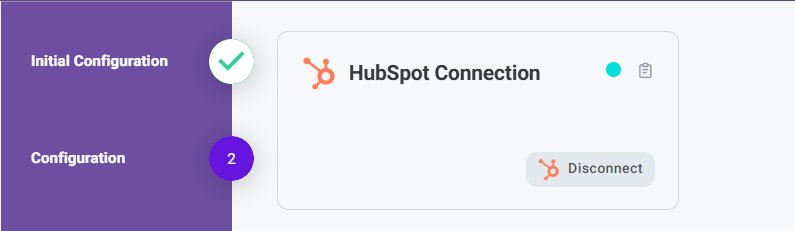
3. The integration uses OAuth protocol to allow access to the Hubspot APIs, so all you need to do it click *connect* and then *authorize* on the Hubspot screen that will pop-up. Once authorized, return to the Hatch integration screen and the connection bubble should be blue.
 4. Adjust any configuration options.
5. Don't forget to click Finish in order to save.
#### Configuration Options
* Enable/Disable push communications
### **Creating Audiences to Add to Campaigns**
After getting a CRM integration set up, the next step is to start working on creating **custom audiences** with your data, and then adding those contacts to campaigns.
Here’s a couple of examples of what we’ll talk about during onboarding...
* Correctly defining contacts statuses in your CRM
* Building your Customer Segments
* Deciding what contact details to use in campaign language
### Frequently Asked Questions
The Hatch integration does not update any status in Hubspot. However, if you change the status in Hubspot, Hatch will update that contact’s information next time we sync every 15 minutes.
Our integration syncs every 15 minutes.
Communications that have occurred in Hatch can be pushed back to Hubspot. This can include texts, emails, or calls. These will populate in Hubspot under the Contact Record's Activities.
4. Adjust any configuration options.
5. Don't forget to click Finish in order to save.
#### Configuration Options
* Enable/Disable push communications
### **Creating Audiences to Add to Campaigns**
After getting a CRM integration set up, the next step is to start working on creating **custom audiences** with your data, and then adding those contacts to campaigns.
Here’s a couple of examples of what we’ll talk about during onboarding...
* Correctly defining contacts statuses in your CRM
* Building your Customer Segments
* Deciding what contact details to use in campaign language
### Frequently Asked Questions
The Hatch integration does not update any status in Hubspot. However, if you change the status in Hubspot, Hatch will update that contact’s information next time we sync every 15 minutes.
Our integration syncs every 15 minutes.
Communications that have occurred in Hatch can be pushed back to Hubspot. This can include texts, emails, or calls. These will populate in Hubspot under the Contact Record's Activities.
Check out our webhooks to see what additional options might be available to create a custom integration.
We will pull in custom properties from Hubspot if they are on the Contact or Deal object.