

How It Works
You can publish up to two Voice AI agents per workspace:- Business Hours Bot: Handles calls during your published workspace business hours
- After Hours Bot: Handles calls outside of your business hours
Setting Up an After Hours Bot
Step 1: Create a New Voice AI Agent
- Navigate to the Hatch AI Agent playground
- Create a new Voice AI agent (or duplicate an existing one)
- Configure the agent with instructions appropriate for after-hours scenarios
Step 2: Enable After Hours Mode
- In your bot’s configuration, locate the After Hours Agent toggle in the Set Trigger panel
- Enable the toggle to mark this agent as an after-hours bot
- Click the settings gear icon to configure business hours
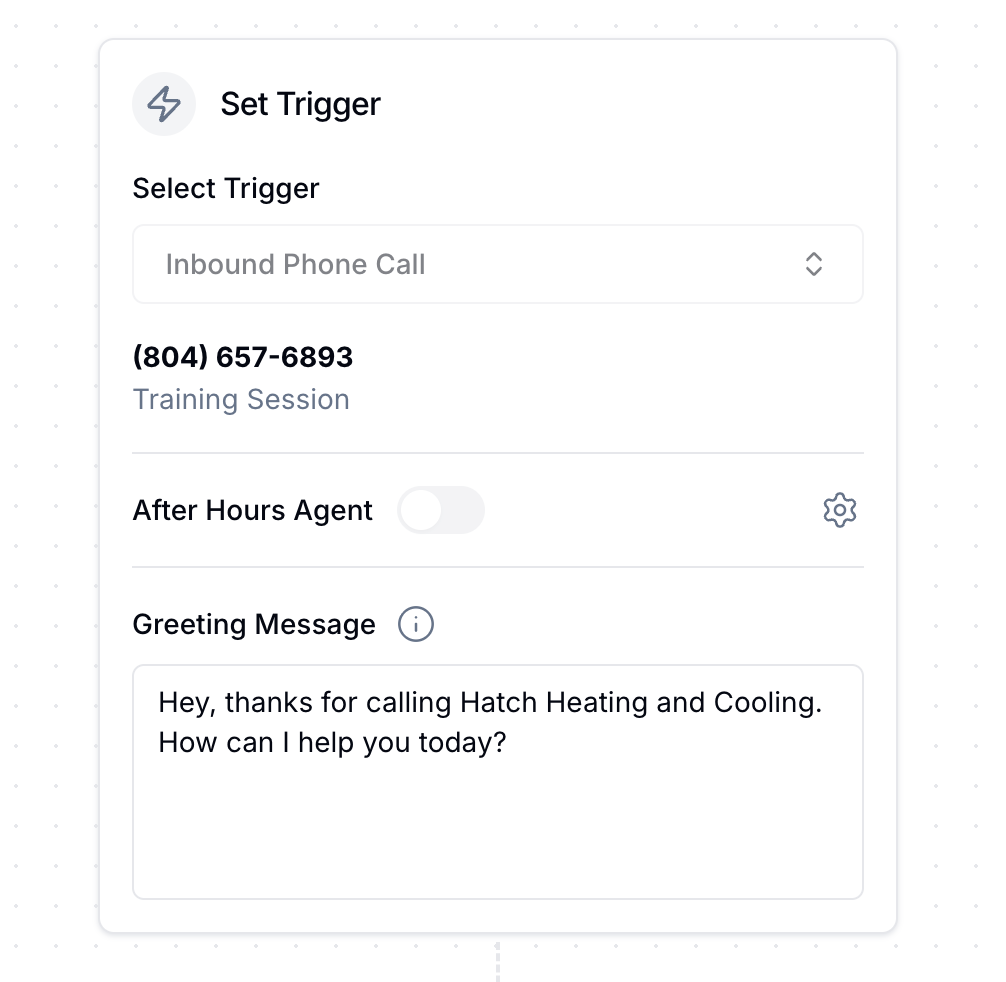
Step 3: Configure Business Hours
Your after-hours bot uses your workspace’s business hours to determine when to activate. Click the settings gear icon next to the After Hours Agent toggle to open the business hours configuration: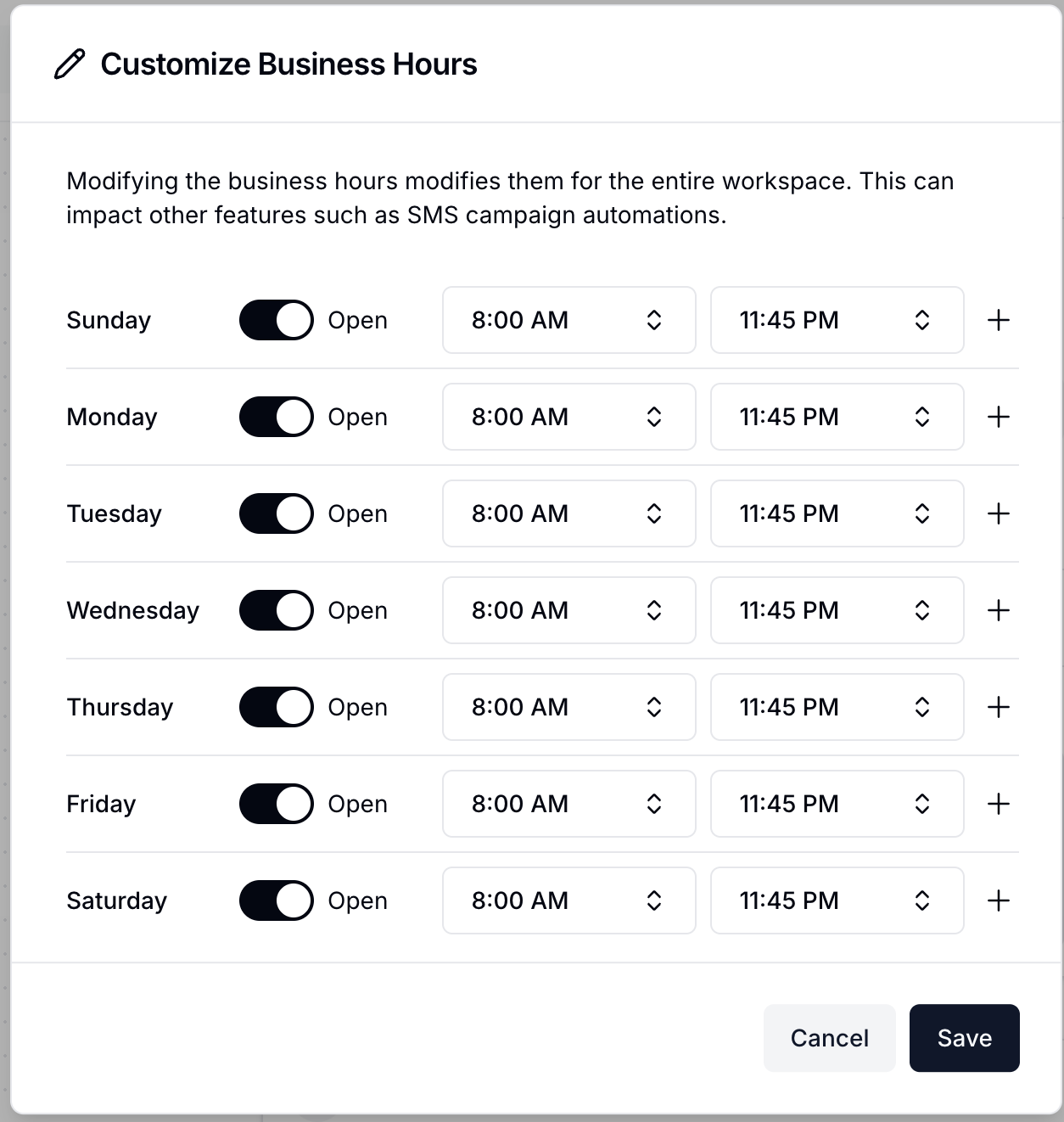
- Toggle each day to Open or closed
- Set the start and end times for each day
- Use the + button to add multiple time ranges per day (e.g., for lunch breaks)
- Click Save to apply your changes
Modifying the business hours here modifies them for the entire workspace. This can impact other features such as SMS campaign automations.
Publishing Requirements
There are specific requirements for publishing after-hours bots:You must publish a Business Hours bot before you can publish an After Hours bot. This ensures that calls during business hours are always handled appropriately.
When you publish an after-hours bot, the system verifies that a business hours bot is already published for that workspace. If not, you’ll see an error message asking you to publish a business hours bot first.
Unpublishing Behavior
When you unpublish your Business Hours bot, your After Hours bot will automatically be unpublished as well. This cascade behavior ensures that your workspace always has proper coverage during business hours.Call Routing Logic
Here’s how Hatch determines which bot handles an incoming call:- During business hours: The Business Hours bot handles the call
- Outside business hours: The After Hours bot handles the call (if published)
- Outside business hours with no After Hours bot: The Business Hours bot handles the call as a fallback
- No business hours configured: The Business Hours bot always handles calls
Best Practices
When to Use an After Hours Bot
Consider creating a separate after-hours bot when you want to:- Provide different booking options (e.g., next-day appointments only)
- Set different expectations for response times
- Offer emergency-only services after hours
- Use a different tone or persona for evening/weekend callers
- Route calls differently (e.g., only transfer emergencies)
Configuring Your After Hours Bot
When setting up your after-hours bot, consider these tips:- Set clear expectations: Let callers know they’re reaching you after hours and when they can expect a callback
- Handle emergencies: Configure transfer rules for urgent situations that need immediate attention
- Simplify options: After-hours callers may prefer faster, simpler interactions
- Adjust scheduling: If your bot books appointments, consider limiting available slots to business hours
Frequently Asked Questions
Can I have different after-hours bots for different days?
Can I have different after-hours bots for different days?
No, you can only have one after-hours bot per workspace. However, you can configure your business hours to have different hours for different days of the week, and the after-hours bot will activate accordingly.
What happens if I only want an after-hours bot?
What happens if I only want an after-hours bot?
You cannot publish only an after-hours bot. A business hours bot must be published first. If you want all calls to go to the same bot regardless of time, simply use a business hours bot without enabling an after-hours bot.
Can I test my after-hours bot before publishing?
Can I test my after-hours bot before publishing?
Yes! You can test your after-hours bot in the playground just like any other bot. The playground allows you to simulate conversations regardless of the current time.
How do I know which bot handled a call?
How do I know which bot handled a call?
The contact card and call records will show which bot handled the conversation. You can also see this information in your reporting dashboard.
What if I haven't configured business hours for my workspace?
What if I haven't configured business hours for my workspace?
If no business hours are configured, the system defaults to using your business hours bot for all calls. The after-hours bot will never activate until you configure business hours.