

How It Works
- Your AI agent qualifies the contact for an appointment
- The agent consults your ServiceTitan calendar and presents available time slots
- Once the contact picks a time, the agent confirms the appointment
- The appointment is created on your ServiceTitan calendar
- The contact card moves to your configured disposition in Hatch (if set up)
Setting Up Calendar Integration
Before setting up calendar integration, you need to have ServiceTitan integrated with Hatch. See the ServiceTitan Integration setup guide.
Adding the Calendar Command
In your AI Agent Instructions, type/calendar to insert the calendar command. Place it in your instructions where you want the bot to book the appointment.
/calendar command, it appears as an inline button in your instructions. Click the button to configure your calendar settings.
Configuring the Calendar Command
After inserting the command, you’ll configure:- Calendar Type - Choose Bookings or Dispatch calendar
- Sales Board Column - Where to move conversations after booking
- Disposition - What disposition to assign after booking
- Business Units & Job Types - Select which business units and their associated job types the bot can book
- Additional settings - Lookup period, arrival windows, and more
Business Units & Job Types
Business units are organizational groupings in ServiceTitan, and each business unit contains its own set of job types. When configuring the calendar command, you’ll select:- Business Units - Choose which business units the bot can book appointments for
- Job Types - For each business unit, select which job types are available for booking
Job Types Configuration
For each job type within a business unit, you can add descriptions and set priority settings.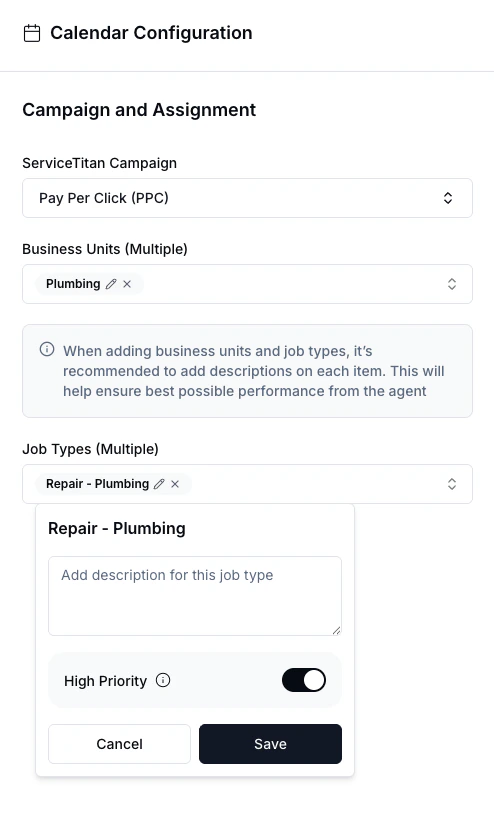
- Description: Add a description for each job type to help your AI agent understand when to use it
- High Priority: Enable this toggle to ignore capacity limits for this job type
Use High Priority for urgent or high-value jobs where you want to allow same-day booking. When enabled, the bot will ignore capacity limits but still respects Lead Time and Workspace Business Hours.
ServiceTitan Configuration Settings
The ServiceTitan Configuration section provides additional settings for how your bot interacts with your calendar.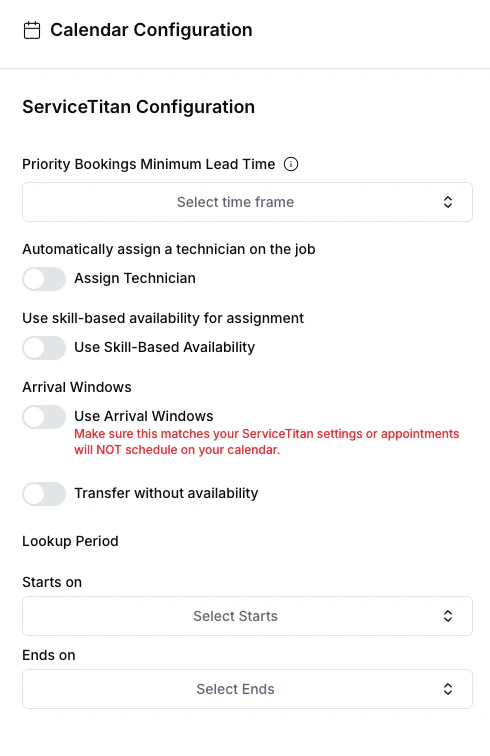
Bookings vs Dispatch
ServiceTitan offers two different calendars. When setting up your bot, you choose which calendar you want the bot to auto-book appointments on.Bookings Calendar
The Bookings calendar is for setting the appointment with the customer. What it looks like in ServiceTitan:- A booking is created on the Bookings calendar
- No job is created yet - someone on your team will need to convert the booking to a job and assign a technician
Dispatch Calendar
The Dispatch calendar is for identifying which tech to send out and other operational purposes. What it looks like in ServiceTitan:Time Zones
ServiceTitan uses Coordinated Universal Time (UTC), while Hatch uses North American time zones. Hatch converts the UTC times to your workspace’s timezone before presenting them to customers.Make sure your workspace time zone matches the location it corresponds to.