

Navigating to the salesboard
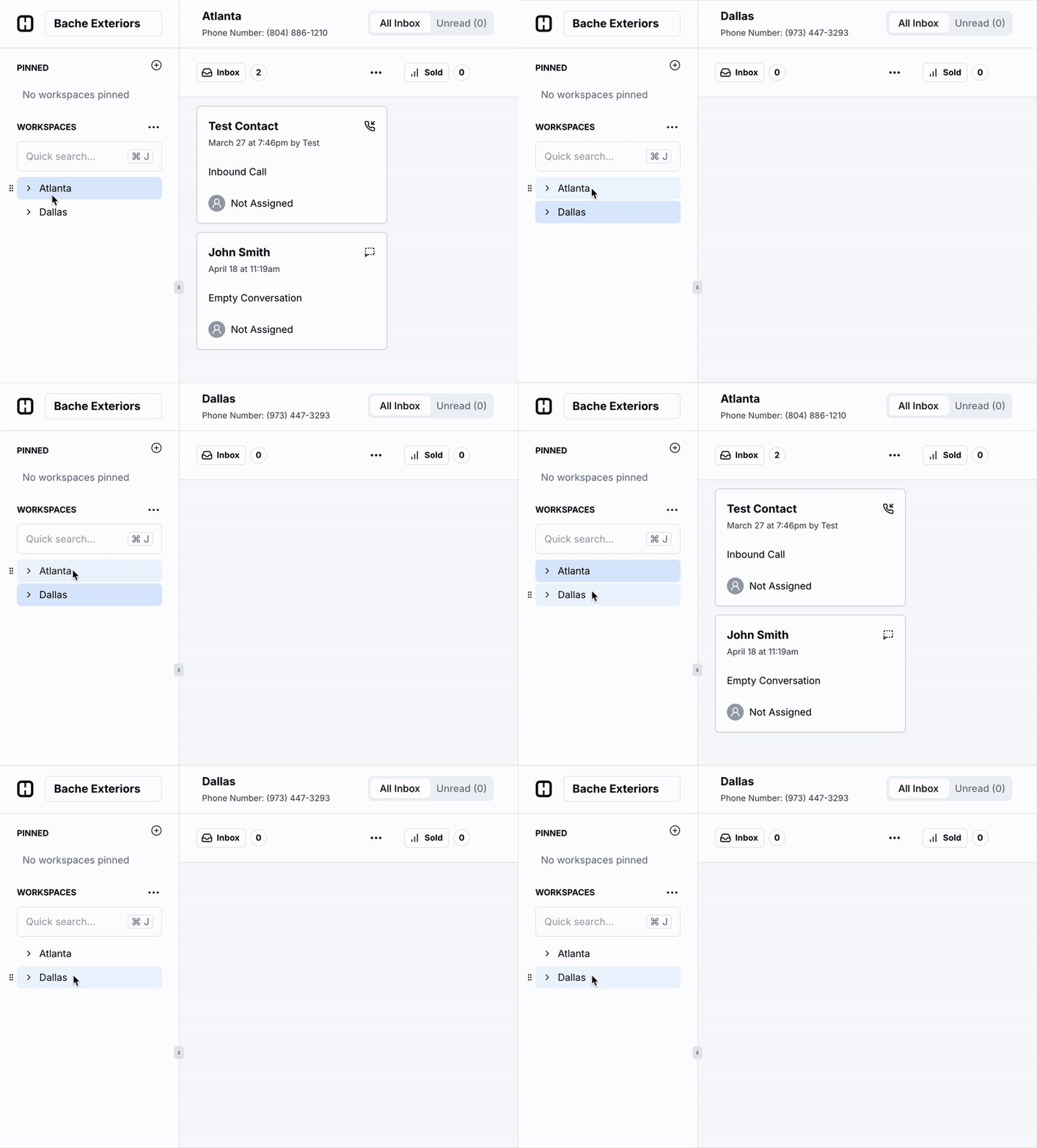
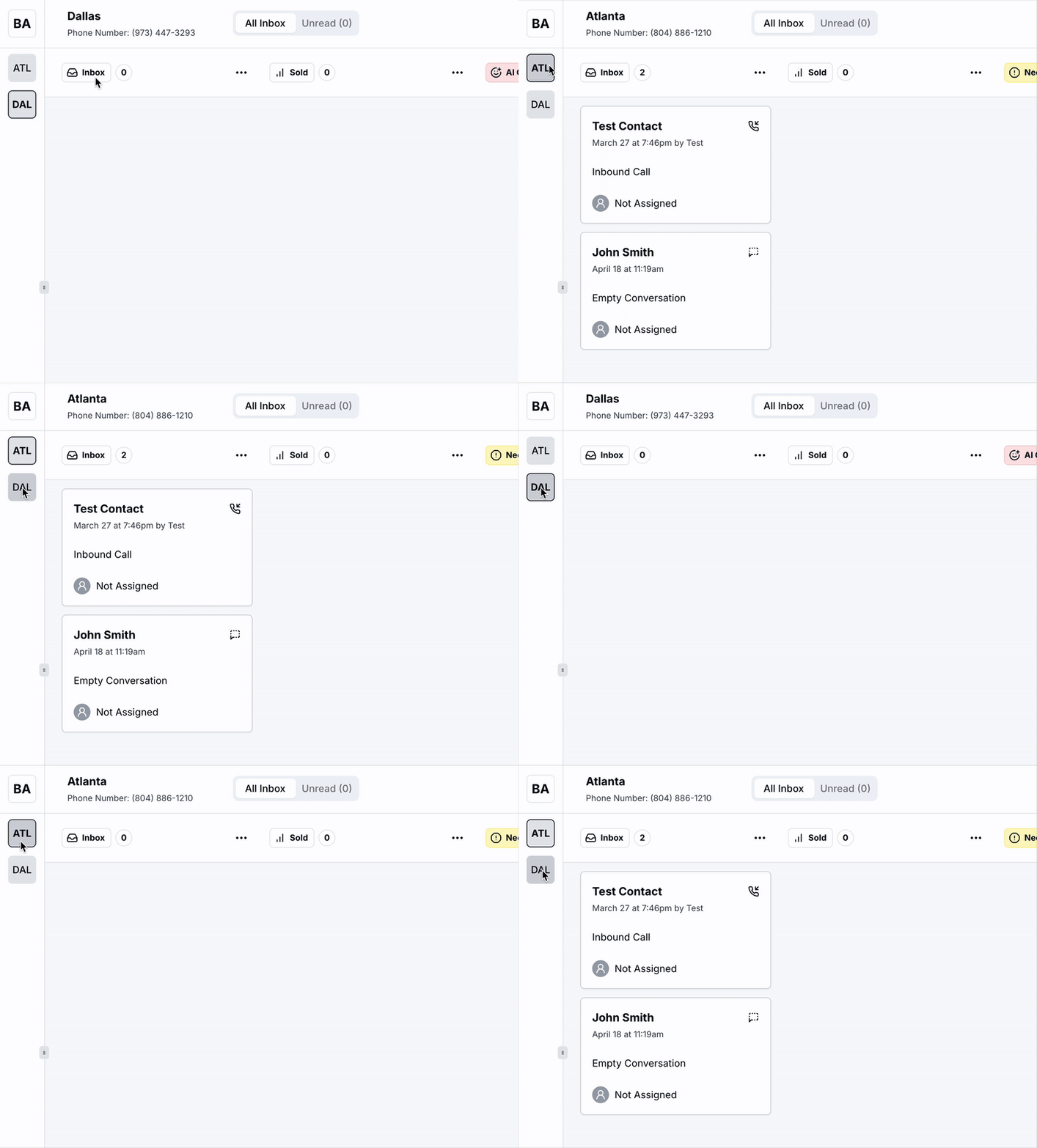
Salesboard Overview
How does the salesboard work?
Each workspace in Hatch has a unique phone number and email that allows your team to reach out to customers. When a contact is put into a campaign, we use your workspace’s information to send them text, voicemails, and emails. To your customer, it looks like they are simply having a text conversation or receiving a call.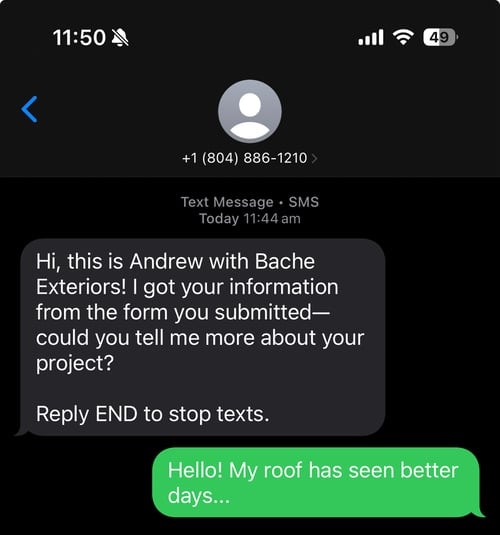
How do contacts get put on my salesboard?
When a contact sends you a communication (either a text or an email), their contact card will pop onto your salesboard, with an unread status. You click this contact card to respond to the message and take further actions in Hatch.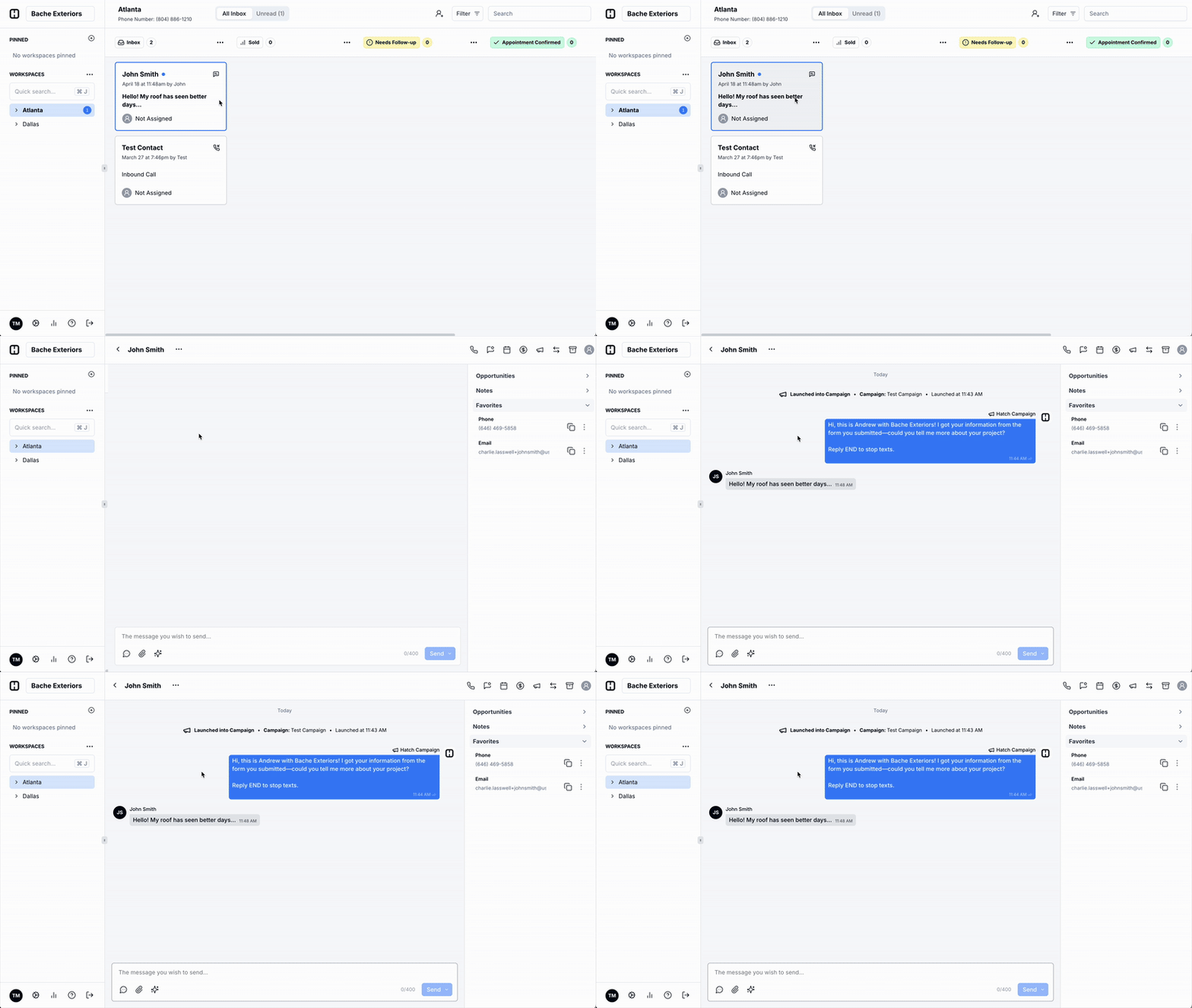
What is on my salesboard?
The salesboard is where most of your conversations with customers will occur. The salesboard is made up of the following core features:Contact Cards
Conversations with your customers pop up on the salesboard as ‘contact cards,’ which show the name of the contact, date of last communication, and which user in your workspace is assigned to the contact. Learn more about Contact Cards here.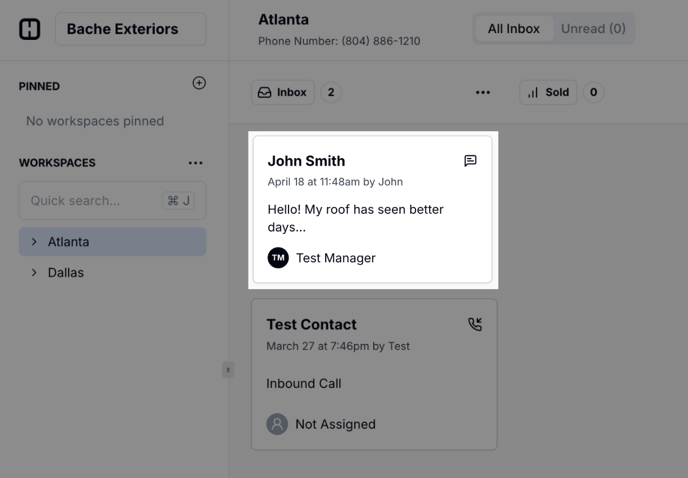
Columns
Contact cards are sorted into columns that your team can set up. You can name your columns in any way that suits your sales workflow, and add colored labels and symbols to help keep them differentiated. When a contact reaches a certain milestone in your flow, simply drag and drop the contact card into the appropriate column.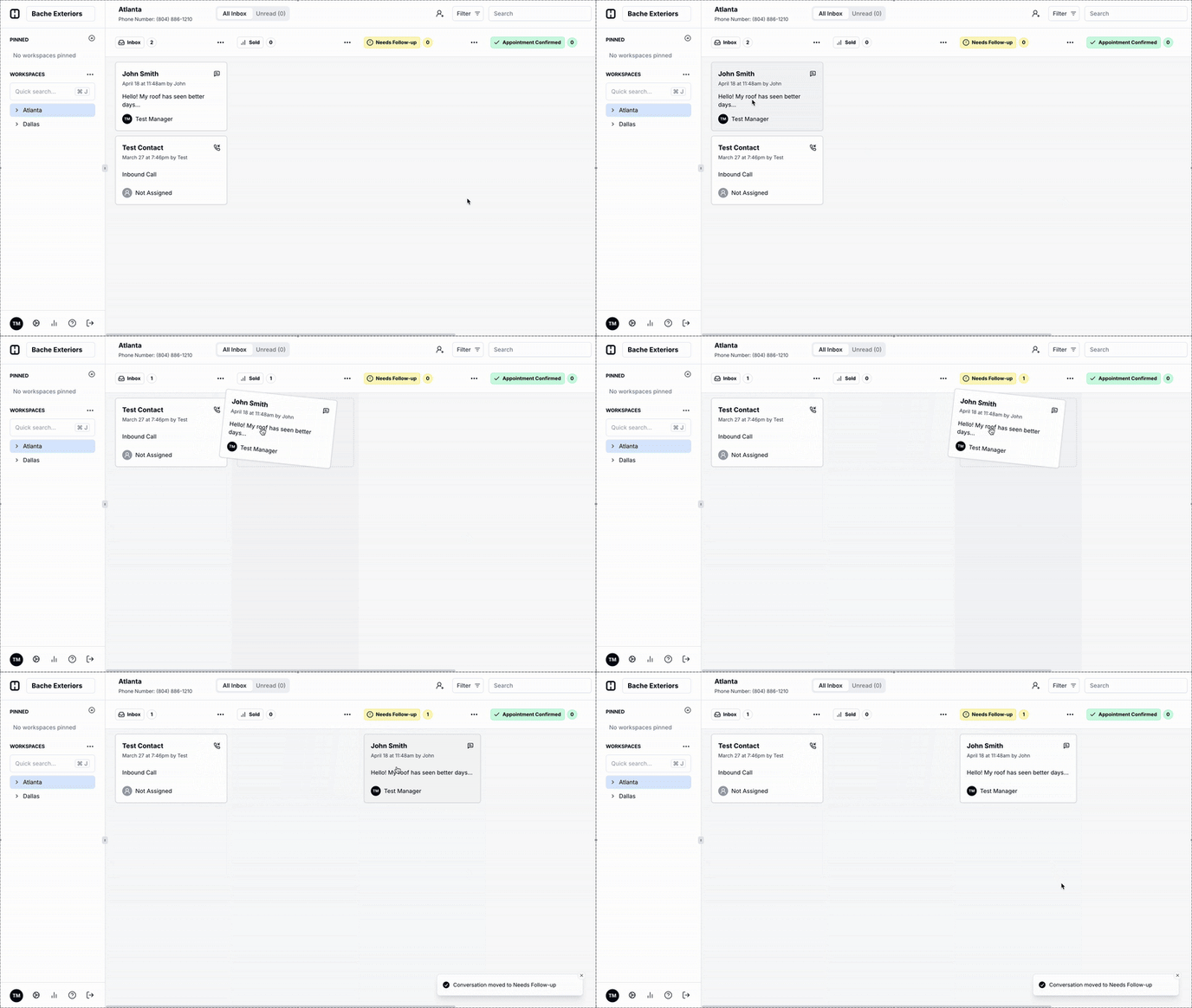
Search your salesboard
If you have a lot of contact cards on your board, easily retrieve a specific contact by using the search function. Only contact cards that meet your search criteria will appear on the board.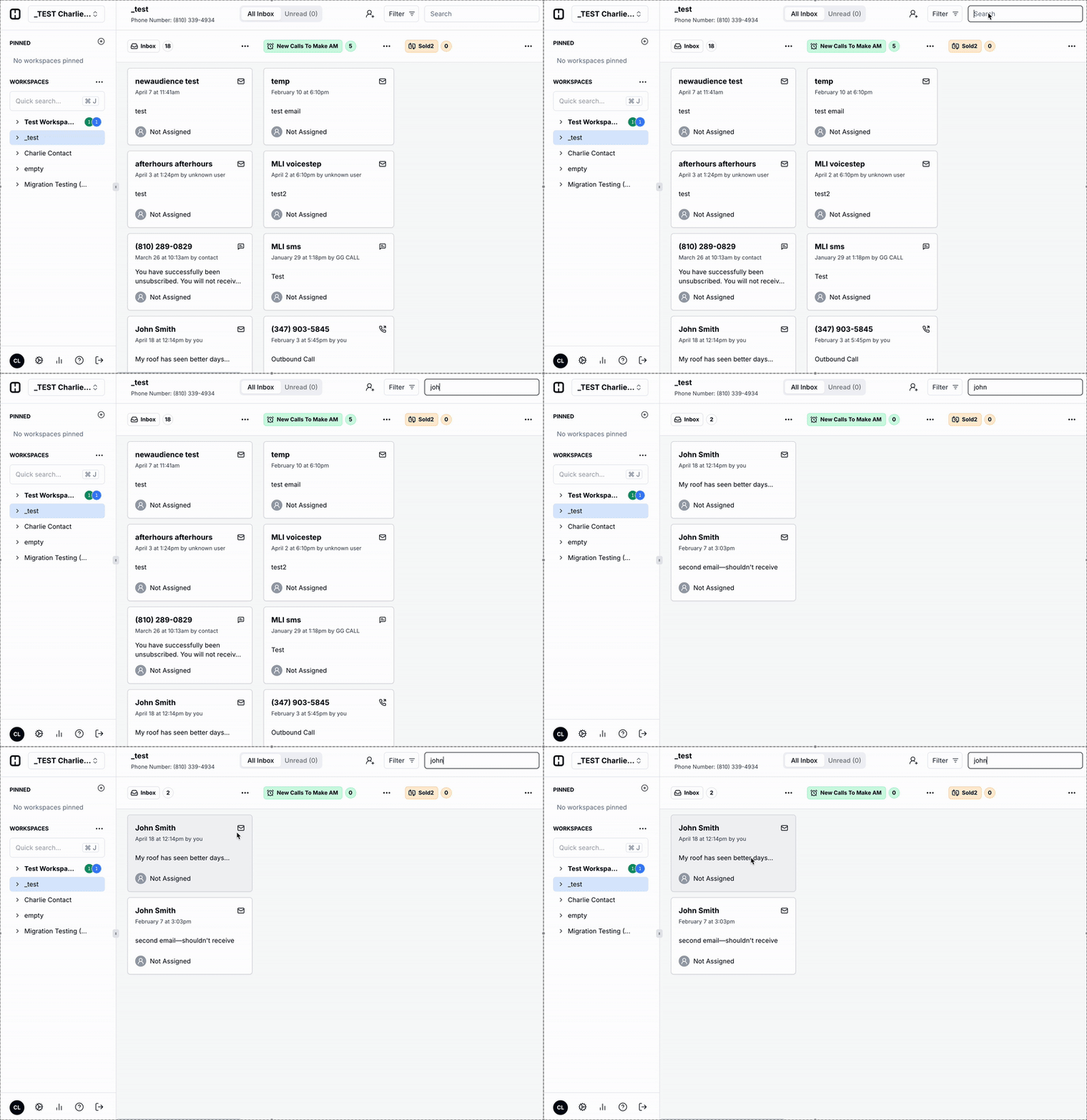
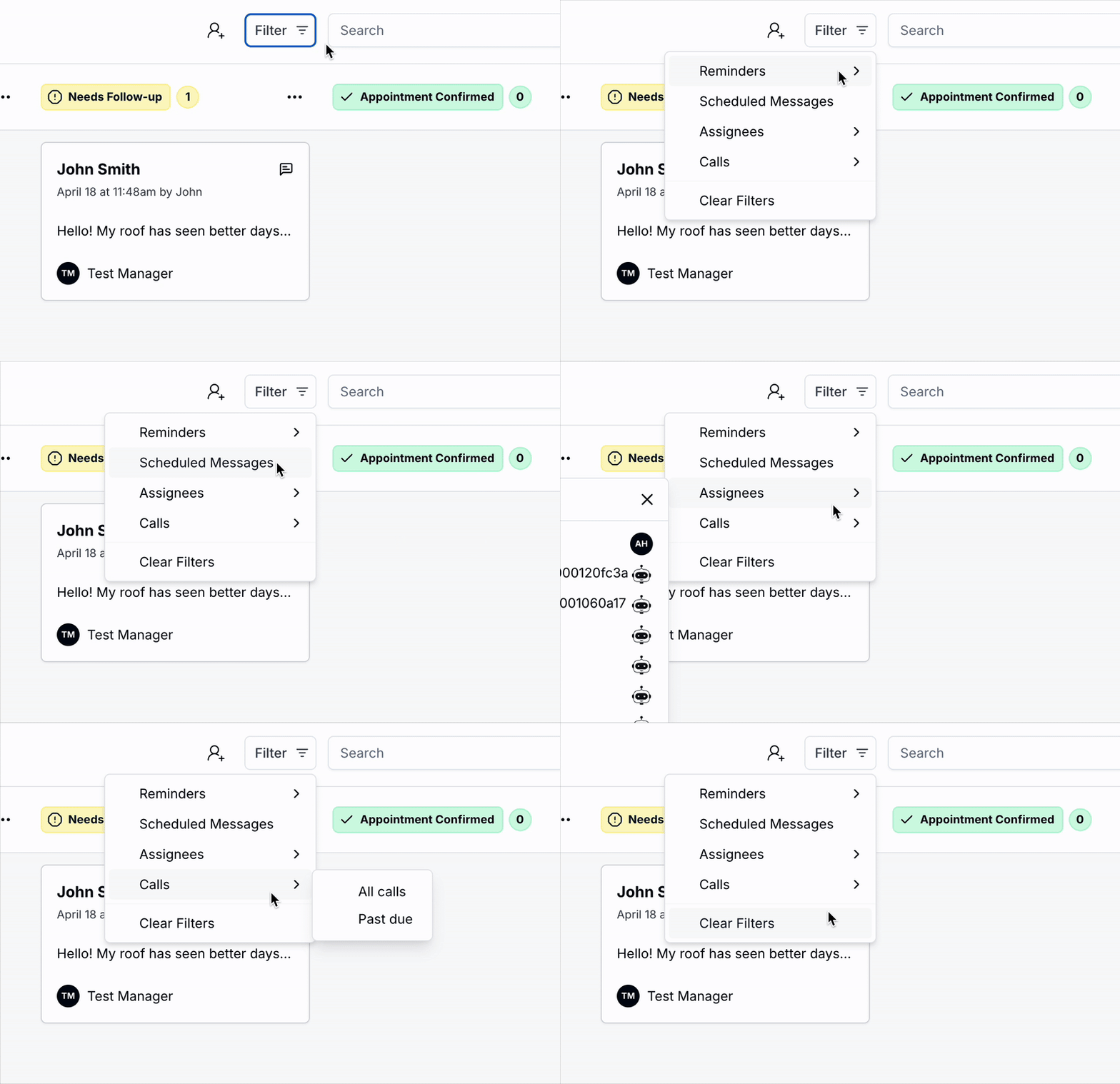
Create a Contact
You can create a contact quickly directly from the salesboard. If the contact already exists, it will update your previous contact record with any new information.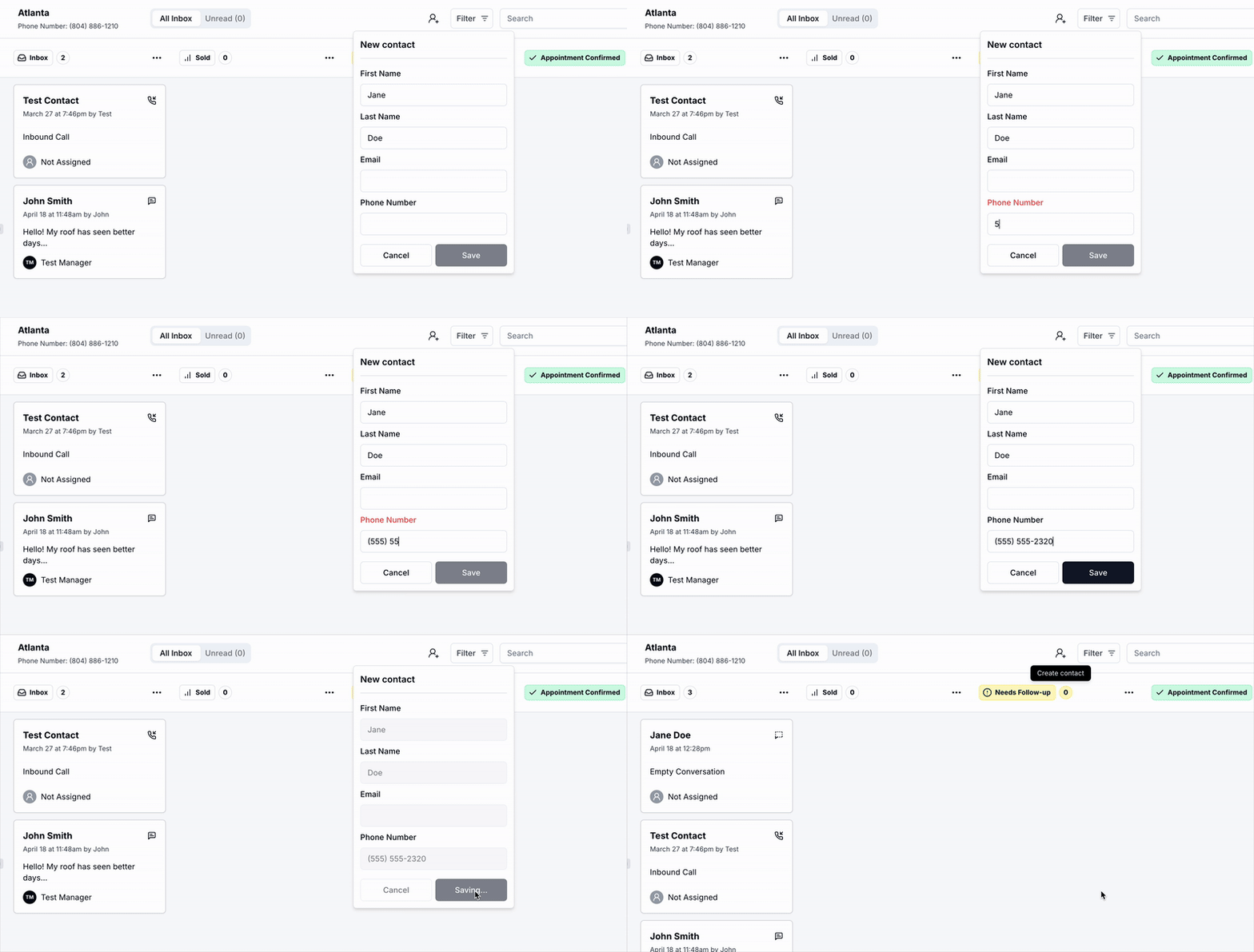
Frequently Asked Questions
Can I change which salesboard a contact card appears on?
Can I change which salesboard a contact card appears on?
If you have access to multiple workspaces, you may want to move a contact from one salesboard to another. You can do that by using the Move contact tool on the contact card. As long as the two workspaces share contacts, the new card will appear on the other board, and a record of being moved will show in the contact’s history.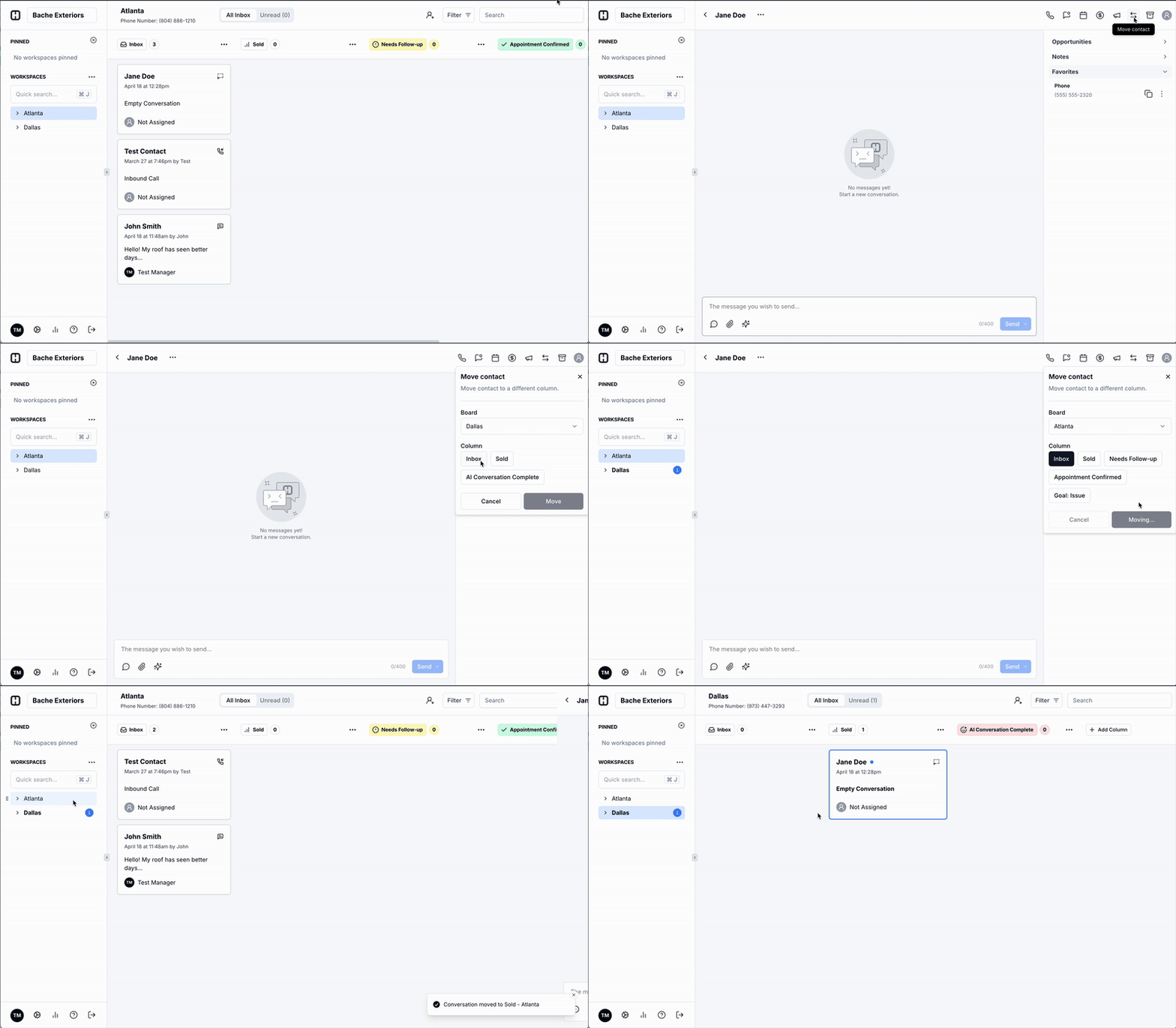
How do I put contacts directly on the salesboard?
How do I put contacts directly on the salesboard?
If you ever want to put contacts on your salesboard without them sending an inbound message, you can find an existing contact record in the Contacts Page. When you’re in the open contact card, use the same ‘Move contact’ tool to bring the contact to the relevant salesboard.
How do I add other team members to a workspace?
How do I add other team members to a workspace?
If you are a Manager, you can add team members to a workspace from Account Settings.