

What does the ServiceTitan integration do?
Hatch offers a native integration with ServiceTitan that you can activate within the App Marketplace (located in your Hatch workspace). This integration syncs contact data from ServiceTitan to Hatch, and can also sync Hatch events to ServiceTitan. While active, the ServiceTitan integration will sync new and updated ServiceTitan data every 15 minutes. It will also sync Hatch events back to ServiceTitan as soon as they occur (if you have enabled this feature). To get started, open the App Marketplace in your Hatch workspace and follow the setup instructions below.How do you set up the integration?
Requirements
You will need the following to set up the integration:- Hatch account with manager privileges
- ServiceTitan account with admin privileges on your tenant
Setup Steps
Hatch now has an official ServiceTitan App! All users are required to utilize our official ServiceTitan application over a personal application (as per their API terms of use). The Hatch app automatically provides us with the permissions to read or update data in your ServiceTitan tenant. The scopes requested by our app cover all of the possible use cases in Hatch. For reference, the scopes are listed below in the FAQ section. The following is the set of steps required to activate the integration:Before you begin, consider reviewing ServiceTitan’s documentation around managing client IDs and secrets. However, all of the necessary information is included in the instructions below.
- This first step is manual and will need to be completed in order to proceed with the rest of the setup steps. In order to make the Hatch app available for activation within your ServiceTitan instance, we will need to add your ServiceTitan Tenant ID to our ServiceTItan application. Please send your Tenant ID over to your onboarding representative to complete.
- _If you’re unsure where to find your Tenant ID, you can find it in ServiceTitan via Settings → Integrations → API Application Access
- Once the Hatch app has been activated for your tenant, you may proceed with setup. In Hatch, open the App Marketplace.
- Under the CRMs filter, click the Connect button for ServiceTitan.
- Proceed through the setup until you reach the connection configuration screen.
- Open the ServiceTitan instance that you want to connect to your Hatch workspace and navigate to Settings → Integrations → API Application Access.
- Click the Connect New App button, accept the terms and conditions (if prompted), and select Hatch from the list of apps.
- With Hatch selected, click Connect.
- Scroll to the bottom of the screen that appears.
- In the restriction by booking provider option, choose No Restriction.
- This simply allows Hatch to post Bookings in ServiceTitan without restriction to a specific booking provider id.
- Click Allow Access.
- On the resulting Application Details screen, copy/paste the Tenant ID and the Client ID into the associated fields on the Hatch configuration screen.
- Click the Generate button next to Client Secret and then click Yes, Continue to generate the secret.
- Copy/paste the Client Secret into the associated field on the Hatch setup screen.
- You may now close any open ServiceTitan pages. All of the remaining steps are completed in Hatch.
- If you are an Enteprise Hub customer, enable the Enterprise toggle, and enter the Enterprise Hub URL for this tenant ID
- Enable the opportunity models you would like to sync with Hatch
- additionally select which related objects to include in the data model
- Configure your push communications preferences.
- Make sure to complete the full setup and click Finish in order to officially activate your Hatch integration.
- If successfully activated, the integration will begin syncing your last 90 days of data.
How to upgrade the ServiceTitan app
If an application is configured with incorrect scopes or an upgrade to the scopes is required to access new information, you will need to first edit the application in the ServiceTitan dev portal, and then upgrade the connected app within ServiceTitan. Upgrade the connected Hatch app to the new version:- Login to your Service Titan account
- Manage API Application Access page:
<https://go.servicetitan.com/#/Settings/Api-Apps> - In the Hatch App, you should see a message informing about the scope update.
.png?width=688&height=157&name=Untitled%20(3).png)
- Click the “upgrade version” button and confirm.
Configuration Options
These options can be set during the integration setup: Enterprise Hub Toggle:- If you are authenticating via Enterprise Hub, enable the Enterprise Hub toggle
- If enabled, enter the Enterprise Hub URL associated with this tenant
- Choose which opportunity models the integration should sync from ServiceTitan, and subsequently which data objects to include with the model. We will go into further detail regarding the data objects further down in this article in the section “What ServiceTitan data is available in Hatch?”
- Configure a filter for placeholder emails: if your org utilizes placeholder emails within your ServiceTitan, this filter will prevent contacts from merging in Hatch based on the shared information
- Choose where outgoing campaign messages should sync — if/where Hatch should create ServiceTitan notes for outgoing campaign message events
- Sync message content for outgoing campaign messages — if the message content should be included in notes created for outgoing campaign message events
- Choose where incoming messages & calls should sync — if/where Hatch should create ServiceTitan notes for incoming messages & calls
- Sync message content for incoming messages & calls — if the message content should be included in notes created for incoming messages & calls
- Choose where outgoing manual messages & calls should sync — if/where Hatch should create ServiceTitan notes for outgoing manual messages & calls
- Sync message content for outgoing manual messages & calls — if the message content should be included in notes created for outgoing manual messages & calls
Configuration Best Practices
- We recommend utilizing the object selector feature in the data configuration to select only the information necessary for your campaigns. While the integration can sync a wide range of information that might seem relevant, it can also make it more difficult to pick out the pieces that are truly important and useable with your campaign strategies. Now you can customize what you want to sync. Read more about this feature here.
When does Hatch sync data to/from ServiceTitan?
ServiceTitan → Hatch
ServiceTitan data can be sync’d to Hatch in the following scenarios. These options are configured during the integration setup.Keep in mind that syncs occur every 15 minutes for Job and Membership data. Completed calls sync instantly using ServiceTitan webhooks.
- When a Job record is created or updated in ServiceTitan, Hatch syncs the Job record along with any associated data (see below for specific fields)
- When a Membership record is created or updated in ServiceTitan, Hatch syncs the Membership record along with any associated data (see below for specific fields)
- When a call is completed, Hatch syncs a record along with any associated data
Hatch → ServiceTitan
Automatically Book Jobs Users of Hatch AI can benefit from our calendar integration to automatically book jobs on your schedule. Learn more about how our ServiceTitan scheduler bot in our dedicated calendar integration article. Sync Communications Hatch events and/or communications can be sync’d to ServiceTitan in the following scenarios. These options are configured during the integration setup.Keep in mind that push communications occur instantaneously. There must be a ServiceTitan record in Hatch at the time of the sync in order for it to succeed.
- When a Hatch campaign sends a text/email/voicemail to a contact, Hatch creates a Note for the event on the associated Job, Customer, or Location
- When a contact calls or sends a text/email/voicemail to a Hatch workspace, Hatch creates a Note for the event on the associated Job, Customer, or Location
- When a Hatch user calls or sends a text/email to a contact, Hatch creates a Note for the event on the associated Job, Customer, or Location
- When events occur within a Hatch campaign, Hatch creates a Note for the event on the associated Job, Customer, or Location
- A contact is launched (added) to a Hatch campaign
- A contact is sent the first message of a Hatch campaign
- A contact is removed from a Hatch campaign before it has ended
- A contact completed a Hatch campaign
.png?width=605&height=818&name=image%20(32).png)
How is ServiceTitan data stored in Hatch?
Opportunity Models
There are two types of Hatch opportunities that the ServiceTitan integration creates:- Job Opportunity — Created from ServiceTitan Job records, this is the primary opportunity type in our ServiceTitan integration. Additional related data is also included (see below).
- Membership Opportunity — These opportunities are created from ServiceTitan Membership records. Additional related data is also included (see below).
- Inbound Call Opportunity — These opportunities are created when a inbound call is completed in ServiceTitan.
Opportunity Creation & Update
When an opportunity is generated that doesn’t match an existing contact , a new contact will be created. A new opportunity will be added to an existing contact if a match is found.
- The sync’d Hatch External ID matches the existing opportunity’s Hatch External ID (see below for how the External ID is mapped)
- The sync’d Hatch External ID does not match the existing opportunity’s Hatch External ID (see below for how the External ID is mapped)
What ServiceTitan data is available in Hatch?
Selecting Object Resources
The latest version of our integration allows you to select the resources that are most relevant to your campaigns, instead of syncing all possible data by default. This customizability allows you (and your integration) to operate more efficiently. Each opportunity model has a certain set of required objects that are needed in order for some aspect of Hatch to function. The additional resources are optional. We have defaulted the configuration with the most commonly used optional resources, but users can select or deselect as needed. The resources available with a Job opportunity are:- Estimates — Necessary in order to utilize a sales follow-up strategy.
- Appointments — Useful for appointment confirmation or canceled-appointment campaigns.
- Appointment Assignments — Can only be enabled if Appointments is selected. Useful if you want technician information in your campaigns.
- Cancel Reasons — Useful for canceled-appointments campaigns.
- Tag Types — Useful for segmenting audiences based on existing ServiceTitan tags.
- Campaigns — Useful for segmenting audiences based on existing ServiceTitan campaign attribution.
- Zones — Useful for location-based targeting.
- Employees & Technicians (Sold By) — Necessary if you need the estimate or membership Sold By information.
- Invoices — Necessary for accounts-receivable campaigns or post-completion review/referral targeting. The resources available with a Membership opportunity are:
- Recurring Services & Events — Aggregates the latest, next, and full list of recurring service events plus an unused-services count.
- Tag Types — Same as above, applied to the membership’s customer.
- Zones — Adds zone metadata to the membership’s location and recurring location.
- Employees & Technicians (Sold By) — Adds the membership’s soldBy info.
- Payment Type — Adds payment type metadata.
Available Resource Fields
The following fields are available in the Job opportunity details:
The following fields are available in the Membership opportunity details:
The following fields are available in the Inbound Call opportunity details:
Standard Field Mapping
Hatch standard fields are mapped from ServiceTitan detail fields as detailed below. Job OpportunityThe base object of this opportunity model is the ServiceTitan Job. Therefore, (as an example) the id field would indicate the ID of the ServiceTitan Job record.
Membership Opportunity
The base object of this opportunity model is the ServiceTitan Membership. Therefore, (as an example) the id field would indicate the ID of the ServiceTitan Membership record.
Inbound Call Opportunity
Creating a Job
You can create ServiceTitan jobs directly in Hatch, eliminating tab-switching, manual re-entry, and lost context. If the ServiceTitan integration is enabled, the “Create a Job” button will appear on the right when selecting a contact, within the “Quick Actions” section. When creating a job, you will need to select a customer and location, and provide the required information.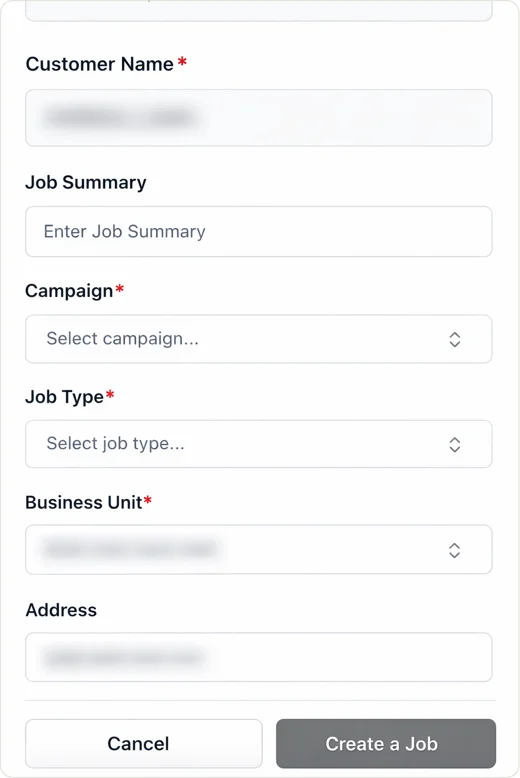
What are the limitations of the integration?
- The ServiceTitan API does not provide information related to the Job’s “Opportunity”, so Hatch is unable to target audiences based on the follow-up date or status.
Recommended targeting for audiences
We have a template library to help get you started on building audiences. These are what we’ve found works best to accomplish common use cases. Feel free to use these as a starting point for your own campaigns, but it’s always wise to evaluate what targeting strategy works best with your internal processes.Speed to Lead (Removal Rules)
The goal in mind here is to remove contacts from the STL campaign when a job (appointment) has been scheduled in ServiceTitan. There are a couple ways to achieve this: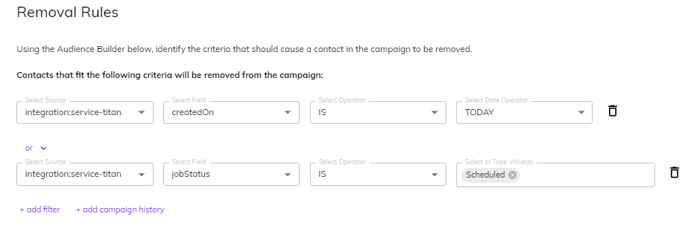
FAQ
Where can I find additional resources to assist with building ServiceTitan campaigns?
Where can I find additional resources to assist with building ServiceTitan campaigns?
Check out our blog posts! Here are some examples:
What API scopes are required by the integration, and are we able to customize them?
What API scopes are required by the integration, and are we able to customize them?
The scopes are standardized via our official ServiceTitan application so they are not able to be customized. If there are any scopes your organization does not wish Hatch to have access to, many of the features are optional and can be turned off. In that case, the integration would not access the related scopes.
The following Read scopes are required:
The following Read scopes are required:
- Accounting: Invoices, Invoice Items, Payment Types, Tax Zones
- CRM: Booking Provider Tags, Bookings, Customers, Leads, Locations, Tags
- Dispatch: Appointment Assignments, Capacity, Non-Job Appointments, Zones
- Job Planning and Management: Appointments, Job Cancel Reasons, Job Hold Reasons, Jobs, Job Types
- Memberships: Customer Memberships, Membership Types, Recurring Service Events, Recurring Services, Recurring Service Types
- Marketing: Campaigns, Campaign Categories
- Sales & Estimates: Estimates
- Settings: Business Units, Employees, Tag Types, Technicians, User Roles
- CRM: Customers, Leads, Locations
- Dispatch: Capacity
- Marketing: Campaigns
- Job Planning and Management: Jobs, Appointments