

What is the Salesforce Enterprise integration?
The Salesforce Enterprise integration offers all the same benefits as our legacy Salesforce integration…and more! With increased functionality and customizability, the new integration was designed to support the needs of both small businesses and enterprise users.What does the integration do?
The integration is bi-directional: While active, the integration will sync new and updated Salesforce data into Hatch every 15 minutes. It also allows you to automatically push records of Hatch campaign or communication events back to the associated Salesforce record. To get started, open the App Marketplace in your Hatch workspace and follow the setup instructions below.How do I set up the integration?
Requirements
- API access is required. The minimum Salesforce plan including API access is the Enterprise edition. If you are on the lower tier Professional edition, you may purchase API access as an add-on.
- Sufficient API bandwidth. Salesforce does place a daily limit on the number of requests to the API that can be made by your Salesforce instance. In most cases, this limit should not be an issue. However, if you have many integrations using the API or are syncing massive amounts of data between Hatch and Salesforce then your API request limit is something to be aware of.
- We generally recommend using Admin credentials when authorizing the integration, to ensure that permissions are granted to all the necessary read/write capabilities. Ideally, you will want to authorize the integration with credentials that will ensure stability.
Setup Instructions
Here’s what we need to get started:- Navigate to the Hatch app marketplace.
- Click “Configure” on the Salesforce integration
- The integration uses OAuth protocol to allow access to the Salesforce APIs, so all you need to do it click connect and then authorize on the Salesforce screen that will pop-up. Once authorized, return to the Hatch integration screen and the connection bubble should be blue.
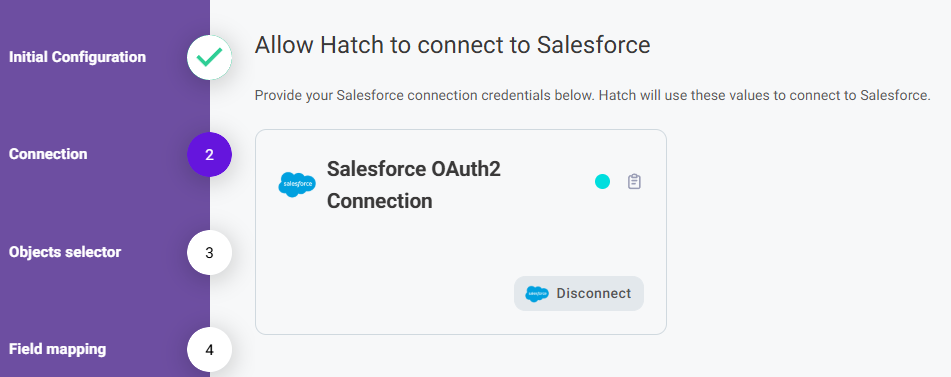
- Continue through the configuration wizard to select the desired data objects and push communication options.
- Don’t forget to click Finish in order to save.
Configuration Options
The new and improved Salesforce integration offers a multitude of customization options that users can configure. The next sections will go into further detail on how to configure what data will be synced between Hatch and Salesforce.What Salesforce data is available in Hatch?
Hatch has defined three types of opportunities that can be generated by the integration: our standardized default objects, custom objects, and advanced custom objects. Each object that you choose to sync with Hatch generate an individual Hatch opportunity.Standard Objects
Hatch has pre-defined a set of standard Salesforce objects that are readily available to sync with Hatch:- Lead
- Opportunity
- Contact
Custom Objects
In addition to the objects Hatch has pre-defined, the integration allows you to define your own custom objects to sync. This includes both standard Salesforce objects and/or objects that may be fully custom to your organization. When adding a Custom Object to your integration, you will be able to choose from a dropdown list of the available objects pulled from your Salesforce instance: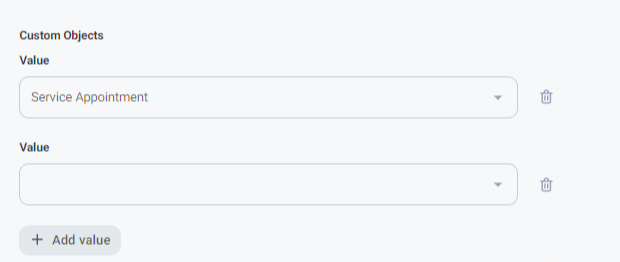
- the fields required to create a Hatch contact (Name, Phone, Email)
- a field with a lookup relationship to the Salesforce contact. The integration will automatically access that lookup and pull in the related contact information.
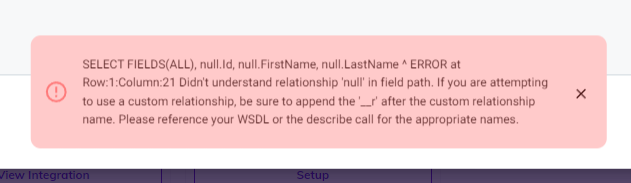
- The SOQL we are using to pull the object as well as its related Contact cannot support polymorphic fields. Polymorphic fields are fields that contain a lookup relationship to more than one object type (for example the relationship can be a Lead or a Contact). If you attempt to configure an object and receive the below error, you will need to use the Advanced Custom Object to configure this instead.
Advanced Custom Objects
If you need to enable syncing of a more complex Salesforce model into Hatch contacts, this option may be for you: if a technical user within your org can identify the SOQL query to join the needed data together, then you may create an “object” for Hatch to sync with by directly inputting that SOQL. SOQL can and should be tested first in your Salesforce dev console. We strongly recommend the assistance of a Salesforce admin or developer for use of this option as it may require advanced knowledge of your Salesforce data model and SOQL syntax. To add an Advanced Custom Object to your integration, thekey will be the name of the object and should match the API name of the base object in Salesforce (this will allow pushcomms to be sent back to Salesforce). The value will be a string containing your SOQL query.
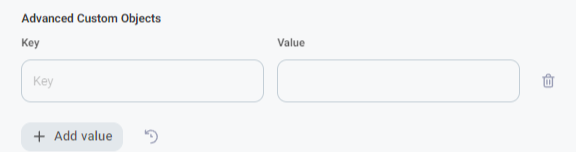
- SOQL will only allow for a single WHERE clause per query. Since Hatch is using the WHERE clause to control the sync time range, it is not available for use in the custom object model (syncs will fail to complete).
Defining Custom Objects
In order to sync custom objects into Hatch, those objects need to have certain information mapped from the Salesforce fields into the equivalent Hatch fields. If the fields are not mapped correctly, the integration may fail to create contacts or create contacts with incomplete information. The integration will pull in all of the available fields from the Salesforce object and an example contact to help visualize the data. As best practice, the following information should be defined within your custom object:- Hatch Contact’s First Name
- Hatch Contact’s Last Name
- Hatch Contact’s Phone Number
- Hatch Contact’s Email
- Hatch Contact’s External ID (The ID of the Salesforce object record. This is typically a system field name
IDorRecord ID) - Hatch Contact’s External Contact ID(The ID of the related Salesforce Contact. This is typically a system field name
Contact IDorWho ID) - Hatch Contact’s External Created At (The datetime that the record was created in Salesforce. This is typically a system field name
Created Date) - Hatch Contact’s External Updated At (The datetime that the record was created in Salesforce. This is typically a system field name
Last Modified Date) - Hatch Contact’s Status(This is not a required field, but can be useful context. We recommend mapping any available field that might give insight into where this contact is in your customer journey)
Creating a Hatch Contact & Opportunity
Each of the objects defined in the configuration step will create an individual Hatch Opportunity.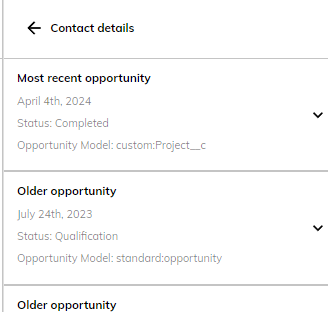
What information does Hatch sync back to Salesforce?
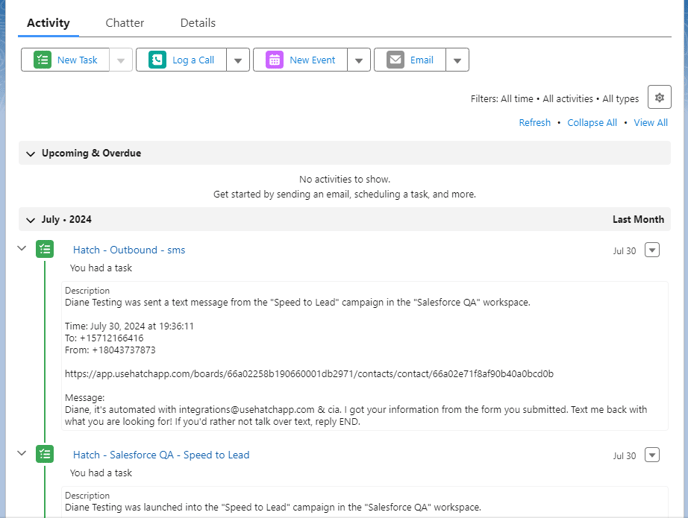
Hatch events and/or communications can be sync’d to Salesforce in the following scenarios. These options are configurable during the integration setup. If enabled for a particular object, Hatch will log the records as a completed Salesforce Task on that object.- When a Hatch campaign sends a text/email/voicemail to a contact,
- When a contact calls or sends a text/email/voicemail to a Hatch workspace
- When a Hatch user calls or sends a text/email to a contact
- When events occur within a Hatch campaign
- A contact is launched (added) to a Hatch campaign
- A contact is sent the first message of a Hatch campaign
- A contact is removed from a Hatch campaign before it has ended
- A contact completed a Hatch campaign
Frequently Asked Questions
How are the example contacts pulled for the field mapping?
How are the example contacts pulled for the field mapping?
If the object has a “lastModified” field, then the field mapper will use the most recently updated record. This should make it easy to sync in a test contact with all the fields you need. If there is no “lastModified” field, then the first record returned by Salesforce is used.
One of the fields I need to map is not available--what do I do?
One of the fields I need to map is not available--what do I do?
It’s possible that the field is not present on the contact being used as an example. You can try creating or modifying a test record or ideal record to force the integration to use that as the mapping example.
What will the push communications look like in my Salesforce?
What will the push communications look like in my Salesforce?
Keeping in mind that there are some configurable options here, the Salesforce Tasks might look something like this:
I am getting a generic error when attempting to integrate Salesforce with Hatch that just tells me to reach out to a Salesforce Admin. Are there any steps I can take before reaching out?
I am getting a generic error when attempting to integrate Salesforce with Hatch that just tells me to reach out to a Salesforce Admin. Are there any steps I can take before reaching out?
Most of the time this error occurs, it’s due to missing API permissions. In particular, it’s worth checking to make sure the user you’re attempting to authorizing Hatch with has Connected Apps OAuth Usage enabled.On the profile level, there is a new permission that needs to be added to the custom Admin Profile regarding Connected Apps:
Setup>Profile( Admin)>Edit>Administrative Permission
In here, check the box that says ‘Approve Uninstalled Connected Apps’.Afterwards, make sure you saved the changes and attempt to reintegrate with Hatch.
Setup>Profile( Admin)>Edit>Administrative Permission
In here, check the box that says ‘Approve Uninstalled Connected Apps’.Afterwards, make sure you saved the changes and attempt to reintegrate with Hatch.