What does the Yelp integration do?
In order to protect the privacy of consumers who use Yelp to obtain quotes for their projects, Yelp has made the decision not to share the true contact information when a lead is sent through their system. While inconvenient for business users in some aspects, the goal is to maintain user trust in Yelp’s platform—ultimately ensuring that users will not hesitate to reach out to businesses about potential projects. To achieve this, Yelp has developed a system of masking the contact information of both lead and business provider through secure communications channels. But this does put businesses in a position to request the lead’s contact information at some point in the conversation. Hatch’s Yelp integration interacts with their APIs to immediately receive a record of new leads and lead messages sent to your business on Yelp. Hatch works with Yelp to ensure that messages sent to contacts via the masked communication channels in Hatch will be successfully delivered to the lead and into the Hatch platform. If you’re using our Hatch AI to manage your conversations, our bots are programmed with a new interaction that will take care of obtaining and updating the lead’s true contact information. Learn more about interacting with temporary contacts and how Hatch AI makes this process easier for businesses here!How does the Yelp integration work?
Yelp will send a webhook notification to Hatch each time a new lead or lead message is received.- When a new lead event is received, Hatch will create a new Opportunity and Contact records using the temporary contact information. The project details will be included in the Hatch Opportunity details. You can target this contact in an audience and immediately launch it into a campaign workflow (all of which will be automatically created for you!)
- When a new lead message is received, Hatch will create a Yelp message in the Hatch conversation history. Hatch will also mark the message as read in the Yelp inbox.
- Be aware that this means all new messages moving forward will sync to your Hatch workspace and you can respond from Hatch. This includes messages from leads that were created prior to activation of the integration. The only exception is if a lead that is older than 30 days sends a message, they will not be assigned new temporary contact methods by Yelp so they cannot sync with Hatch.
- When a lead message is responded to via Hatch, the response will also populate in the Yelp inbox and mark the lead’s message as replied.
Yelp Message
For the most reliable messaging experience, we recommend using our new Yelp message type instead of sms/email. This specialized message type uses Yelp’s API to create a direct messaging channel with the lead. Once a Hatch message hits the Yelp platform, it is forwarded through their system to the lead’s phone and/or email, depending on what notifications they have subscribed to. It is equivalent to sending a direct message to the lead using Yelp’s own user interface. In the Hatch UI, you can identify messages that have been sent via the Yelp messaging channel with the Yelp icon: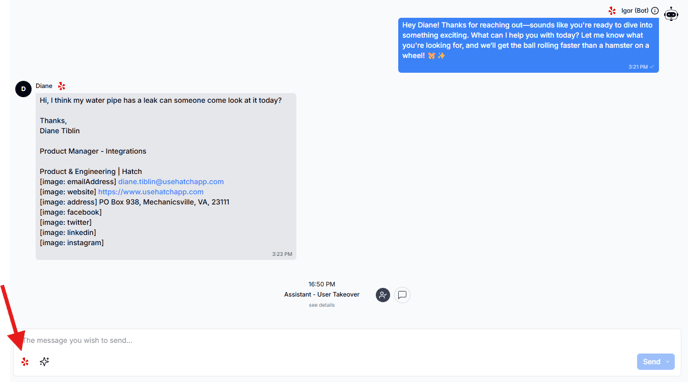
Integration Setup
- Navigate to the Hatch workspace in which you would like to enable the Yelp communications and campaign workflow.
- Navigate to the App Marketplace tab.
- Filtering by “Lead Source,” you will find the Yelp integration. Click the Connect button.
- When you see the O-auth window, click to allow access to your Yelp account. See the FAQ below for notes and clarification on what you’re giving Hatch access to.
Note : you can only connect a Yelp account to a single integration. If you attempt to provide o-auth access to more than 1 integration, the connection will break.
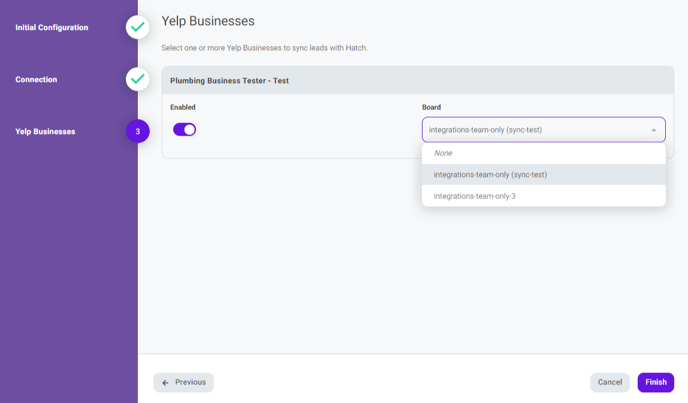
- On the next screen, you will see a list of Yelp business IDs associated with your user account. To sync leads from a business, enable the toggle. You may enable more than one business.
- Once a business has been enabled, you will need to choose from the drop-down which of your Hatch workspaces to sync the lead messages with. Whichever workspace you choose is where the inbound communications will appear on the salesboard. Additionally, that workspace’s phone number will be added to the business’s phone allowlist.
Additional Hatch Configuration
Allowlist
In order to message with Yelp’s leads, two things need to occur, both of which Hatch will take care of: 1. SMS & phone calls may only be placed after the number you are calling from has been added to Yelp’s allowlist. Hatch will whitelist your workspace numbers with Yelp. 2. Email messages must have a specific, unaltered footer identifying the allowed sender. Hatch will automatically append this footer to all emails sent to Yelp contacts.Campaign
Generally, Hatch recommends a multi-channel campaign in order to reach your contacts quickest in whatever mode they prefer. In this particular case, the Yelp messaging channel already takes care of that: A Yelp message from the business to a lead is mirrored to both of a lead’s contact methods (if they have provided both an email and a phone number). This means that it’s not necessary for your Hatch campaign to send emails and texts to a lead: using the Yelp message type, every message will be delivered to the lead as both a text and email. In fact, using multiple contact methods to reach the lead may result redundant or spammy seeming messages. For example , if your Hatch campaign is sending an initial text and then follows with a similar email 15 minutes later: instead of getting two messages, the lead will get four messages (all saying basically the same thing—you can see how that might seem strange or annoying!). Hatch’s recommendations:-
Use the Yelp message type
- Yelp’s messaging system does not enable the use of images or HTML, so treat your Yelp messages like an sms message! Keep it simple and use plain text.
- Campaign voicemail drops are not supported at this time (but you can still call the lead outside of the context of the campaign sequence).
FAQ
Can I connect my Yelp account to more than 1 integration?
Can I connect my Yelp account to more than 1 integration?
Yelp’s OAuth is only valid for a single API connection, so an individual user’s credentials can be used to authorize only 1 integration. Attempting to connect to another integration instance or another service will disrupt the connection of your Hatch integration and may result in missed leads or communications.
What if I am currently working with a Yelp Advertising Partner and/or Agency, can I still enable a Hatch integration?
What if I am currently working with a Yelp Advertising Partner and/or Agency, can I still enable a Hatch integration?
Yes, if you are currently working with a Yelp Advertising Partner and/or Agency you can enable Hatch to receive your Yelp leads, so that you can read/respond to your Yelp leads within Hatch.
However we strongly recommend that you communicate this fact as well as your intentions to your Yelp Advertising Partner and/or Agency to ensure there are no conflicts with the services they provide, prior to enabling the Hatch connection. By communicating your intentions with your Yelp Advertising Partner and/or Agency prior, this will provide the time needed for proper coordination, thus avoiding any unexpected outcomes and/or confusion.
How long is Yelp's temporary contact information valid?
How long is Yelp's temporary contact information valid?
Yelp enables the masked communication session for 30 days. After 30 days, the temporary contact methods will expire and are not able to be used for communicating with this contact. This will be reflected in the Hatch contact card (read more here).
How long does it take for my phone numbers to be added to Yelp's allowlist?
How long does it take for my phone numbers to be added to Yelp's allowlist?
Currently, it may take up to 48 hours for Yelp to add your Hatch numbers to their allowlist. Planned improvements will be coming in the future to reduce this timeframe and/or potentially allow users to self-service within their Yelp accounts.
Why can't I access the lead's temporary phone number in my Yelp account anymore?
Why can't I access the lead's temporary phone number in my Yelp account anymore?
This is a Yelp limitation. Yelp only provides the lead’s temp phone number to 1 platform, so if the Hatch integration is enabled they are sending the phone number to Hatch and it will not be visible in Yelp.You can look up the lead on the Hatch Contacts page to obtain the phone number if you wish to call them (assuming the lead opted in to phone communication). You can also add an outbound calling step to your Hatch campaign!
Will using Hatch affect my reply time that is tracked by Yelp?
Will using Hatch affect my reply time that is tracked by Yelp?
Yes! Messages sent via the Yelp temporary contact methods are automatically tracked in their system as a reply made to the lead. Thus, using Hatch to instantly launch the leads into a Speed to Lead campaign will increase your reply time!
Some Yelp messages are not importing to my Hatch account—Why?
Some Yelp messages are not importing to my Hatch account—Why?
Hatch needs an email or phone number in order to create a contact record. If you have an older lead (a lead that was received more than 30 days prior to activating your Hatch integration) then Yelp will not assign a temporary contact method to that lead, so Hatch cannot import it.Additionally, any Business replies sent from Yelp are not synced into Hatch by design. Yelp does not differentiate the source of a Business reply so it’s not possible to determine if it was sent from Hatch or Yelp.
What access does Hatch require from my Yelp account?
What access does Hatch require from my Yelp account?
The following permission is required in order to activate the integration:
- Read and Respond to Yelp Leads on your behalf
- Receive the following information from my Yelp account: business account name, email, photo, and role
- Display listing details
Why are leads splitting into multiple Hatch contacts with different temporary phone and email?
Why are leads splitting into multiple Hatch contacts with different temporary phone and email?
This is a result of a bug that has been discovered on the Yelp side. Yelp is in the process of fixing this issue.
Why are my campaign messages being blocked?
Why are my campaign messages being blocked?
If you are trying to send a message via the temporary email method, you may be running into a Yelp limitation. A lead message may be replied to only one time using the temporary contact email. This same limitation exists if you were to respond via the Yelp notification thread in your personal email inbox.