

Integrations
Overview:
- Type: CRM
- Version: App Marketplace
- Setup Type: Credentials
- Sync Frequency: 1 hour
Setting Up the Integration
Instructions
- Navigate to the Hatch app marketplace
- Click Connect on the Marketsharp integration
-
Enter your Marketsharp company id and the credentials of the user that will provide API access
- Note: If you use a corporate
<>child company structure, you will enter the corporate company id and the child company id separately. Reference an example here, if your login company were 1234-1:
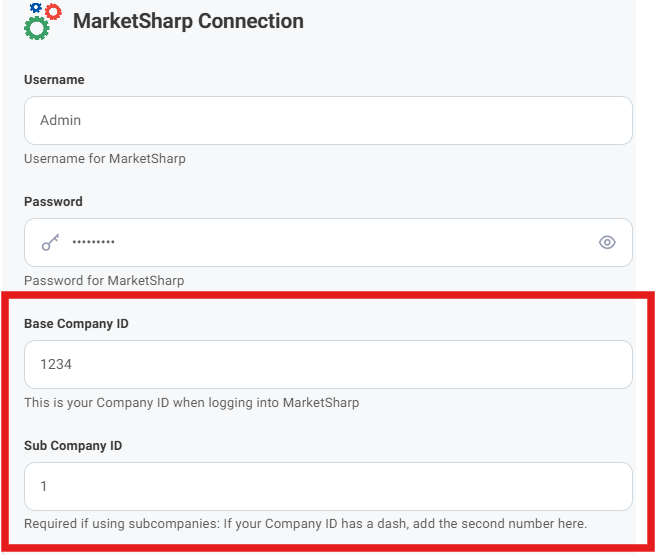
- Note: If you use a corporate
- Complete additional configurations
- Click Finish to save.
Objects that Sync from MarketSharp Into Hatch
- Appointment
- Contact
- Inquiry
Sync Rules: How a Hatch contact gets updated by Marketsharp
The following TRIGGERS cause the listed sync ACTIONS :- TRIGGER: A MarketSharp Appointment object is updated within the last 60 minutes before the sync began
- ACTION: All MarketSharp Appointment object fields/values are sync’d
- ACTION: The associated MarketSharp Inquiry object’s fields/values are sync’d
- ACTION: The associated MarketSharp Contact object’s fields/values are sync’d
- TRIGGER: A MarketSharp Inquiry object is updated within the last 60 minutes before the sync began and was not associated with a MarketSharp Appointment object during the sync
- ACTION: All MarketSharp Inquiry object fields/values are sync’d
- ACTION: The associated MarketSharp Contact object’s fields/values are sync’d
- Appointment + Inquiry + Contact
- Inquiry + Contact
- The sync’d External ID matches the existing opportunity’s External ID
- The sync’d External Created At matches the existing opportunity’s External Created At
- The sync’d External ID does not match the existing opportunity’s External ID
- The sync’d External Created At does not match the existing opportunity’s External Created At
MarketSharp Customizations in Hatch Integration Settings:
User options
- Filter Contacts by Company ID — A true/false flag that indicates if the integration should only push contacts that match the parent company ID (if no sub-company ID is provided) or the sub-company ID (if a sub-company ID is provided) (default is false)
- Push Communications to Activities — A true/false flag that indicates if the integration should push communication data back to MarketSharp Activities (default is true)
- Push Communications to Notes — A true/false flag that indicates if the integration should push communication data back to MarketSharp Notes (default is false)
Admin options
- Employee ID — The employee ID that the integration will use for MarketSharp Notes and/or Activities created by Hatch (default is the employee ID used to authenticate the integration)