

Integration Overview
Hatch’s integration with Angi Ads (fka Angie’s List) allows your business to win the game of “speed to lead”. Through our integration, leads from Angi Ads are instantly pulled into Hatch and put into a Hatch campaign using text, email and voice communication.Here’s how it works:
First, a contact fills out a lead form on Angie’s List.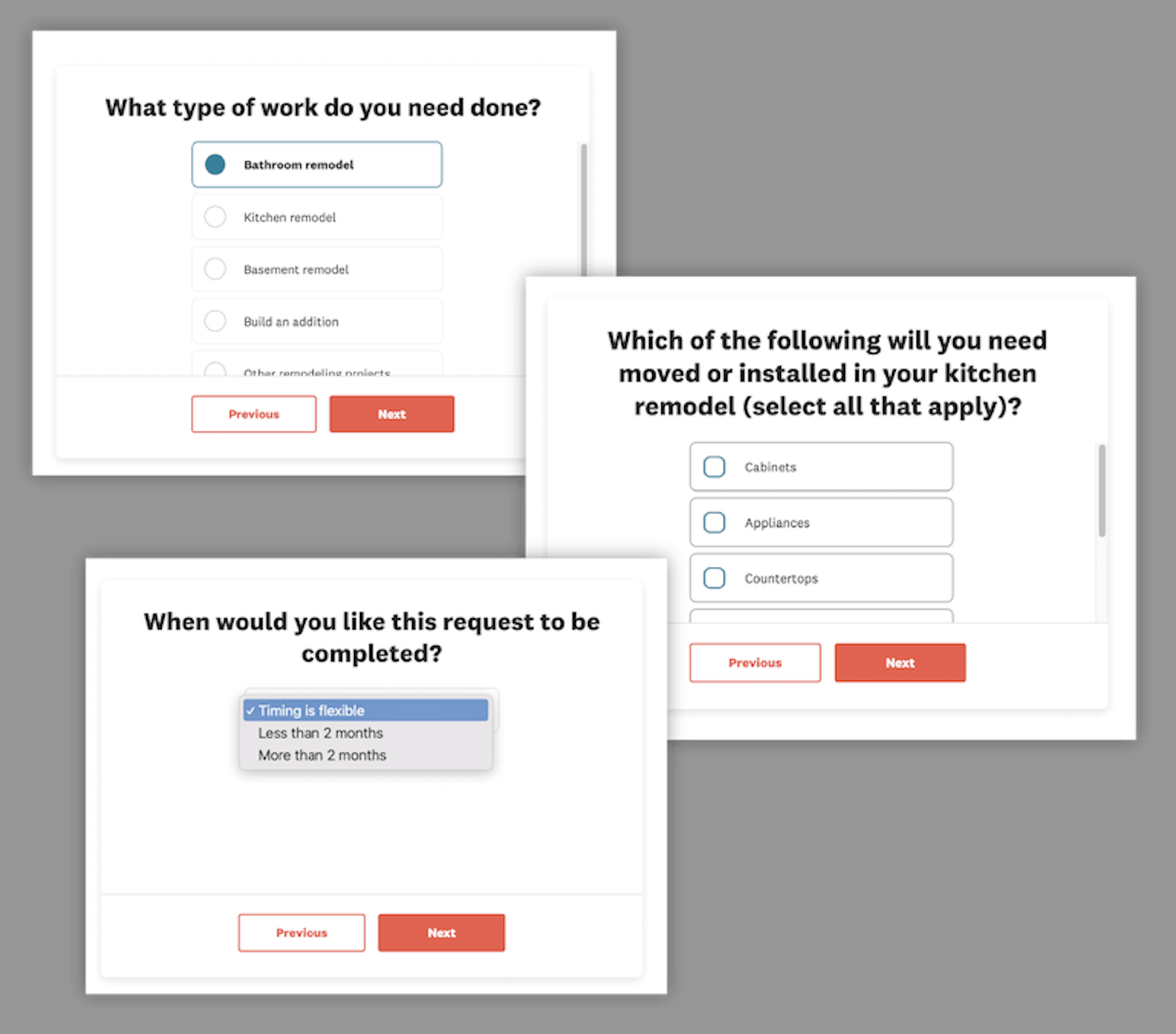
Here is an example of a form being filled out on Angie’s List.Once the form is submitted, Hatch receives that lead information and you can find those leads on your Contacts page. You can see all of the Lead details inside of the contact card.
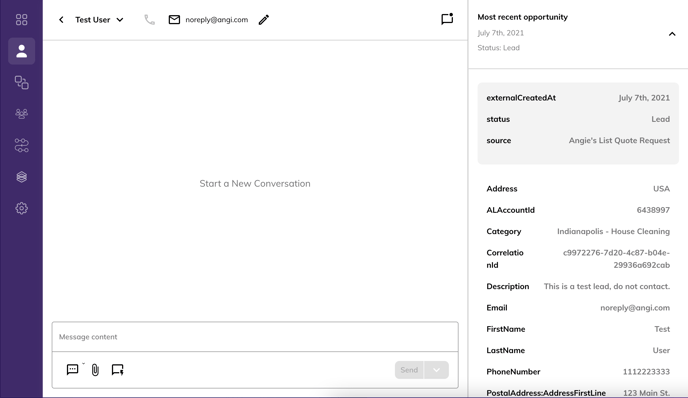
This is a test contact. You can see the “Source” comes over as “Angie’s List Quote Request” for Angie’s List leads. All fields collected on your lead form will be shown in Hatch.For speed-to-lead, we recommend adding contacts instantly into a campaign within Hatch. The contact receives a message that looks like this:
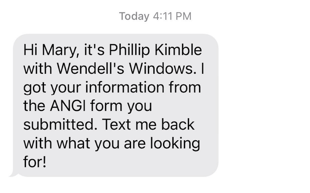
Here you can see the message Mary was sent after she filled out the lead form on Angie’s List.When the contact responds to the message, your Hatch user will be able to respond from their Board.
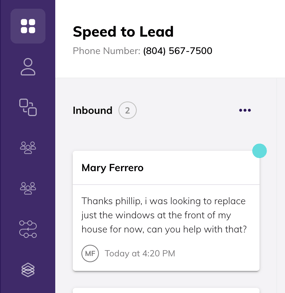
Here you can see the message Mary sent popped up on the Hatch Board.
Setup Instructions
-
Contact the Hatch support team to get started. We’ll need the following information:
- Which Hatch board(s) you would like leads to come to
- A Hatch team member will use this information to provide you with the Hatch url endpoint and the API key for the integration (this key is not currently publicly accessible).
-
Navigate to the Angi Business Center: this is where you will add the webhook integration: https://office.angieslist.com/app/webhooks/ (replace
*ANGI ID*with your actual Angi ID in the URL path) -
Evaluate your needs in terms of the Angi Ads integration: Do you only need leads to flow into Hatch or do you also need leads to flow to other integrations?
- If you only need to send leads to Hatch, add a simple webhook in your Angi Ads account using the url and the API key Hatch support has provided to you. Angi has provided detailed instructions on how to achieve this here, the gist of it is below:
- the Hatch url is this, replace
{DEPARTMENT-ID}with your ID:https://app.usehatchapp.com/api/webhooks/{DEPARTMENT-ID}/angieslist? - data type: JSON
- Authentication type: send API key in header
- add an email address to receive notifications
- the Hatch url is this, replace
- If you need to send leads to multiple integrations, use Zapier as an intermediary to setup multiple webhooks. Angi has provided detailed instructions on how to achieve this here.
- If you only need to send leads to Hatch, add a simple webhook in your Angi Ads account using the url and the API key Hatch support has provided to you. Angi has provided detailed instructions on how to achieve this here, the gist of it is below:
- During the setup process, do not skip the testing steps to verify successful integration! And don’t forget to hit save/publish.
-
Once the integration is successful, you will need to create a campaign, audience, and workflow to target these leads.
- Your target audience should look something like this:
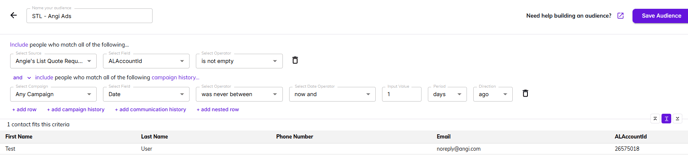
Note : This integration will only put future leads into a campaign.
Frequently Asked Questions
Why is instant lead engagement important?
Why is instant lead engagement important?
Speed to Lead is extremely important when it comes to new leads. Learn more about Instant Lead Engagement here.
Why have my Angi Ads leads stopped flowing into Hatch?
Why have my Angi Ads leads stopped flowing into Hatch?
Angi Ads’ direct webhook connection only supports a single url endpoint. So if you added a new connection (for example to a CRM) then it would replace an existing Hatch integration. Vice versa, if you had an existing CRM integration and replaced it with Hatch your leads will no longer flow into your CRM.
Please refer to the documentation on how to use Zapier to setup multiple connections with your Angi account. Alternatively, you could also use Hatch’s webhooks to send new contacts from Angi into Hatch and then into your CRM—check that out here!
Please refer to the documentation on how to use Zapier to setup multiple connections with your Angi account. Alternatively, you could also use Hatch’s webhooks to send new contacts from Angi into Hatch and then into your CRM—check that out here!
What other Instant Lead Engagement Integration do you offer?
What other Instant Lead Engagement Integration do you offer?
We offer lead engagement integrations with Modernize, and more. To see the full list, check out our website.