

How does the Hatch + LSA integration work?
Connecting Hatch to Google LSA does two things:- Brings your LSA leads into Hatch as contacts and opportunities, so they can be launched into a Speed to Lead campaign the moment they arrive.
- Puts the Google LSA conversation inside Hatch. Messages your lead sends through Google LSA appear in your Hatch Workspace, and replies you send from Hatch — manually, from a campaign, or from your Hatch AI agent — are delivered back into the same Google LSA conversation thread.
The lead reaches out
Hatch replies instantly inside Google LSA (message leads)
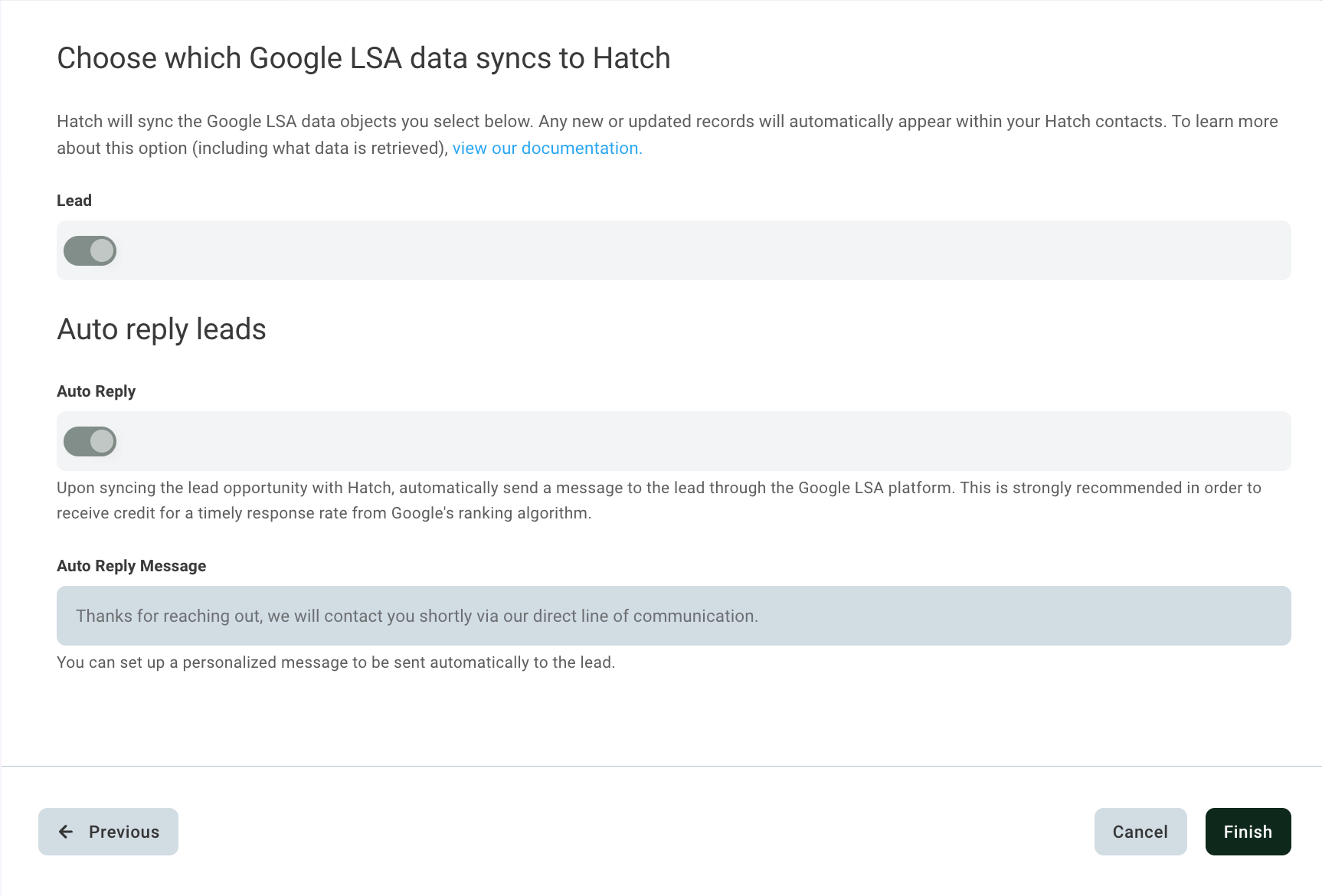
Hatch syncs the lead
The conversation continues in Hatch
Reply from Hatch — or let AI do it
Integration Setup
Connect Hatch to Google LSA
- Navigate to the App Marketplace within your Hatch account
- Filter by “Lead Source” to find the Google LSA integration
- Click the Connect button
- In the OAuth window, allow access to your Google Ads account
Select your accounts
Assign each account to a workspace
Configure lead sync and your auto-reply
- It sets expectations — the lead knows you received their request and that you’ll follow up directly.
- It protects your ranking — Google displays your average response time on your ad and favors fast responders. Because the auto-reply is posted inside Google LSA, Google counts it.
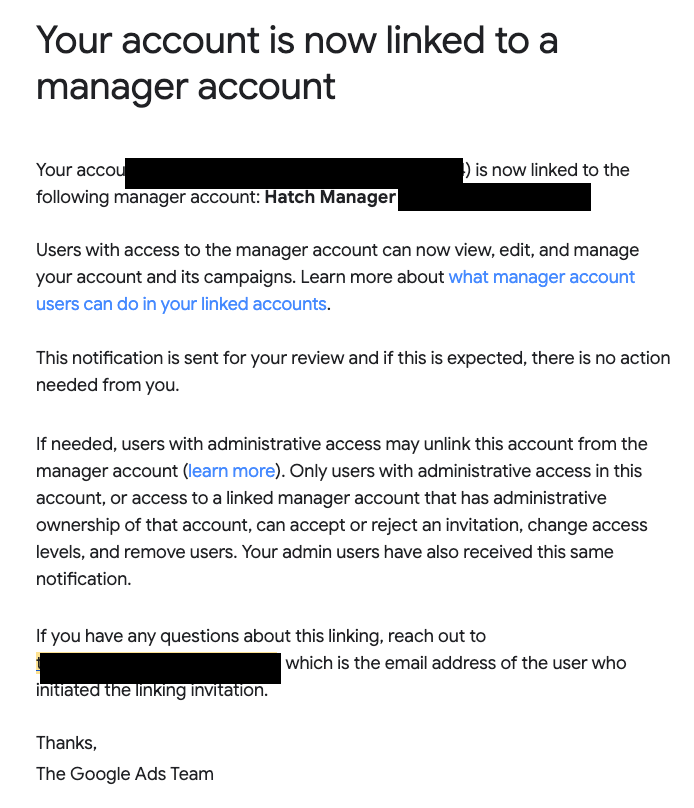
Account linking completes automatically
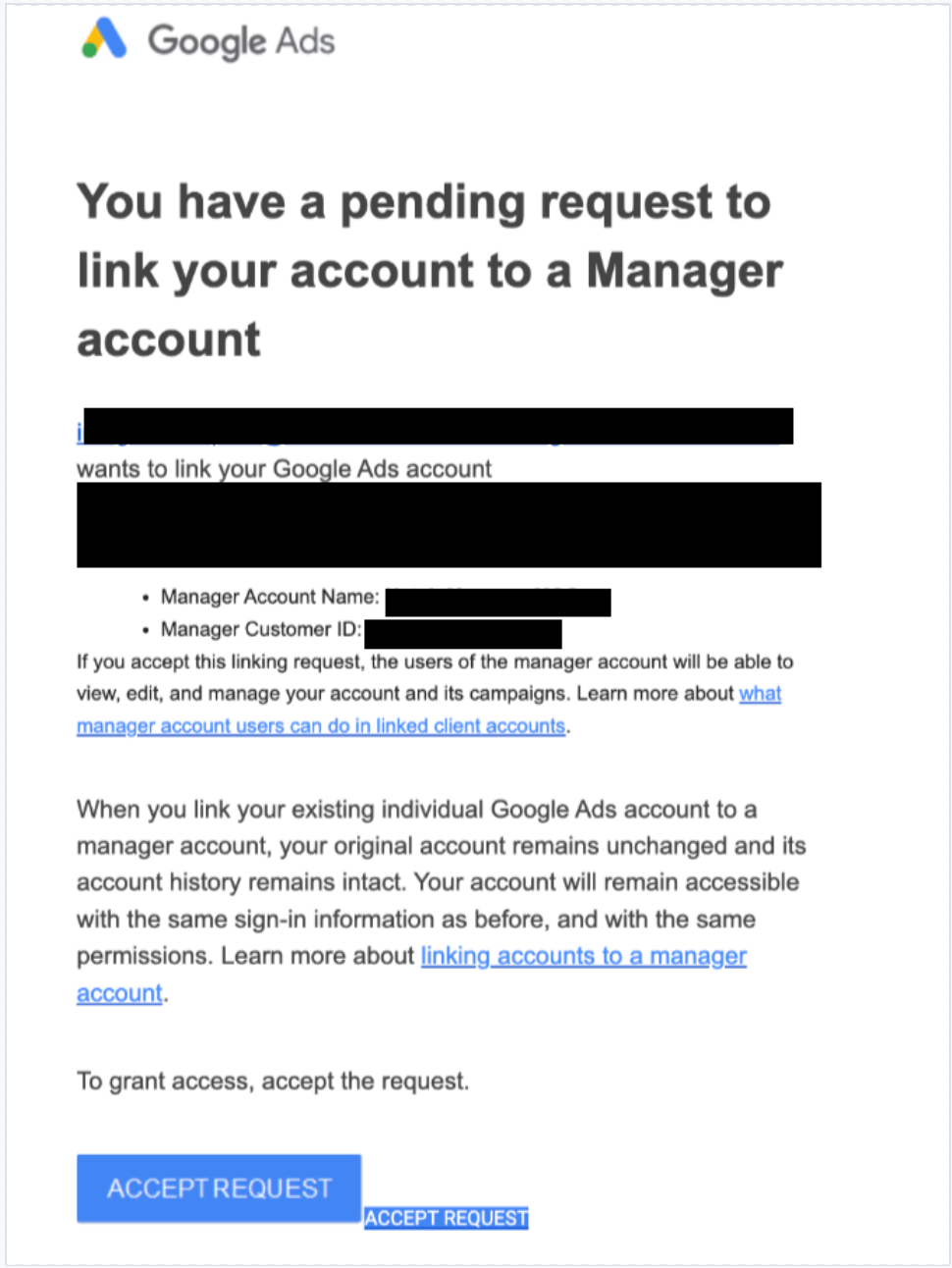
- Hatch sends a linking invitation for each selected account.
- Hatch accepts it on your behalf, using the Admin access you authorized.
- Google emails you about the link. These messages are expected and confirm the integration is being configured.
- Real-time delivery begins as soon as the link is active.
Build your audience and campaign
Google LSA v1 vs v2
v2 is the standard integration. All new Google LSA integrations are set up on v2 automatically — there is nothing to opt into.Google LSA messaging
How it works
LSA leads entering Hatch via Google LSA will now be provided with a Google tracking number, instead of an actual phone number. Since these numbers cannot be messaged via SMS, Hatch utilizes the Google messaging API to message these leads directly. This also allows conversations to be synced between Hatch and Google LSA, so conversations sync across both platforms. Additionally, as Google is no longer providing email addresses for leads, the Hatch contact created from a message lead will not have a valid email address. Due to API requirements, only message leads can receive messages via Google messaging. For reaching out to phone leads, more information can be found below.Messages you receive
Messages you send
You can send a Google LSA message from:A conversation
Pick Google LSA in the message-type selector. The channel is only selectable for contacts that came from Google LSA.Select LSA message-type

Type your message

A campaign
Add a Google LSA step. Please note LSA leads can only be messaged via the LSA campaign type.Select LSA campaign type
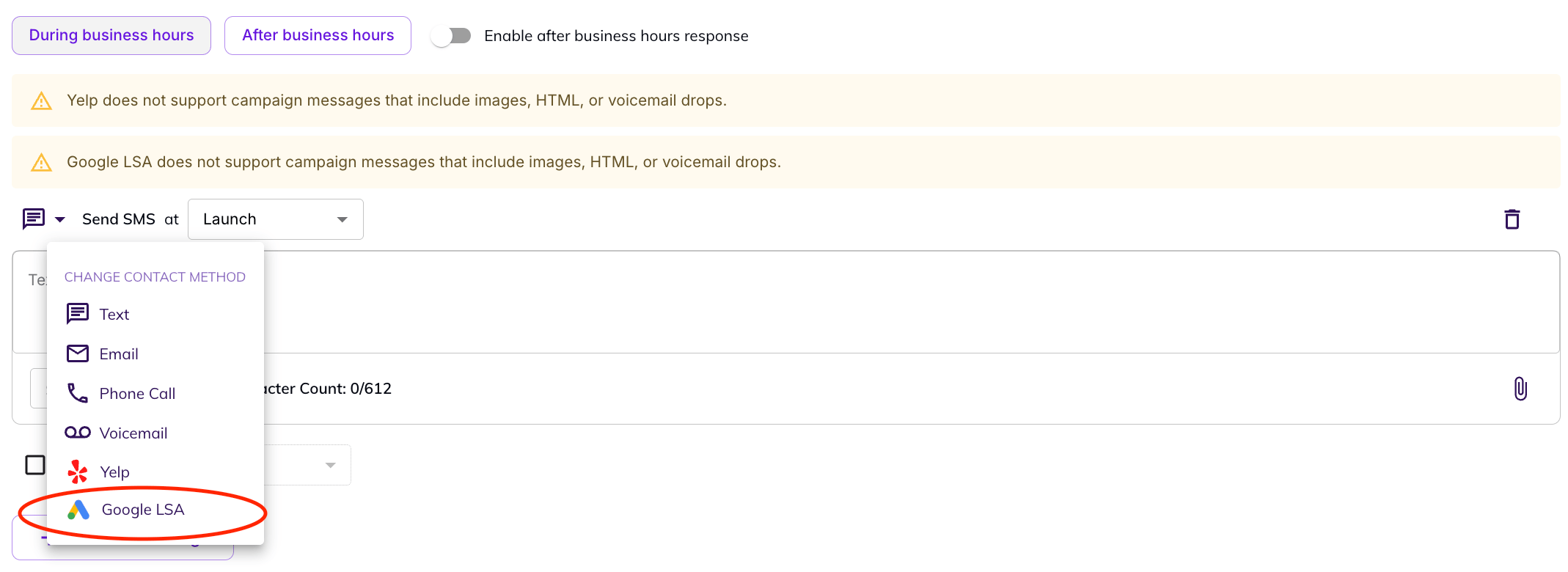
Fill out your campaign message

Extensions
If you want to call a Google LSA message lead, you will be required to enter an extension code before speaking with the customer. This code will be displayed in the Hatch conversation with the contact.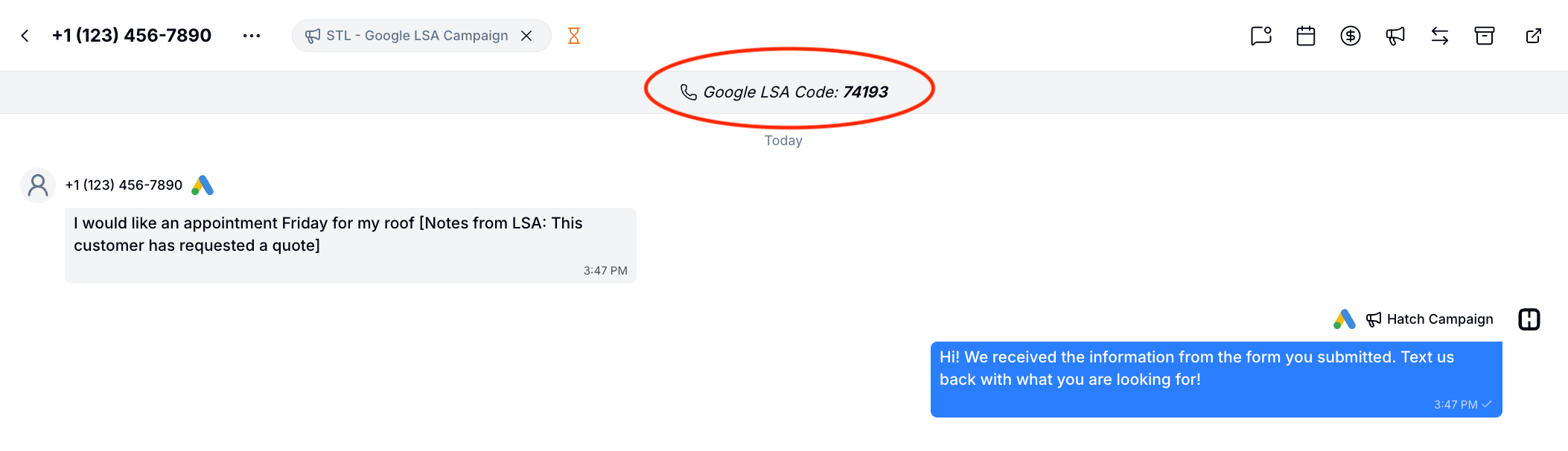
Phone leads
If you are on Google LSA v2, you will also receive LSA phone leads in Hatch. While phone leads cannot be messaged via the Google messaging feature, you can create separate audiences and campaigns specifically targeting phone leads. These phone leads can be contacted by reaching out via phone call and providing the associated extension number, as described above.Monitoring inbound leads
The App Marketplace includes an inbound dashboard for Google LSA showing every lead Hatch has received, with:- Source and lead type (message, phone call)
- Date received — when Google created the lead
- Message back out — when Hatch’s auto-reply was delivered, so you can confirm your response time
- The raw payload from Google, expandable for troubleshooting
Troubleshooting
”Your Google LSA V2 integration needs attention”
If one or more accounts can’t be linked, Hatch emails you a list of the affected accounts and the reason for each.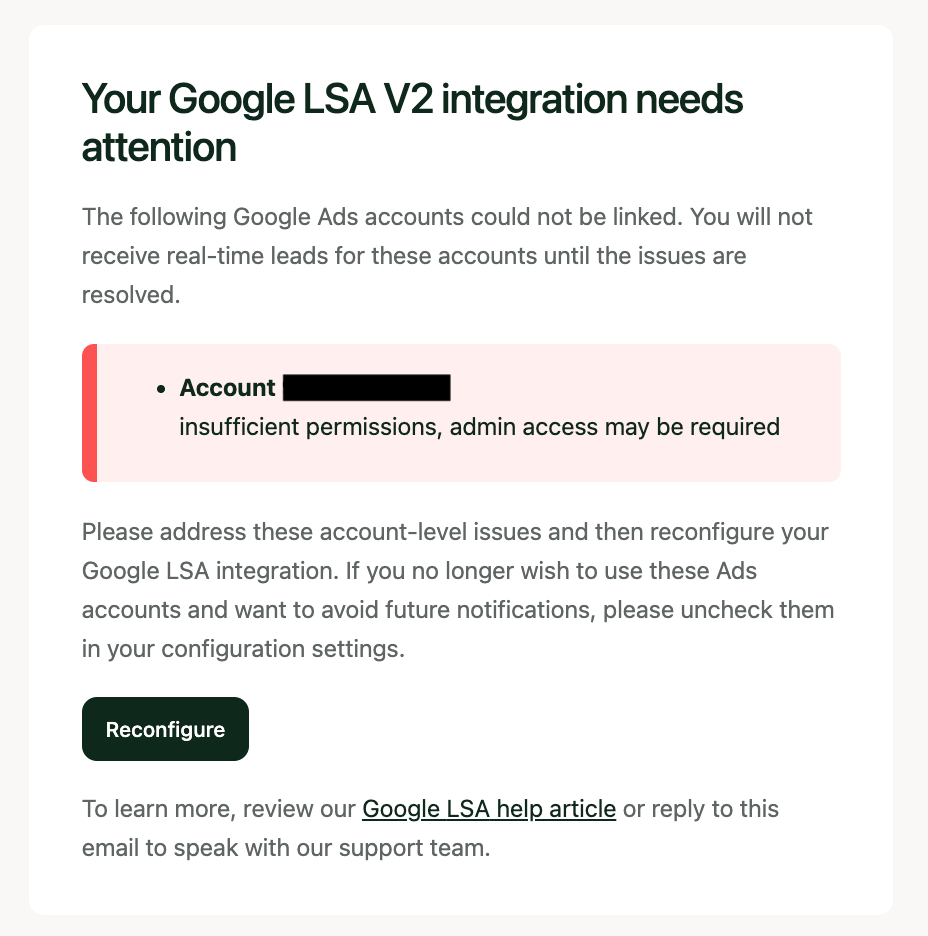
Rating a Lead
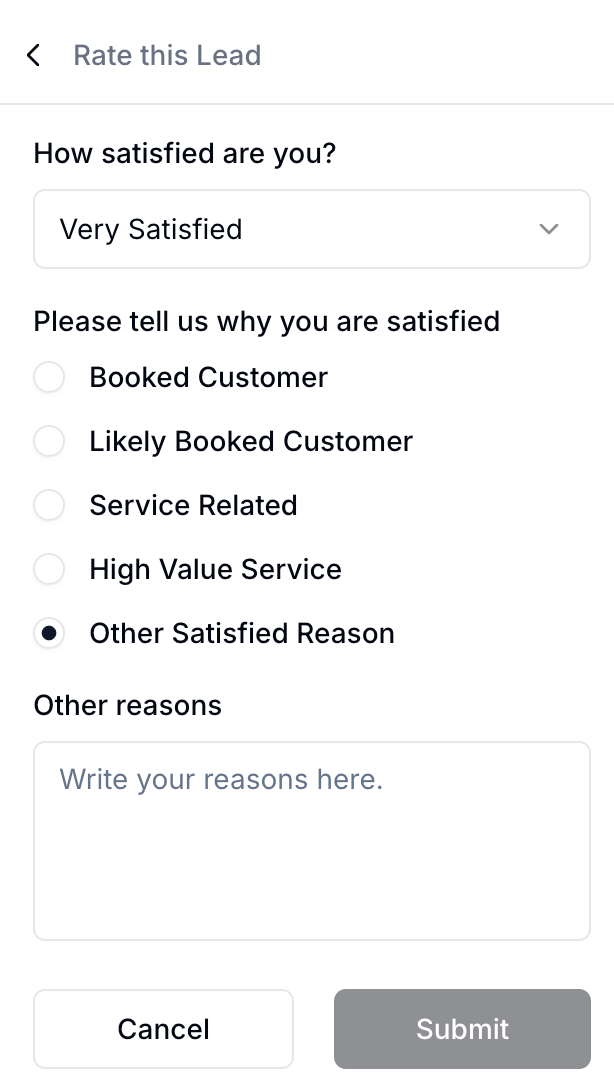
You can send Google your assessment of a lead’s quality without leaving Hatch. Open the lead’s conversation, then in Quick Actions click Rate this Lead. Choose a rating — Very Satisfied, Satisfied, Neutral, Dissatisfied, or Very Dissatisfied — and then a reason:- Satisfied ratings: Booked Customer, Likely Booked Customer, Service Related, High Value Service, or Other
- Dissatisfied ratings: Geo Mismatch, Job Type Mismatch, Not Ready To Book, Spam, Duplicate, Solicitation, or Other
FAQ
Which lead types does Hatch create contacts for?
Which lead types does Hatch create contacts for?
Does every lead get an auto-reply?
Does every lead get an auto-reply?
How fast will my message reach my Google LSA leads?
How fast will my message reach my Google LSA leads?
Will conversations that take place in Hatch show up in Google LSA?
Will conversations that take place in Hatch show up in Google LSA?
Do replies my team sends from the Google LSA app show up in Hatch?
Do replies my team sends from the Google LSA app show up in Hatch?
Can I send photos or attachments over Google LSA?
Can I send photos or attachments over Google LSA?
Why do I need Admin permissions?
Why do I need Admin permissions?
Why did I receive an email from Google about account linking?
Why did I receive an email from Google about account linking?
Why don't I see my manager account in the account selection list?
Why don't I see my manager account in the account selection list?
Why are leads coming in without a first or last name?
Why are leads coming in without a first or last name?
[[Contact First Name]] or [[Contact Last Name]] snippets the message will read awkwardly. Either remove those snippets from your Speed to Lead campaign or set a snippet fallback.A lead is in my Google LSA dashboard but not in Hatch. Why?
A lead is in my Google LSA dashboard but not in Hatch. Why?