What is a campaign?
Campaigns tell Hatch when to send messages, what those messages should say, and in which channels.Top Tips for Campaigns
- Campaigns allow you to automate outbound messages via text, email, phone calls, and voicemail drops.
- Campaigns are created for specific workspaces and are not shared across different workspaces.
- Campaigns can be created from scratch or from a results-driven template.
- A campaign tells Hatch what to send, an audience tells Hatch who to send to, putting them together in a workflow gets outreach going!
Finding Campaigns
On the left side navigation, click your workspace and hit Campaigns in the drop-down. On the Campaigns page, you can edit, duplicate or delete any existing campaigns, or create a new one by clicking the ‘Create Campaign’ button on the top right corner.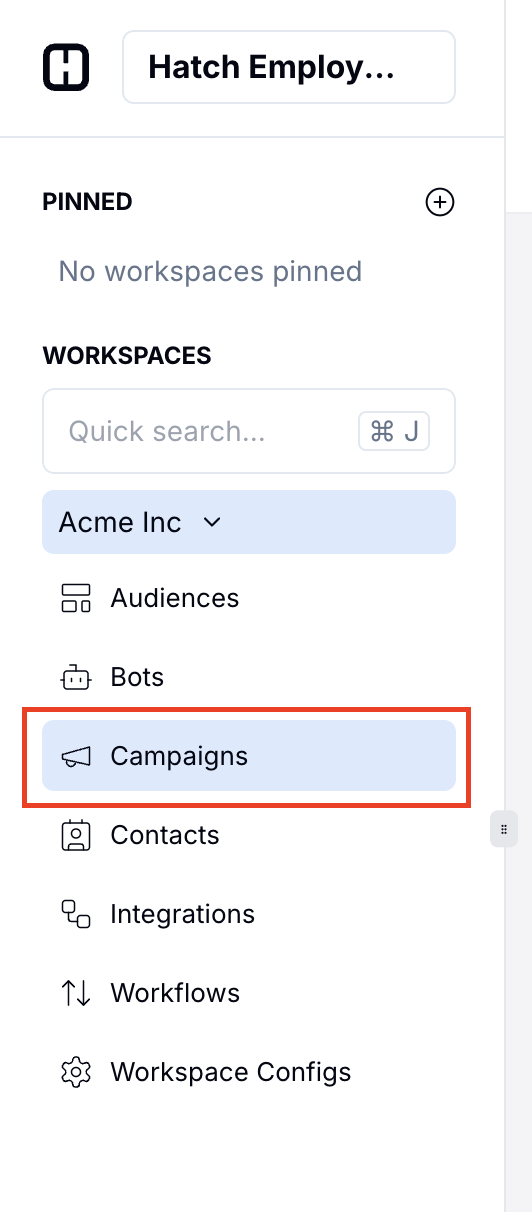
How it Works
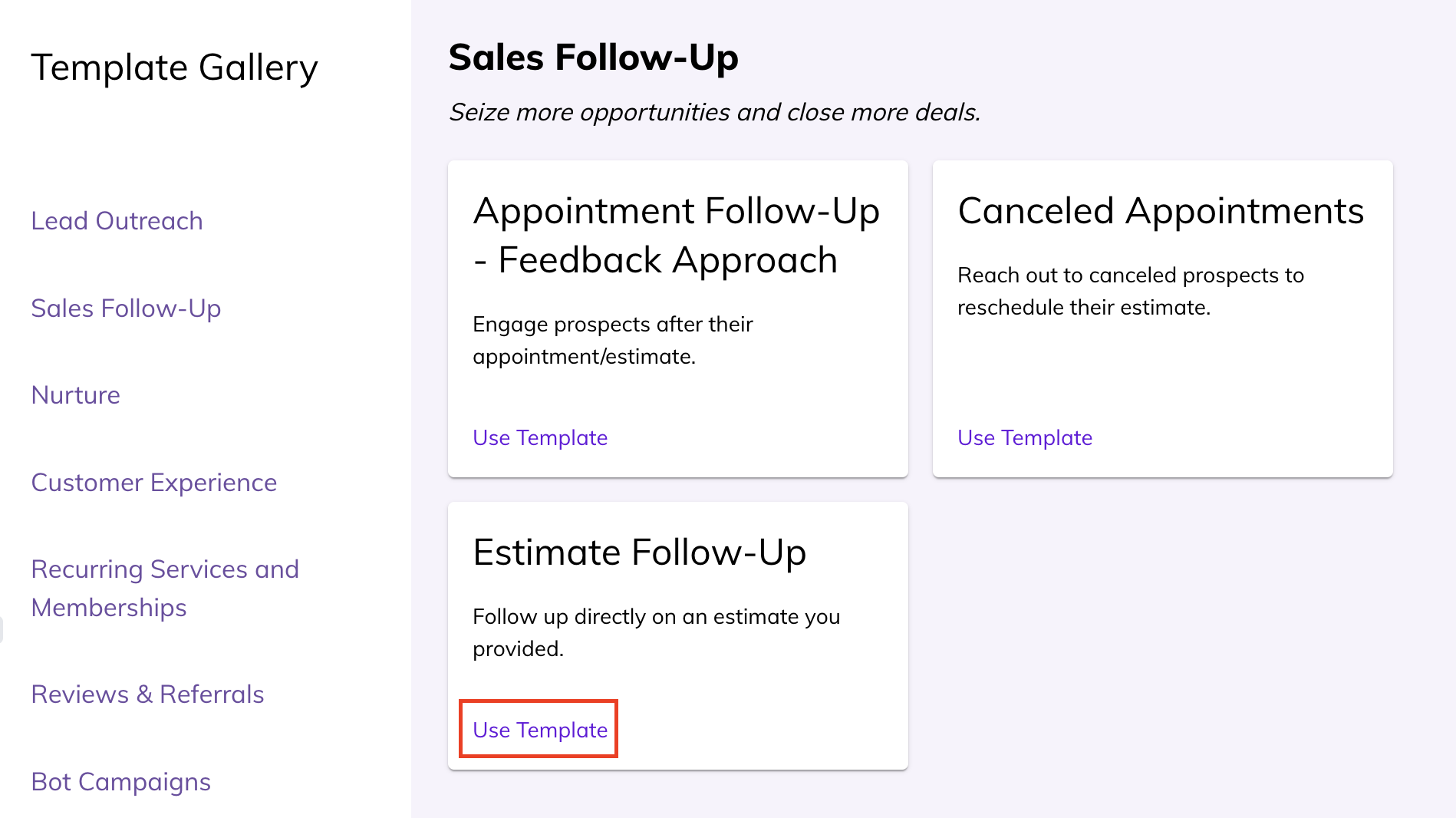
- A campaign can be created from scratch, or by using an existing template aligned with Hatch best practices. In the campaign template gallery, you can click “Estimate Follow-up” to create a campaign to follow up on open estimates.
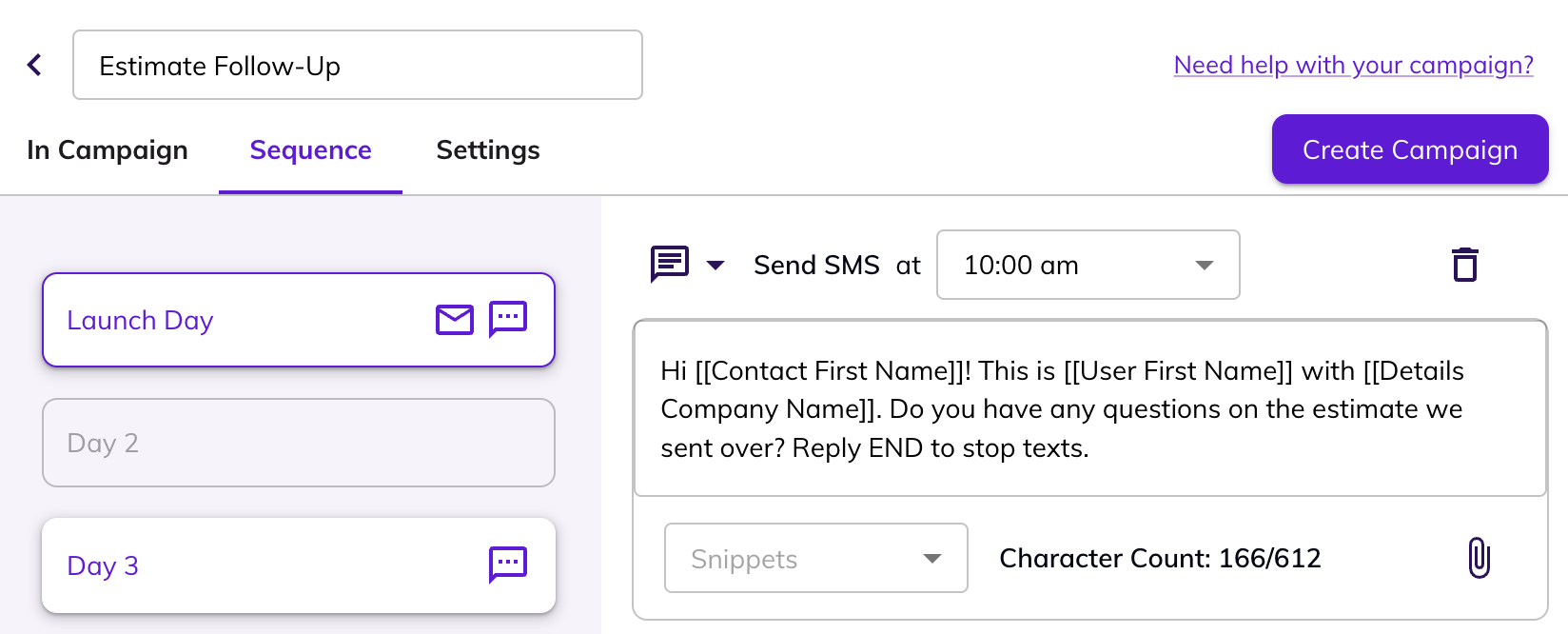
- After selecting a template, you can update the messaging to suit your needs. Learn more about creating a campaign here.
- Contacts get launched into your campaign through a workflow, or can be launched manually. For our Estimate Follow-Up campaign, we can set up an audience looking for all contacts with open estimates in ServiceTitan (or another CRM), so that each contact with an open estimate receives the messaging.
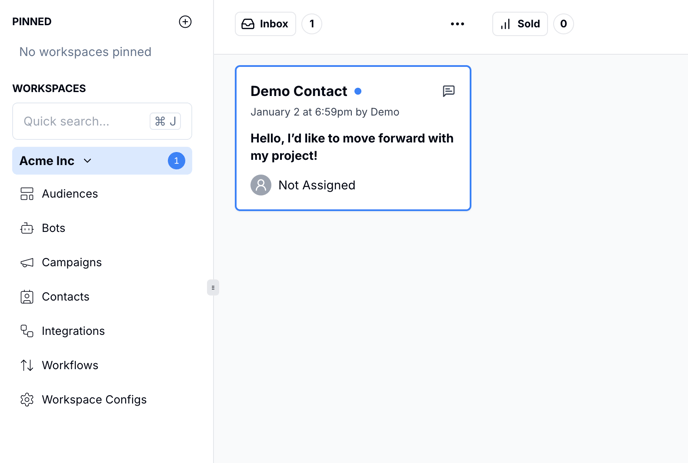
- When contacts respond to your campaign, they will pop up in the Inbox column on your salesboard. Once a contact responds, they won’t receive the subsequent messages in the campaign—you (or a bot!) take it from there.