

Navigating to the Contacts Page
When you log into Hatch, by default you will be on a Salesboard to which you are assigned. On the left-hand side of the screen (to the right of the workspace tiles), you will see a navigation bar that allows you to go to other pages.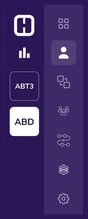
 . It is the second-highest icon in the navigation bar.
The Full Contacts Page
Below is the entire contacts page and in the sections below we will cover a series of sections in depth.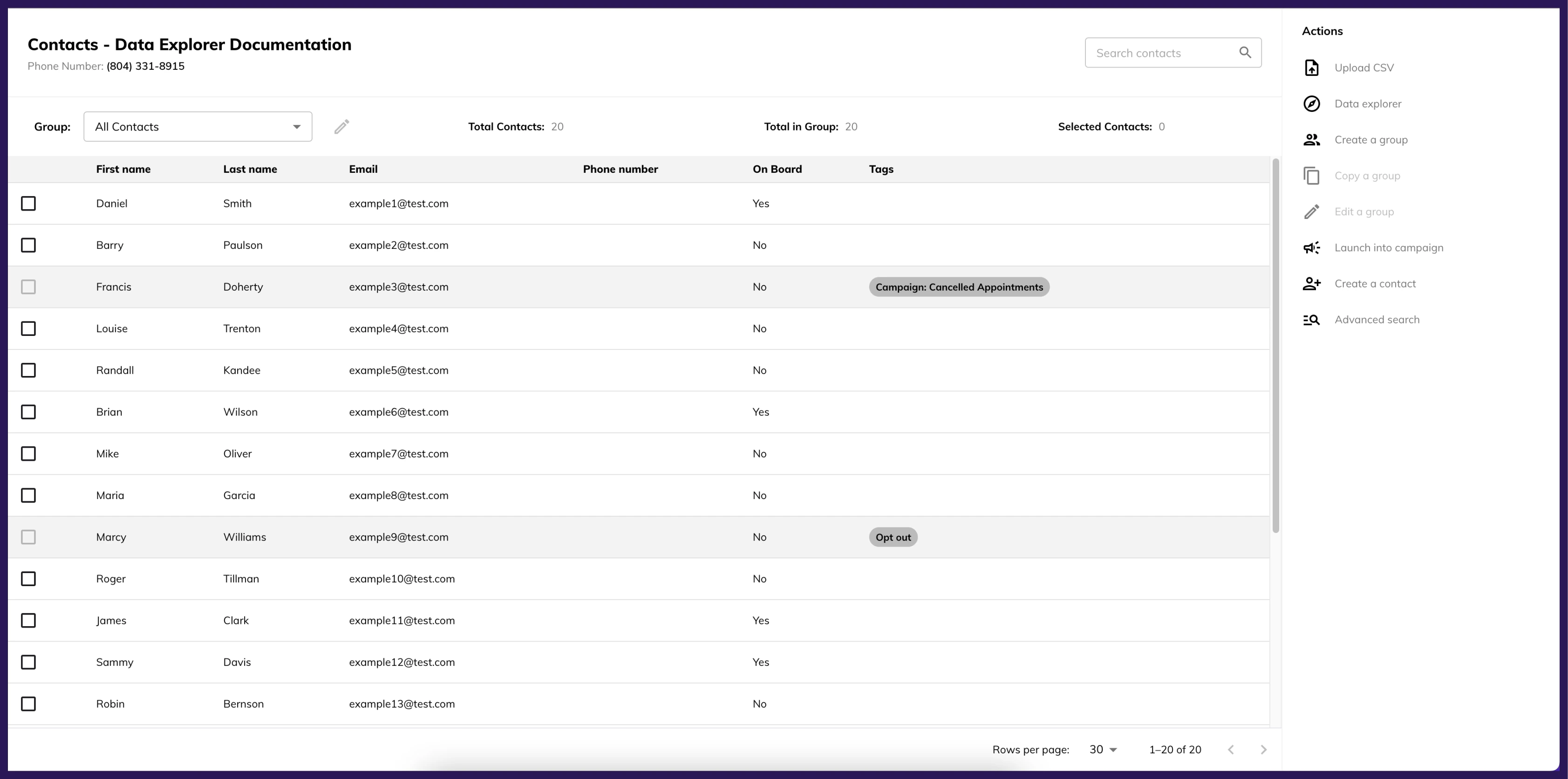
Header Section

-
A: Search
- Use the Search Type drop-down to select what field to search by (Full Name, First Name, Last Name, Phone, or Email), then enter a search term and either hit Enter or click the magnifying glass to return matching contacts.
-
B: Audiences Drop-down
- This is a list of all audiences that exist on the workspace.
- The default is “All Contacts”.
- If an audience is selected, the contacts list will filter to contacts that currently fit that audience.
- An audience must be selected to enable the Edit an Audience or Duplicate an Audience features.
-
C: Edit an Audience shortcut
- Clicking this will open a query editor that is populated with the selected audience’s criteria.
-
D: Total Contacts
- This is a count of all the contacts that exist in the current workspace.
-
E: Total in Audience
- This is a count of all the contacts that fit the criteria of the selected audience.
- If no audience is selected, this will be 0.
- This is a count of all the contacts that fit the criteria of the selected audience.
-
F: Selected Contacts
- This is a count of all the contacts that are currently selected (the checkbox by their name is ticked).
Actions Section
This menu is on the right-side of the Contacts page. This area of the screen is also where the query editor lives when opened.- A: Upload CSV
 Clicking this button will lead to an option to download a CSV template or upload an existing CSV to add contacts to Hatch manually
- B: Create Audience
- Clicking this will open the Audience Builder where you can create and save a new audience.
- C: Duplicate Audience
- Once an audience is selected, this option will be available and you will be able to duplicate the selected audience.
- D: Edit Audience
- Once an audience is selected, this option will be available and you will be able to edit the query of the selected audience.
- E: Launch into Campaign
- When this is clicked, you will be able to select a campaign from that workspace and a preview of the messaging will show up.
- When contacts are selected, you will then be able to manually kick off the selected campaign for the selected contacts.
- F: Create a Contact
- Clicking this opens a form to input
- First Name
- Last Name
- Phone Number
- Email Address
- Clicking save will create a new contact or will add an opportunity to an existing contact if that phone number or email is already associated with a contact.
- Clicking this opens a form to input
Contacts Table Section
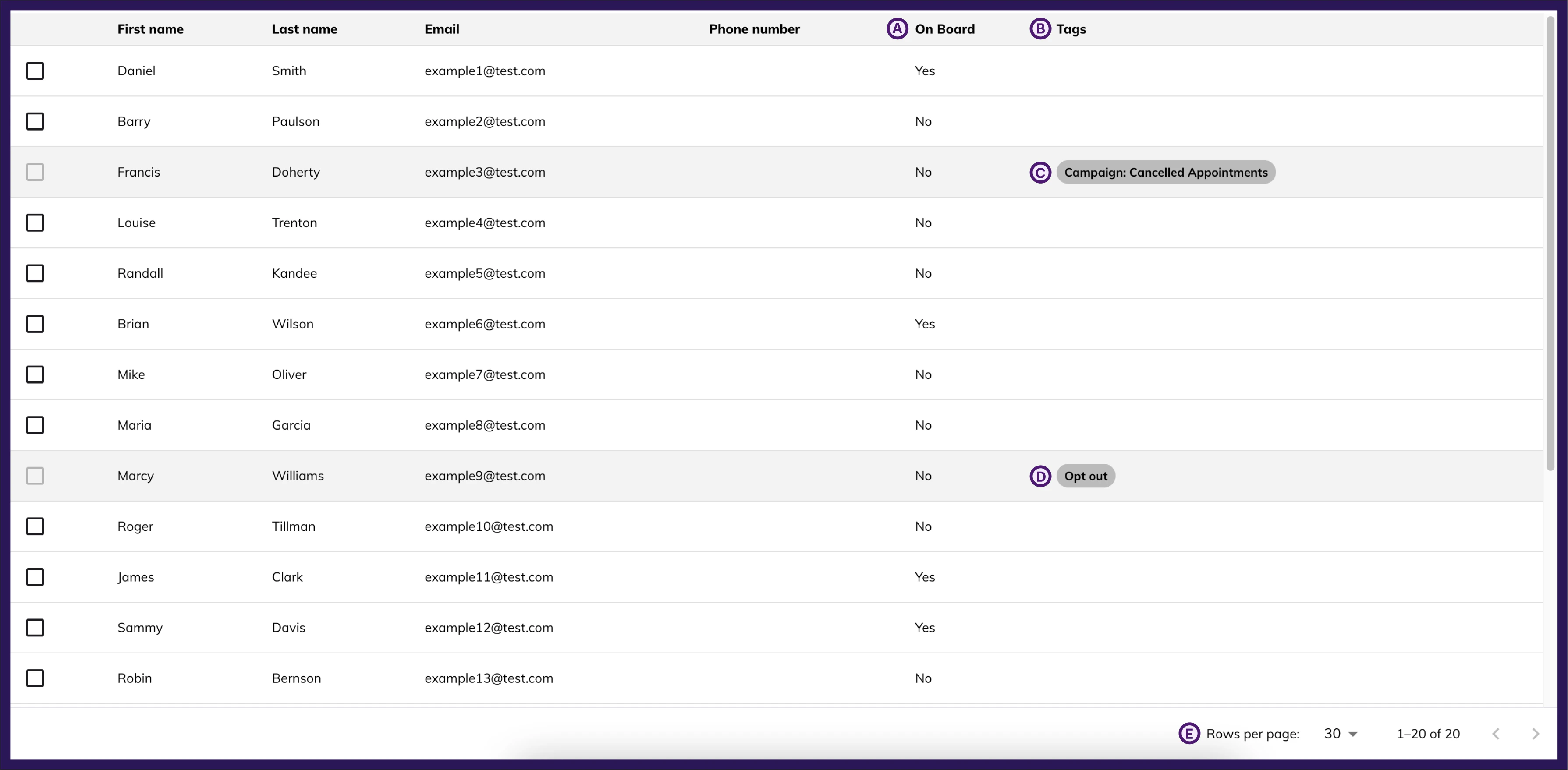
- Tags
-
Tags indicate the following about a contact:
- If the contact is currently in a campaign, the campaign name is shown
- If the contact has been opted out, the tag will specify the type:
- Opted Out — The contact is fully opted out of all communication
- Text Opt-Out — The contact has opted out of SMS only (they can still receive emails)
- Email Unsubscribed — The contact has unsubscribed from emails only (they can still receive texts)
- If a contact is in a campaign or opted out of the relevant channel, that contact cannot be selected to launch into a campaign
-
Tags indicate the following about a contact:
- Rows Per Page
- This allows you to choose the amount of contacts that appear per page to scroll through
- The count next to this is which range within the contacts the current page is on