

Web notifications
Hatch’s sidebar shows you when a given salesboard has an unread message, or when a call step is required for a campaign with a call step. Text and email notifications are blue, while phone-related notifications are green.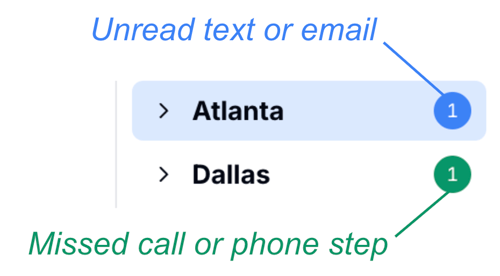
- When you set a reminder for a contact, and the reminder date / time is reached.
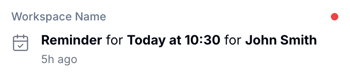
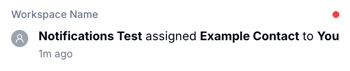
- When another user in your workspace assigns a conversation to you
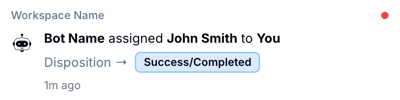
- When a Hatch AI Agent assigns a conversation to you
Text and email notifications
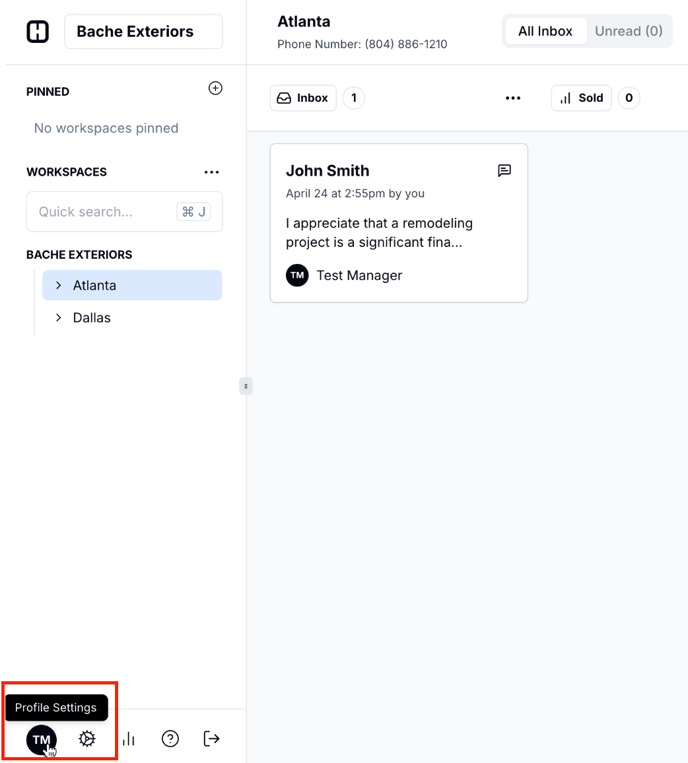
Customers expect a quick response time when texting, and speed is a huge part of what makes Hatch a useful tool. If you’re not actively working in Hatch, and want to know when there’s a conversation to follow up on in one of your workspaces, you can turn on text and email notifications.- Navigate to your Profile Settings in Hatch.
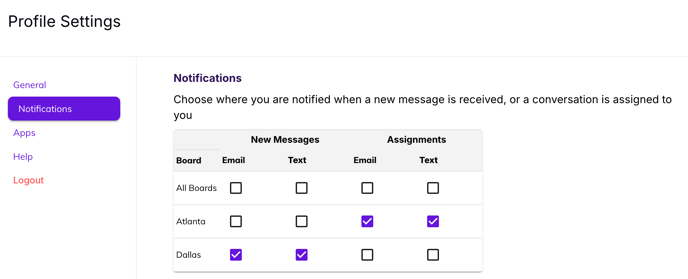
- Navigate to the Notifications tab, and select which boards you’d like to receive text or email notifications for
- You can receive email and text notifications for two types of conversations: either for all new messages that come into a board, or for conversations that are assigned to you(either by another user, or by a bot)
- If you can’t select text notifications, navigate over to the General tab and add the cell number where you’d like to receive notifications
- Depending on your preferences, you’ll receive reminders when an inbound message hits one of your boards, or a conversation is assigned to you, reminding you to hop back into Hatch!