

It is recommended that a manager-level user set up Organization-Level Business Hours before configuring workspace-level business hours. Workspaces can inherit from the organization, which keeps things consistent and reduces repeated setup.
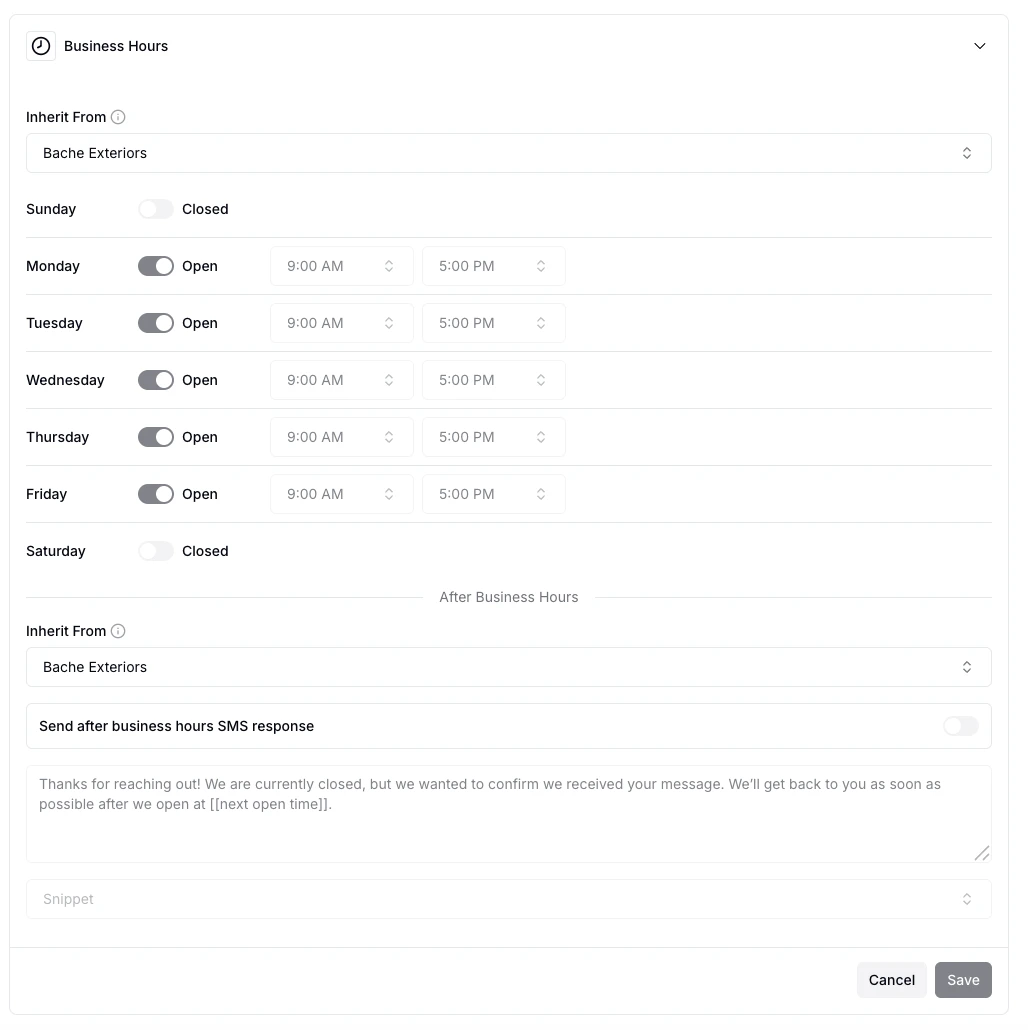
Accessing business hours settings
Go to Workspace Configs and click the General tab. The Business Hours section is below the General section on the same page.Setting your hours
At the top of the Business Hours section, a dropdown lets you choose where this workspace’s hours come from:- Your organization’s name — the workspace inherits hours from your organization’s settings. Any changes to org-level hours will automatically apply here.
- Another workspace — inherit hours from a specific workspace that uses custom hours. Only workspaces with custom hours set appear in this list.
- Custom Hours — set hours specific to this workspace, day by day.
After-hours auto-reply
Below the day rows, the After Hours section controls what happens when a contact messages outside your business hours. A second Inherit From dropdown lets you choose the source for after-hours behavior — your organization, another workspace, or a Custom Response specific to this workspace. When Custom Response is selected:- Toggle Send SMS on to automatically reply to contacts who text outside business hours.
- Write the message you’d like to send in the text field. You can use snippets (like
[[Contact First Name]]) to personalize the reply.