

Note : Confirm that your CRM integration is set up and recently synced before launching a campaign. That way contacts in Hatch are always up to date with the most recent details and statuses.
Picking Contacts for Campaign
It’s important to keep some things in mind when deciding who to put into campaign. From the contacts page, you can filter down your contacts based on CRM status, month, year, name, and more. To see a full list of what you can search for, click here. Let’s say we want to send out a Sales Follow Up campaign to any contact that had an appointment within the last 24 hours. Here are some questions to ask yourself :- What status will those contacts have?
- What month or year should the contacts have?
- Do you want to engage with customers that were recently put into campaign?
- Are you running a text-only campaign? You might want to filter down to only show contacts that have mobile numbers.
- Are there any other contact details that you might want to target off of?
Launching Contacts into Campaign
Once you have decided who to launch into campaign…- Navigate to the Contacts Page.
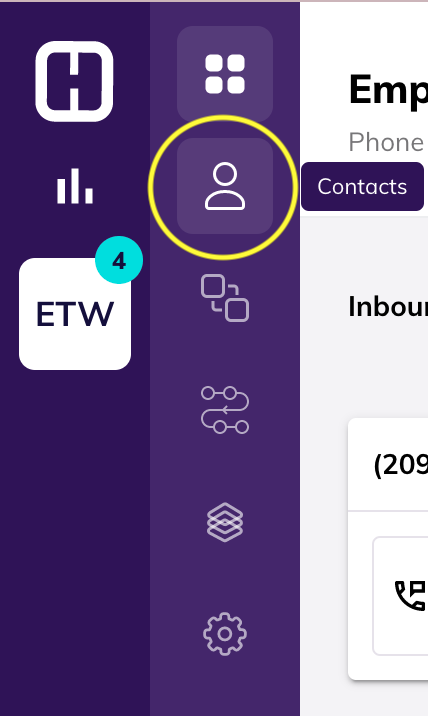
- Pick your contacts by clicking on box located on the left hand side of their contact card. Select contacts by clicking on their contact cards or clicking Select All.
- Select your campaign from the dropdown.
- Confirm that the messaging is correct and is sending when you want it to send out, and hit Launch Campaign.
Responding to Messages
If messages are sending out on launch, expect to see responses start rolling in within 10-15 minutes–sometimes sooner! Remember, these customers are used to texting and are ready to get the conversation started as soon as possible.Please DO NOT attempt to remove contacts from a campaign by deleting the campaign.If you need to delete a campaign with active contacts in it, you must remove the contacts first, then delete the campaign. Otherwise, you will not be able to immediately add the contacts to a new campaign.