

Step by Step
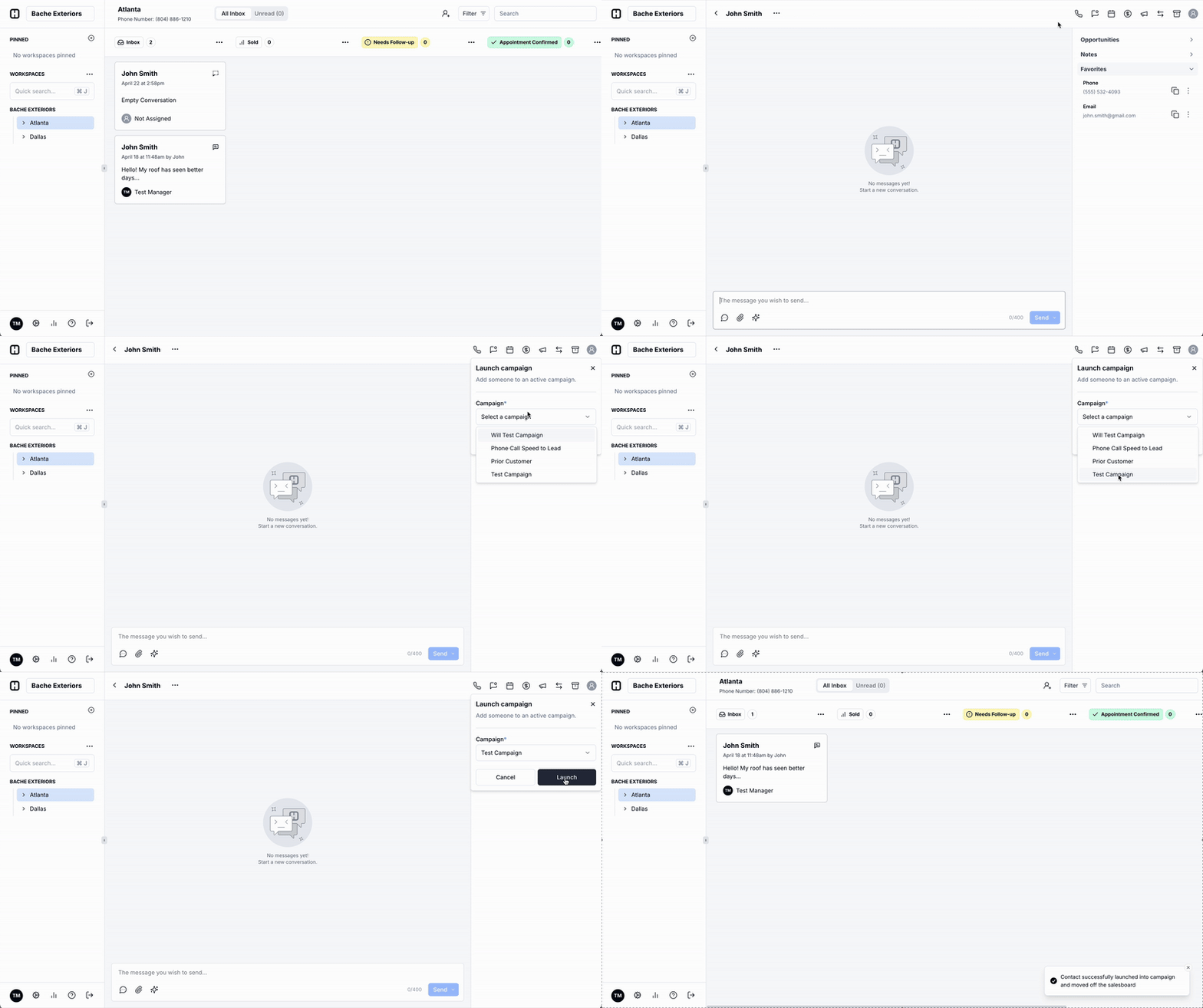
- Navigate to a contact card on your Board.
- In the top-right corner, click the the megaphone icon to launch a campaign.
- Pick your campaign, and hit Launch. The contact will be launched into the campaign, and be moved off your board for safe keeping (find them on the Contacts page at any time).
- When they respond to your campaign message, they will pop back up on your board and you can continue the conversation.
Frequently Asked Questions
Is this the only way to launch a contact into a campaign?
Is this the only way to launch a contact into a campaign?
No! Typically, customers use a Workflow to get campaign messages to a contact. You can also manually launch contacts into a campaign from the Contacts page.
But I don't want to send two campaigns to the same contact! What if they get thrown into a workflow?
But I don't want to send two campaigns to the same contact! What if they get thrown into a workflow?
Contacts can only ever be in one campaign at a time. If you launch them into a campaign from open contact card, they can not be placed into another campaign until the campaign ends or the contact is taken out of the campaign.
When should I use this?
When should I use this?
Launching a contact directly from the conversation is an easy way to put the contact into a multi-touch campaign when you are ready to do so. If you only want to send one message to a contact, you should schedule the message directly from the contact card for a future time.