

How to Access Campaign History
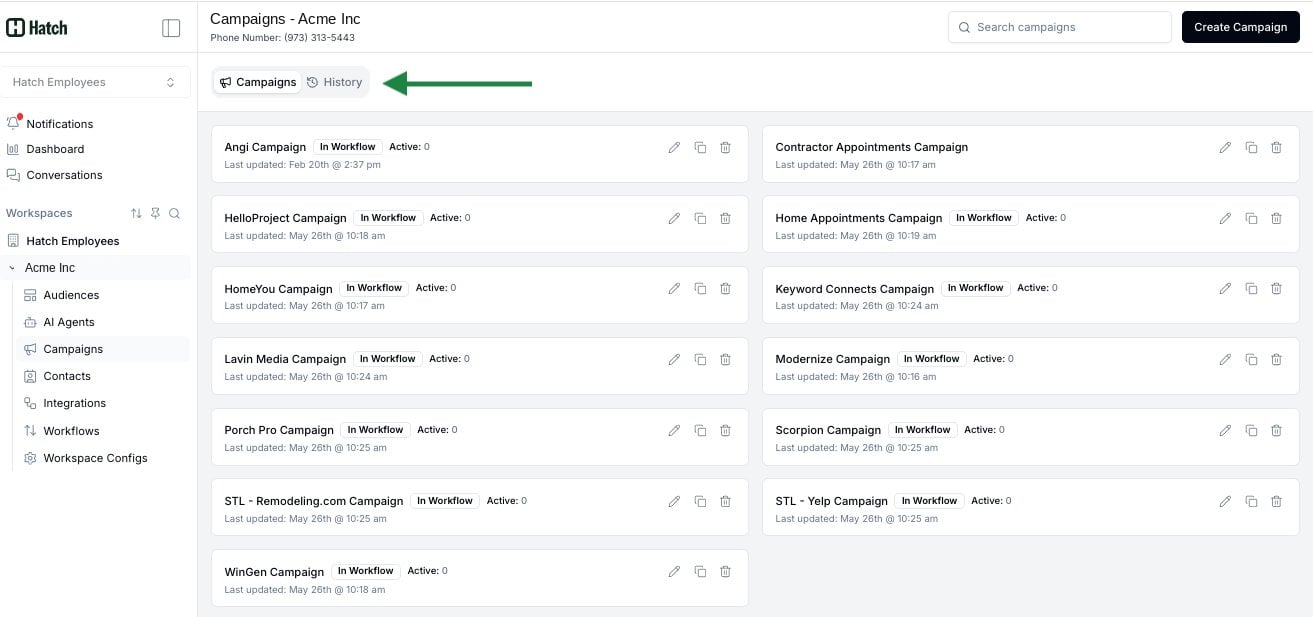
- Click Campaigns in the left menu
- Click the History button at the top of the page
Campaign History is scoped to the workspace you’re currently in. If you have multiple workspaces, switch between them to see each workspace’s history.
What You’ll See in the History Table
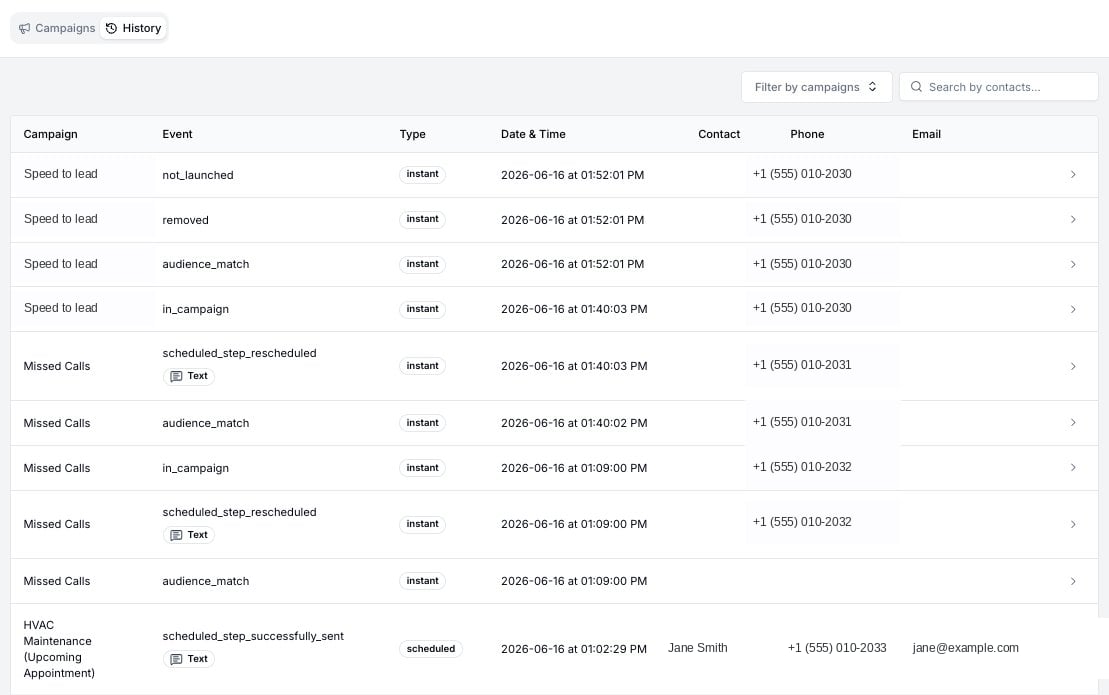
- Event: What happened (see event types below)
- Campaign Name: Which campaign the event belongs to — so you always know the source even when scanning activity from many campaigns at once
- Type: Campaign type (scheduled, instant, or third-party)
- Date & Time: When it happened, shown in your board’s timezone
- Customer Name: The contact’s name
- Phone: The contact’s phone number
- Email: The contact’s email address
Filtering Your History
By default, History shows activity across every campaign. Use the filters at the top of the table to scope what you see:- Campaign: Pick a single campaign to reproduce the old per-campaign view — useful when you’re debugging one specific send sequence
- Contact name: Find every event for a specific person, across every campaign they’ve been part of within this workspace
Event Types Explained
Here’s what each event type means:- audience_match: The contact met your campaign’s audience criteria and qualified to receive the campaign.
- in_campaign: The contact is actively receiving campaign messages. The campaign is currently running for this contact.
- completed: The contact received all campaign messages and finished the campaign successfully.
- removed: The contact was taken out of the campaign. This happens when:
- They matched a removal rule you set up
- They opted out of messages
- You manually removed them
- Other removal conditions were met
- scheduled_step_successfully_sent: A message from the campaign was successfully sent to this contact.
- scheduled_step_failed_to_be_sent: A message was successfully scheduled, but couldn’t be delivered when it was time to send. This usually points to a delivery problem at send time — for example, a carrier rejection or a phone number that became invalid between scheduling and sending. If the message was never scheduled to begin with, you’ll see scheduled_step_not_created instead. If it missed its send window entirely, you’ll see scheduled_step_stale instead.
- scheduled_step_stale: A message was scheduled but didn’t go out in time — this can happen during high-traffic periods when sends get briefly delayed. Since too much time had passed, the message wasn’t sent, and it clears from your history automatically within 2 business days.
- scheduled_step_not_created: A specific message in this campaign couldn’t be scheduled for this contact, so that message was skipped. The rest of the campaign continues for the contact — only the specific step that failed is recorded here. The event details explain why the message was skipped. Common reasons include:
- The contact is missing a phone number or email needed for this message
- The contact’s phone isn’t SMS-capable
- 10DLC registration isn’t approved for the workspace
- The message landed outside of business hours and after-hours sending isn’t enabled
- The message uses a snippet that failed to compile — for example, a snippet that references a field the contact doesn’t have a value for
- scheduled_step_rescheduled: A scheduled message was moved off its original send time because of a configured holiday or a weekend. The event details name the trigger — for example, “Due to [holiday name]” or “Due to weekend” — so you can see exactly why the send shifted. This includes both the initial schedule and any later shifts caused by a previous step being moved.
- failed: An error prevented the contact from entering the campaign. This could be due to invalid contact information or a system issue.
- not_launched: The contact wasn’t launched into the campaign because they didn’t meet certain requirements.
Viewing Contact Details
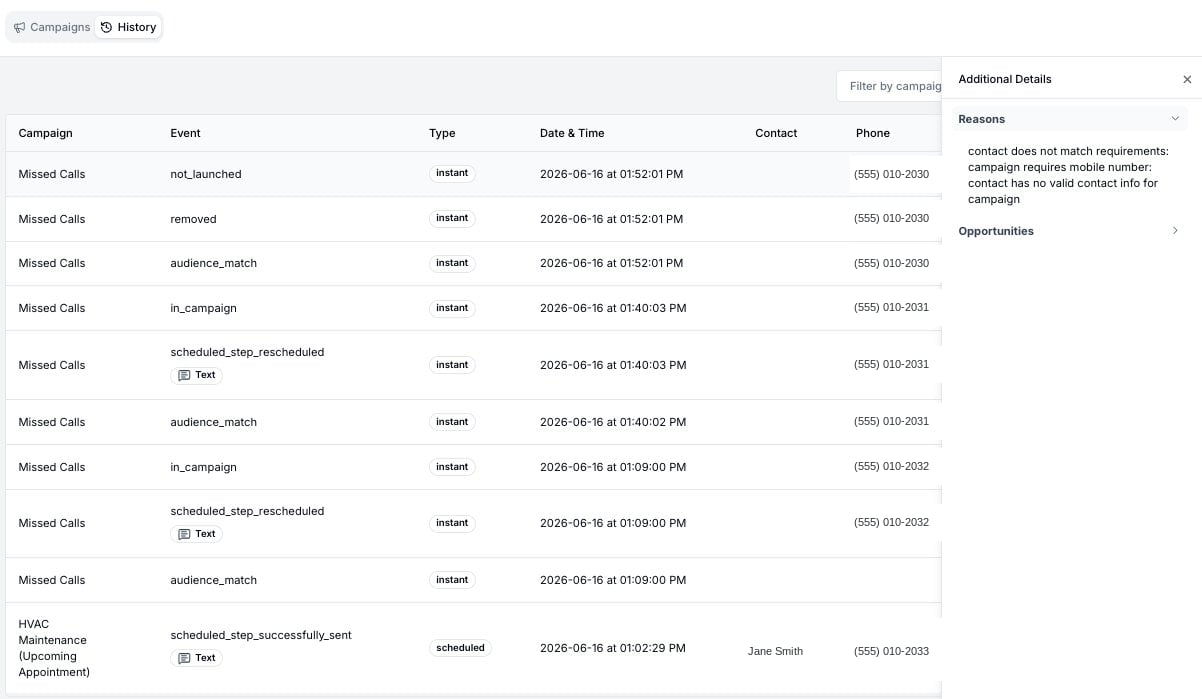
- The reason the campaign step occurred
- When the contact was created
- Their complete contact information (name, email, phone)
- Opportunities associated with this contact
What You Can Use This For
The Campaign History helps you:- See a Contact’s Full Journey: Filter by a contact’s name to view every campaign they’ve been part of, in order, in one continuous timeline
- See Who Enters and Exits: Track which contacts join your campaigns and which ones leave
- Understand Why: See the reasons contacts enter or exit campaigns
- Track Message Delivery: Know exactly which messages were sent to each contact, and which were skipped
- Debug Skipped Messages: When a message is skipped (via scheduled_step_not_created), the event details point straight at the cause — broken snippets, missing contact fields, compliance gaps, or after-hours rules — so you can fix the underlying issue without guesswork
- Confirm Holiday & Weekend Behavior: When scheduled_step_rescheduled fires, you can verify that your configured holidays and weekend rules are being honored, and trace why a contact received a message on a different day than originally planned
- Monitor Timing: See when each message was delivered
Navigating Your History
If you have a lot of activity, use the page controls at the bottom of the table to browse through it. History loads more events as you page through, so even very busy workspaces stay responsive.Note: The History tab shows the last 90 days of contact activity across your campaigns.