

Overview
Workflows are the feature in Hatch that allow automatic launching of audiences into campaigns. Once you have an audience (who to launch) and a campaign (what you want to say to those contacts), the role of the workflow is to launch the contacts either on a specific schedule, or as soon as a contact enters Hatch and fits the criteria for that audience. The workflow is also responsible for removing contacts from campaigns automatically if they fit certain criteria. Example :- You have a Speed to Lead campaign, but you’d like contacts to be automatically removed from that campaign once they have an appointment booked.
- You set up a workflow with a removal rule that checks for appointment status from your CRM.
- Once a contact in that campaign books an appointment, the workflow automatically removes them so they stop getting messages.
Creating a Workflow
You can create workflows directly from the Workflows page by clicking the Create Workflow button. The workflow builder walks you through the following steps:- Select an Audience — Choose which audience of contacts should be launched into the campaign.
- Select a Campaign — Choose which campaign those contacts will receive.
- Set the Frequency — Choose how often the workflow should launch contacts:
- Immediately — Launches contacts as soon as they enter the audience (available for Speed to Lead / instant campaigns).
- Daily — Launches contacts once per day.
- Weekly — Choose specific days of the week.
- Monthly — Choose a specific day of the month.
- Set the Send Size — Control how many contacts are launched per interval (up to 150 by default).
- Configure Removal Rules — Define conditions for automatically removing contacts from the campaign (e.g., when an appointment is booked or a status changes in your CRM).
- Name your Workflow — Give it a descriptive name for easy reference.
- Review and Confirm — Review your settings and activate the workflow.
The Workflows Page
You can get to the workflows page by clicking “Workflows” on the sidebar. Here you will find all of the workflows that exist on a specific workspace, as well as if those workflows are enabled, disabled, or have been archived. You can also see who is currently active in the campaign and contacts that have completed the campaign (clicking the Active or Completed number will give you the list of contacts associated with the workflow).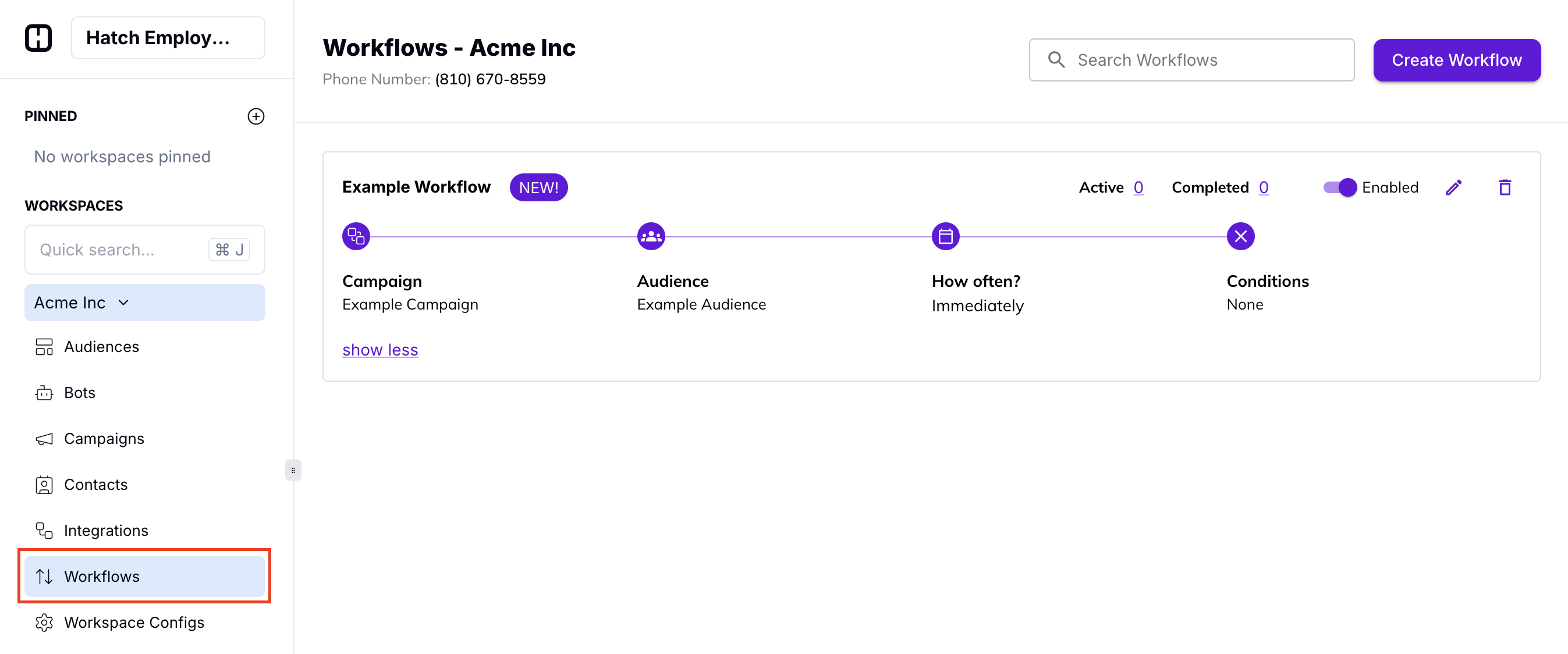
- Campaign
- Audience
- Launch Frequency
- Conditions for Removal
Enabling and Disabling
If you attempt to disable a workflow that has active contacts in it, you will be given the option to either remove those active contacts from the campaign, or let the active contacts continue through the campaign. Choosing either of these options will prevent future launches until the workflow is enabled.Other Options
By clicking the pencil icon for a specific workflow, you can edit the details of a workflow—whether that’s the name of the workflow, or conditions, or swapping in new audiences or campaigns. You can also deactivate a workflow by hitting the trash can icon, which will remove all active workflow contacts from the attached campaign and prevent contacts from being launched in the future.Additional Resources
Video walkthrough (old UI):
Help Center Articles: Campaigns
Help Center Articles: Audiences