Single sign-on
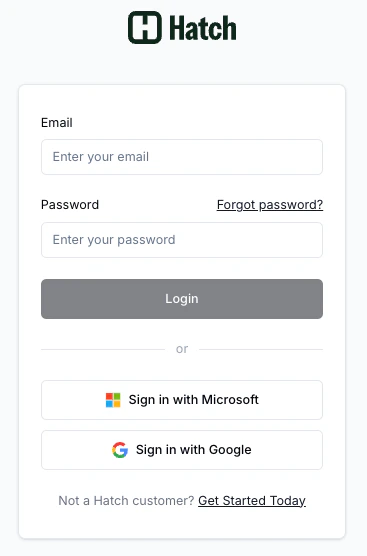
Single sign-on (SSO) lets you log in to an application using an account you already have with a trusted provider (in our case, Google or Microsoft) instead of creating and remembering a separate username and password for all your software tools. How it works:- Click “Sign in with Google” (or Microsoft)
- You’re redirected to Google/Microsoft to confirm it’s really you
- Google/Microsoft confirms that you are who you say you are
- You’re logged in — no new password needed
Multi-factor Authentication
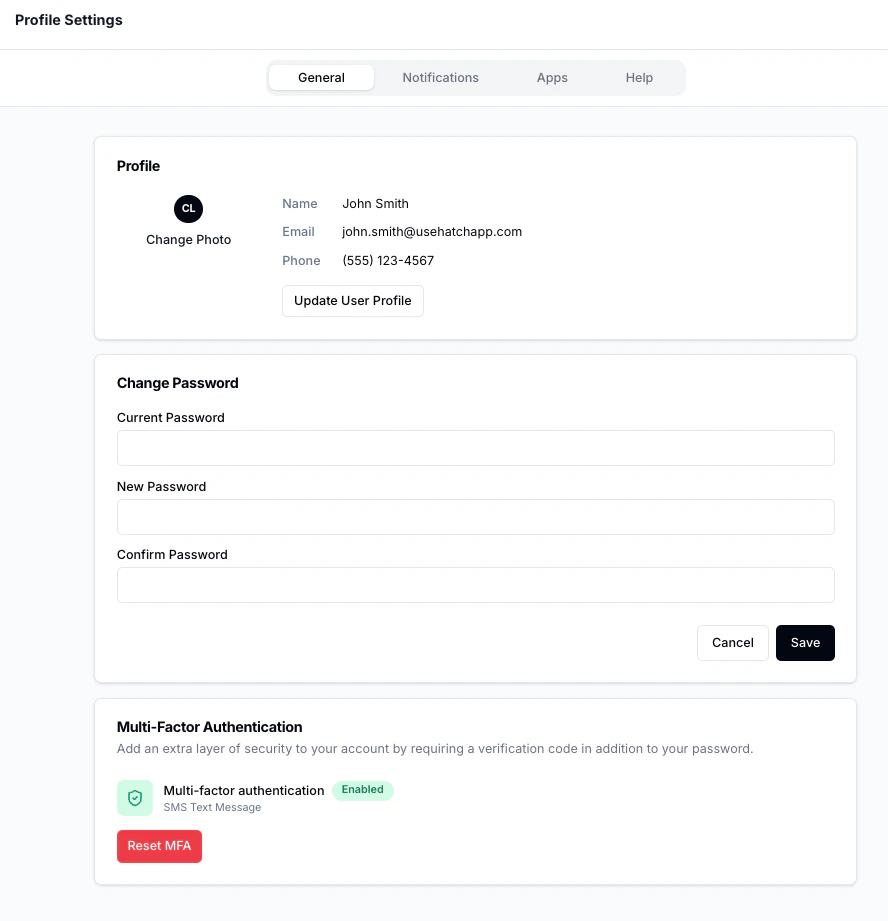
MFA adds a second step to the login process beyond just your password. The idea is that even if someone steals your password, they still can’t get in without access to the second piece of your login. The two supported methods are: Authenticator App (TOTP)An app like Google Authenticator, Authy, or 1Password generates a 6-digit code that refreshes every 30 seconds. After entering your password, you open the app and enter the current code to Hatch. The code is tied to your specific account and can’t be reused. SMS A one-time code is sent to your phone number via text message. After entering your password, you enter the code from the text. Codes expire after a short window and can only be used once. For now, MFA isn’t required on your Hatch account, so you can skip setting it up. But for security reasons (hackers try to get into Hatch all the time!), we will be mandating MFA set-up in the near future, if you’re logging in with your email and password. If you’re logging in with Google or Microsoft, MFA is not required, because Google/Microsoft have already verified your identity through their own security process.
Managing log-in
You can always reset your MFA settings, reset your password, or change the phone number associated with your account on the Profile Settings page, accessible by clicking your avatar, in the bottom left corner of Hatch.