Documentation Index
Fetch the complete documentation index at: https://docs.usehatchapp.com/llms.txt
Use this file to discover all available pages before exploring further.
You must have Manager permissions to edit General Settings. Members with rep-level access can view these settings but cannot save changes.
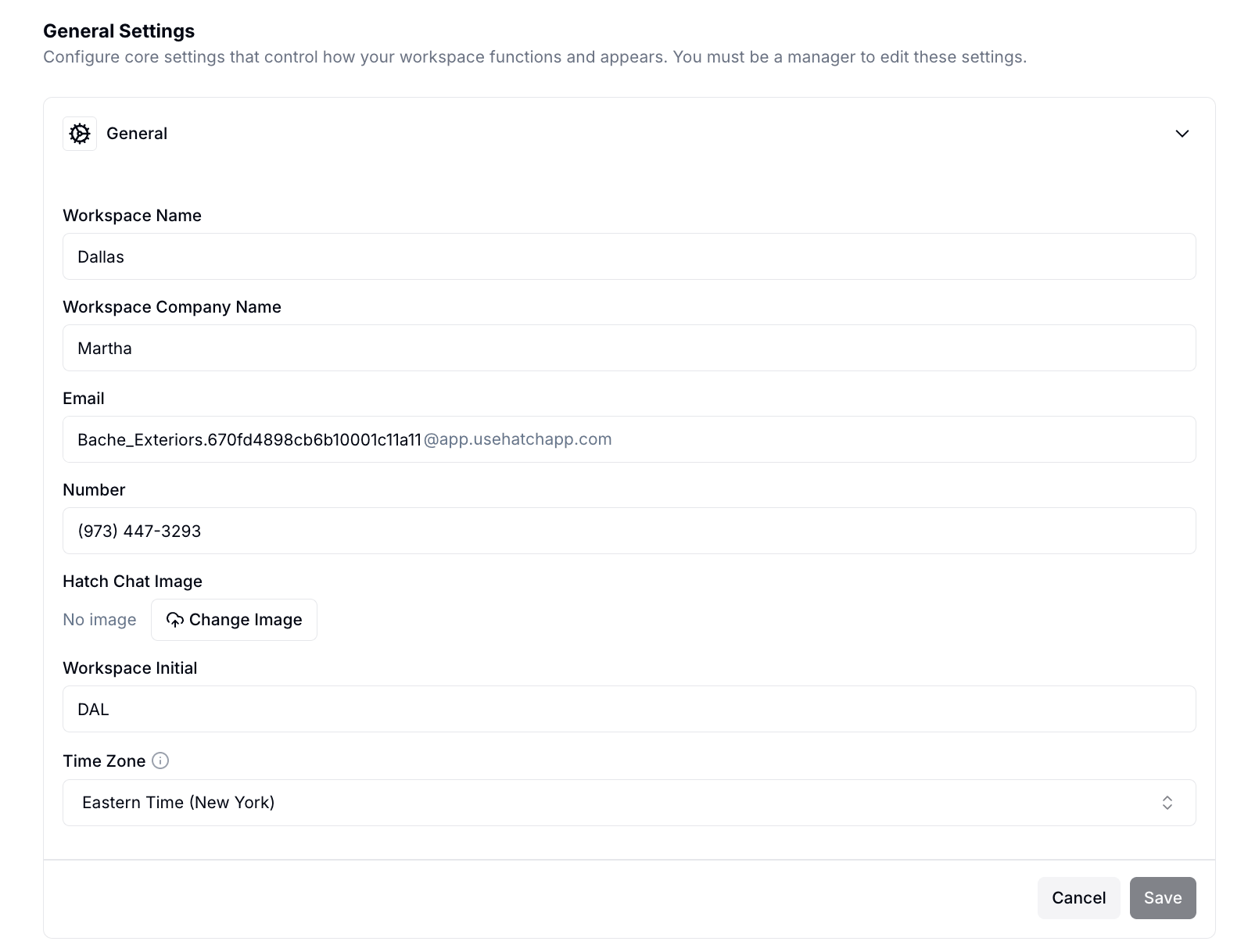
Access Workspace Configs by clicking the settings icon in your workspace navigation, then select the General tab.
Workspace Name
The name that identifies this workspace across Hatch — in the left sidebar, in notification items, and in reporting. Choose something that makes it easy for your team to know which workspace they’re in (for example, the location or line of business it covers).
Workspace Company Name
The company name associated with this workspace. This is used in certain message templates and customer-facing contexts. If left blank, Hatch will fall back to the organization name.
Email
Each workspace has a dedicated email address used for email-based conversations. You can customize the prefix (the part before the @).
Number
The dedicated phone number for this workspace. This is the number contacts will see when you call or text them from this workspace. The number is assigned during workspace setup and is read-only — contact support if you need it changed.
Hatch Chat Image
Upload an image to represent this workspace in the Hatch Chat widget. Click Change Image to upload a new one, or the trash icon to remove the current image.
Workspace Initial
A short label (up to 5 characters) displayed on the workspace button in the left sidebar. This is what you’ll see on the square button you click to navigate to this workspace. It is automatically uppercased.
Time Zone
Sets the timezone for this workspace. Campaigns and scheduled messages will go out at the times you configure, interpreted in this timezone. Make sure this matches the timezone where your team and contacts are located.
After making any changes, click Save. To discard your edits, click Cancel.
Business Hours
Set the days and times your workspace is open, and configure an automatic SMS reply for contacts who reach out outside those hours. See Workspace-Level Business Hours for details.