

Opening a conversation
The side drawer — recording, transcript, summary, and Context tab.
Jumping to the Contact Record
See the contact’s full history across every channel and agent.
Flagging a Call (Beta)
Report a conversation that went wrong and track it to resolution.
Opening a conversation
Click any row on the Conversations page to open it in the side drawer, without losing your place in the list.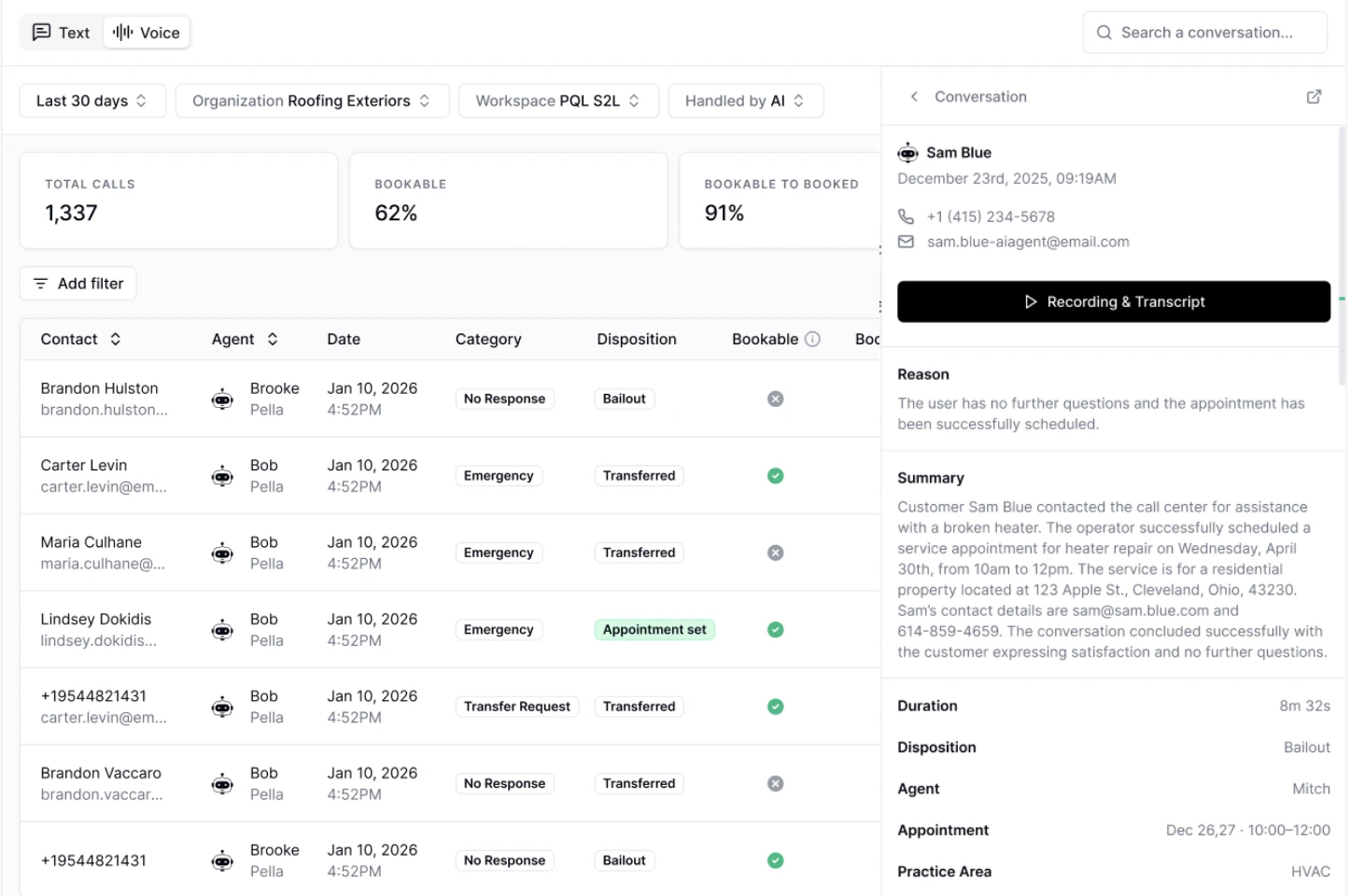
- The recording — play back the call from the drawer.
- The transcript — read the full back-and-forth instead of listening.
- An AI-generated summary — a short account of what the caller wanted and what happened, so you can triage without playing anything.
- The Context tab — the Conversation Metrics for that call, including Category, Booking Status, and Handling, alongside the call’s key details.
Jumping to the Contact Record
Use the arrow at the top of the drawer to open the full Contact Record for that contact. This is where you go when the single conversation doesn’t tell you enough — the Contact Record carries the contact’s full history across every channel and every agent, including earlier calls and text threads.Flagging an issue
If a conversation didn’t go the way it should, flag it with a note and your Hatch team will work it through to resolution. You can flag from the side drawer, the Contact Record, or while listening to a recording. See Flagging a Call for the full walkthrough, including how to find your flagged conversations and set up notifications.Related Articles
- Flagging a Call (Beta): report a conversation that went wrong.
- Conversations Page: finding the conversations worth reviewing.
- Glossary: what Category, Booking Status, and Handling mean.
- Review your new AI Agent: where to start with a newly launched agent.